
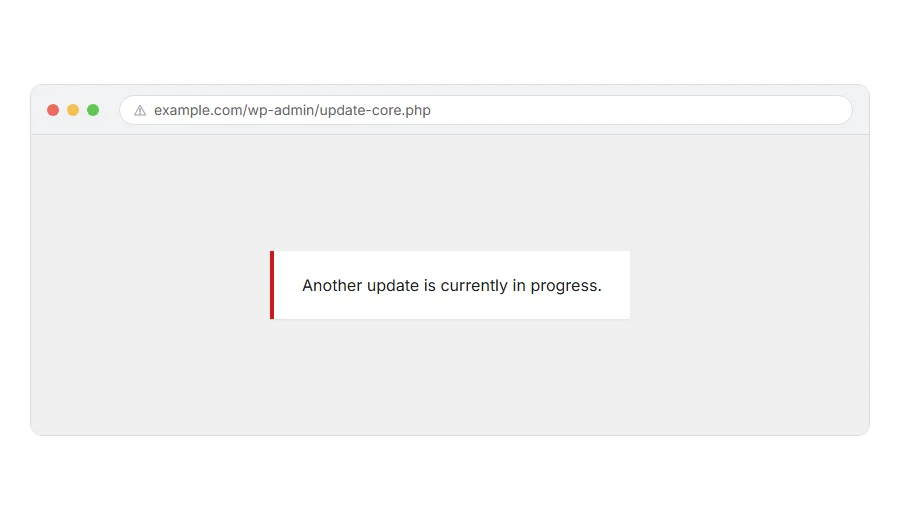
You went to update WordPress and it stopped you with Another update is currently in progress. There is no other update running. You are the only person on the site. And yet there it sits.
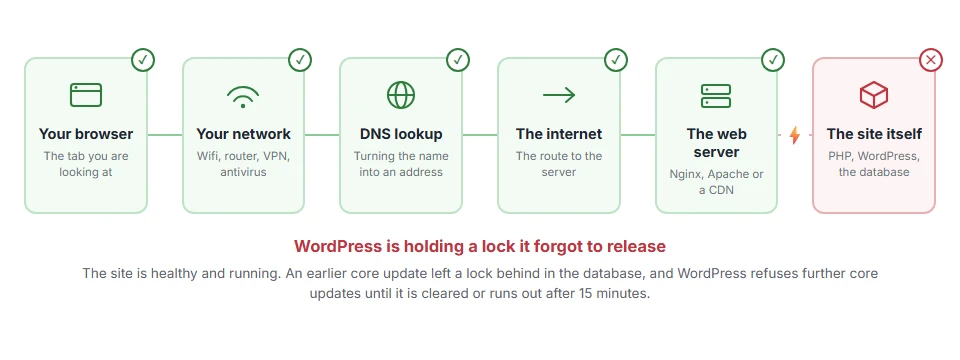
Here is what has happened. WordPress puts a lock in the database before it starts a core update, and removes it when it finishes. Your update did not finish, so the lock is still there.
Think of it like a fitting room door with the latch turned. Nobody is inside. Somebody just walked out without flipping it back.
Do not worry, you are not alone, and nothing is broken. I am here to help, and there are three ways to clear it, from the one that needs no tools at all to the one that touches the database.
Where it actually breaks
Every page you open makes the same journey. Knowing which step this error stops at tells you which half of the list below is worth your time, because the green steps are already proven to be working.
Step 1: Wait fifteen minutes
Genuinely. This is the first thing to try, not a joke.
WordPress sets that lock with a timestamp, and it expires by itself after fifteen minutes. If your update failed a moment ago, the lock will clear on its own and you can carry on as if nothing happened.
Make a cup of tea, come back, and reload the Updates page.
When this will not help: if it has already been more than fifteen minutes and the message is still there, the lock is not expiring for some other reason. Move on.
Step 2: Clear it with a plugin
If you can reach your dashboard, this is the safest route because you never open the database.
Install Fix Another Update In Progress, which does exactly one thing. Activate it, go to Settings > Fix Another Update In Progress, and click the button to remove the lock.
Then deactivate and delete it. It has done its job and there is no reason to leave it running.
When this will not help: if the same message blocks you from installing plugins too, you cannot use this route. Go to step 3.
Step 3: Delete the lock row in the database
This is the direct fix and it is safe, as long as you delete the right row.
Open phpMyAdmin from your host’s control panel, choose your site’s database, and open the options table. If your tables have a different prefix, use that instead of wp_.
Search the option_name column for:
core_updater.lockDelete that one row. Nothing else.
Then reload the Updates page in WordPress and the message will be gone.
When this will not help: back the table up before you delete anything. Use the Export button on the options table first. And take a second to be sure you have the right row: deleting a different option can knock out a setting somewhere else on the site.
Step 4: Check why the update failed in the first place
Clearing the lock lets you try again, but if the update failed once it will very likely fail again for the same reason.
The usual causes are a PHP memory limit that is too low, a folder that WordPress cannot write to, or a connection that dropped partway through a large download.
Look in your host’s error log around the time of the failed update. If a memory message is there, ask your host to raise the PHP memory limit, or add this to wp-config.php. Updates run in the dashboard, and this line sets the dashboard’s memory limit:
define( 'WP_MAX_MEMORY_LIMIT', '512M' );When this will not help: many hosts cap the memory limit at account level, and that line will then be quietly ignored. If it does not take effect, only your host can raise it.
Step 5: If the update keeps failing, update by hand
Sometimes the automatic updater simply cannot finish on a particular host, and fighting it is a poor use of an evening.
Download WordPress from wordpress.org, unzip it, and delete the wp-content folder from the unzipped copy so you do not overwrite your own themes, plugins and uploads. Then upload the remaining files over the top of your site by FTP, replacing what is there.
Load yoursite.com/wp-admin/upgrade.php afterwards so WordPress can run any database changes it needs.
When this will not help: take a full backup first, files and database both. A manual update is not risky when done correctly, but there is no undo button if you upload the wrong folder.
Frequently asked questions
Will deleting the lock break my site? No. It is one temporary row that WordPress creates and destroys routinely. Removing it is exactly what WordPress would have done itself.
How long does the lock last on its own? Fifteen minutes from when it was set. If yours is older than that and still blocking you, something stopped it expiring and step 3 clears it.
Why did my update fail at all? Usually memory, file permissions or a dropped connection. Step 4 is where to look, and the error log will normally say it outright.
Can I just delete the whole options table? No. Please do not. That table holds nearly every setting your site has, from its name to its permalinks. Delete the one row and nothing else.
If you have any issues, you can ask me via comment, and I will love to help you out.
