
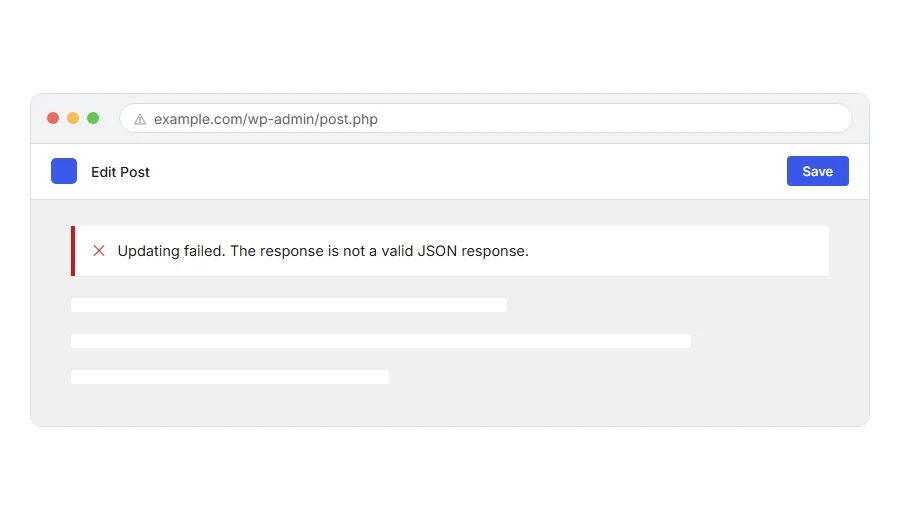
You clicked Save on a post and got Updating failed. The response is not a valid JSON response. Or you clicked Publish and got the same thing with a different first word.
The message is written for developers, which is why it helps nobody.
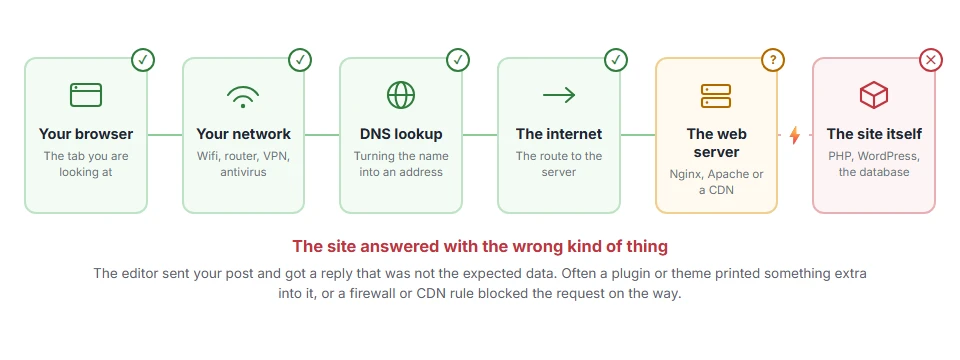
Here is what it means in plain words. The editor sent your post to WordPress and got back something that was not the answer it expected. Usually not an error, just a page of something else entirely.
Think of it like posting a form and getting back a menu from a takeaway. It is not that the reply was rude, it is that it was not a reply to your question at all.
Do not worry, you are not alone. This is one of the most common editor errors and it is almost always fixable in a few minutes. I am here to help.
Where it actually breaks
Every page you open makes the same journey. Knowing which step this error stops at tells you which half of the list below is worth your time, because the green steps are already proven to be working.
First, find out whether your REST API is reachable
Do this before any of the fixes, because it tells you which half of the list you are in. It takes twenty seconds.
Go to Tools > Site Health > Status, or just open this address in your browser, with your own domain:
yoursite.com/wp-json/If you see a wall of text and curly brackets, your REST API is working and the problem is more likely a plugin or your editor. If you see a 404, a redirect, or a blank page, the API itself is blocked and steps 1 and 2 are your fix.
Site Health also runs this check for you and will say plainly if the REST API encountered an error.
Step 1: Save your permalinks
If the API gave you a 404, start here. It is the single most common fix and it changes nothing else.
Go to Settings > Permalinks and click Save Changes. You do not need to change any setting. Just saving rewrites your rules and very often puts /wp-json/ back on the map.
When this will not help: if your permalinks are set to Plain, the REST API works differently and you should switch to Post name while you are on that screen anyway.
Step 2: Check that your site address matches how you actually browse it
The editor calls the API using the address WordPress has stored. If that does not match the address in your browser bar, the browser blocks the call and you get this error.
Go to Settings > General and check WordPress Address (URL) and Site Address (URL). Both should start with the same https:// and the same www. (or no www.) that you see in your browser bar.
If you browse to https://www.yoursite.com but the setting says http://yoursite.com, that mismatch alone will produce this error every time.
When this will not help: change these two carefully. Getting them wrong locks you out of the dashboard, so write down what they say now before you touch them.
Step 3: Deactivate your plugins
A plugin printing a warning, a notice, or any other stray text is enough to spoil the reply, because the editor is expecting only data.
Deactivate everything and try updating a post. If it works, switch them back on one at a time until it breaks.
Security plugins and anything that touches the REST API are the usual suspects, and some security plugins have a setting that disables the REST API for logged out users which then catches logged in ones too.
When this will not help: if you cannot reach the dashboard at all, rename wp-content/plugins to plugins-off over FTP. That switches every plugin off at once.
Step 4: Switch to a default theme
Same logic. A theme’s functions.php with a blank line after its closing tag will produce stray output on every request, including API ones.
Activate Twenty Twenty-Five and try again. If the error goes, look at the top and bottom of your theme’s functions.php for stray whitespace, and delete the closing ?> entirely if there is one.
When this will not help: if you are using a child theme, check both the child and the parent files.
Step 5: Ask your host about mod_security or the firewall
If the API is blocked and steps 1 to 4 did nothing, something in front of WordPress is stopping the request.
Many hosts run a firewall called mod_security that blocks requests it thinks look suspicious, and certain content in a post can trip it. Another firewall or a CDN rule can do the same.
Message your host, tell them that /wp-json/ requests are being blocked, and ask them to check the mod_security log for your account at the time you tried. They can see the rule that fired. You cannot.
When this will not help: if you have no host to ask because you are on your own server, look in your Nginx or Apache error log for the same window of time.
A workaround while you fix it
If you need to publish right now and cannot wait, switch to the classic editor for the moment.
Install the Classic Editor plugin and it will save posts the old way, which does not use the REST API. That gets your work published today while you sort the real cause out.
It is a workaround and not a fix, and I would rather say so than let you think the problem has gone away.
Frequently asked questions
Did I lose my post? Usually not. Open the editor again and check the revisions, or look in the drafts list. WordPress often saved a copy even though the update itself failed.
Why does it happen on some posts and not others? That points at mod_security or a firewall. Certain words, code samples or link patterns in the content trip a rule, which is why it looks random. Step 5 is your one.
Is it a plugin or my host? The check at the top tells you. If /wp-json/ loads fine in a browser, look at plugins and theme. If it does not, look at permalinks, the site address, then your host.
Will the Classic Editor plugin break anything? No, and you can remove it whenever you like. Your posts stay as they are.
If you have any issues, you can ask me via comment, and I will love to help you out.
Other things that break in the editor
Error names are easy to mix up, and the wrong page wastes your time. If what you are looking at is not quite what this one describes, one of these will be closer.
- ERR_CACHE_MISS, the confirm form resubmission message, which is usually nothing to fix.
- 403 Forbidden, if the save is refused outright rather than returning the wrong kind of answer.
A tool that helps with this
If it is useful, the JSON formatter on this site will paste the response in and it names the line and column that is broken, in words. It runs in your browser, so nothing you put into it is uploaded anywhere.
Opening the JSON file yourself
If you have the file in front of you and simply want to read it, our guide on how to open a JSON file covers the quickest way on Windows, on a Mac and on a phone, and how to make a file that was saved on one long line readable again. If the word JSON still means nothing to you, start with what JSON is, which explains it with a short example.
