
Have you downloaded a file ending in .json, double clicked it, and had Windows ask which app should open it, or watched it open in something useless?
Don’t worry, you are not alone, and here is the good news before anything else: a JSON file is plain text. You already have several programs that open it and you do not need to install a thing. The only real question is which one shows it in a way you can actually read, because most JSON arrives squashed onto one enormous line.
In this article you will learn how to open a json file on Windows, on a Mac and on a phone. You will also see how to make a squashed one readable in one click, which program to reach for when the file is enormous, and what to do when something tells you the file is not valid.
So let’s get started.
What is actually inside a JSON file
It makes more sense once you know what you are looking at.
JSON holds information as pairs: a name, then its value. Names sit in quotes, values can be text, numbers, true or false, a list in square brackets, or another group in curly brackets.
It is how one program hands information to another, which is why JSON files turn up as exports from apps, as settings files, and as the answers from web services.
1) Windows: Notepad, or any browser
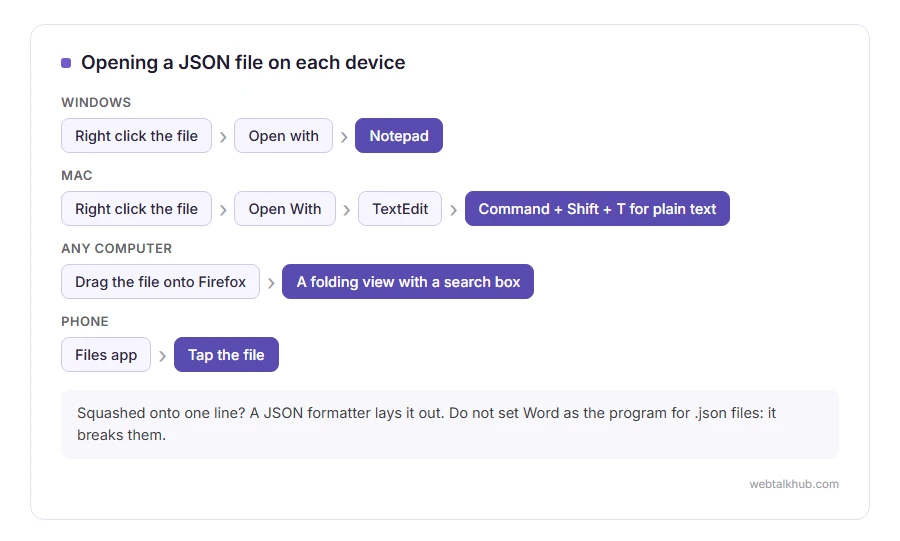
Right click the file, choose Open with, then Notepad. It opens every time, and if the file was saved on one long line it will be unreadable, which is normal and the next section fixes it.
The nicer option is a browser. Drag the file onto an open Chrome, Edge or Firefox window. Firefox suits this job better than the other two, because it shows a folding view with a search box rather than a wall of text.
One thing I do not recommend: setting Word as the default program for JSON. It opens the file, then wants to save it with formatting, and a JSON file with formatting in it is no longer valid.
2) Mac: TextEdit, and a shortcut worth knowing
Right click the file, choose Open With, then TextEdit. If TextEdit tries to be clever with formatting, press Command and Shift and T to switch it to plain text.
Dragging the file into Safari or Chrome works exactly the same way as on Windows.
TextEdit can refuse a very large file, so if it hangs, this will not help and you want a browser or the code editor in step 5 instead.
3) Phone: easier than it looks
On an iPhone, open the Files app and tap the file, and it shows the text. On Android, use the Files app and choose a text viewer, or let Google Drive preview it.
If nothing offers to show it, rename the file so it ends in .txt. The content does not change and every phone opens a .txt.
Renaming is fine for reading. Remember to rename it back before you hand the file to anything that expects .json, or that program will refuse it.
4) Make a squashed file readable in one click
Most JSON that comes out of a program is written on a single line to save space, which is useless for a human being.
Paste it into our JSON formatter and it lays the file out with proper indentation, so you can see the structure. It also tells you the line and character where the file is broken, if it is broken.
It runs in your browser, so the file is not uploaded anywhere, which matters because exported JSON often carries personal details. The limit of that is your own computer’s memory: a file of several hundred megabytes will make any browser tab struggle, and step 5 is the answer for those.
5) A proper editor, for anything bigger than a glance
For a file you will spend more than a minute in, use a code editor. Visual Studio Code and Notepad++ on Windows are free, and Sublime Text is paid, though you can try it for free first.
They colour the file, fold sections, search inside it and reformat it with one shortcut. Visual Studio Code does all of that with nothing extra installed.
Even these slow down on a truly huge file. Editors built for size, such as EmEditor, open a file of several gigabytes without loading all of it, which nothing above will do.
6) When something says the file is not valid
If a program refuses your JSON, the file has a real fault, and it is nearly always one of four.
A missing or extra comma. A quote that was never closed. Curly or smart quotes instead of straight ones, which happens when text has been through Word. And a trailing comma after the last item, which JSON does not allow even though most programming languages do.
Paste it into the formatter above and it points at the character where it gave up. That is usually a line or two after the real mistake, so read upwards from there.
One case where repairing does nothing: a file that simply ends halfway through is a download that never finished. Download it again rather than trying to patch it.
FAQ(Opening a JSON File)
Do I need to install anything to open a JSON file?
No. Notepad, TextEdit and any browser will show it. An editor is nicer, not necessary.
Why does my JSON file open in a strange app?
Because Windows remembers the last program you used for that file type. Right click, Open with, Choose another app, and set the one you want.
Can I open a JSON file in Excel?
Excel can import JSON through Get Data, then Transform. It works for simple, table shaped data and makes a mess of anything nested, so read it as text first to see which kind you have.
Is it safe to open a JSON file?
Reading one is safe, because it is text and does not run. Be careful about what is inside it instead, since exports often contain personal information.
What is the difference between JSON and a .txt file?
None, as far as your computer is concerned. Both are text. The ending tells programs what shape to expect inside.
If you have any issues, you can ask me via comment, and I will love to help you out.
Running code a moment later
Once you are reading and writing files in the browser, timers turn up quickly. Our page on setTimeout in JavaScript covers how the delay really works, how to cancel one, and the bracket mistake that makes it fire immediately.
If the file will not open at all
A JSON file that a program refuses is often one missing quote or one comma too many.
- what a syntax error is, the same kind of mistake in code, and the quickest ways to track it down.
- Node.js, the program behind most of the JSON files you will find in a project folder.
