
Has somebody told you to flush dns cache to fix a site that will not load for you while it loads for everybody else?
Don’t worry, it is one of those jobs that sounds technical and takes ten seconds. Your computer keeps a short list of which address belongs to which website name, so it does not have to ask every time. Flushing throws that list away, and the next time you open the site, your computer asks again and gets the current answer.
It is worth knowing when this actually helps before you type anything:
- The site has moved to a new host and you still see the old one
- You changed a domain’s records and your own machine has not noticed
- A site works on your phone’s mobile data but not on your computer
- A site came back online after being down and still fails for you
And when it will not help: the site is down for everybody, your internet is not working at all, or the change was made a few minutes ago at the other end and simply has not spread yet.
In this article you will learn the command for Windows, the one for a Mac, the two pages Chrome keeps for itself, what your router holds, and what to do when the old site is still showing after all of that.
So let’s get started.
1) Windows: one command
Click Start, type cmd and open Command Prompt. You do not need to run it as administrator on current Windows versions. If you are on a work laptop where the command is blocked, I recommend asking IT rather than hunting for a way around it, because the same policy usually blocks the next three steps as well.
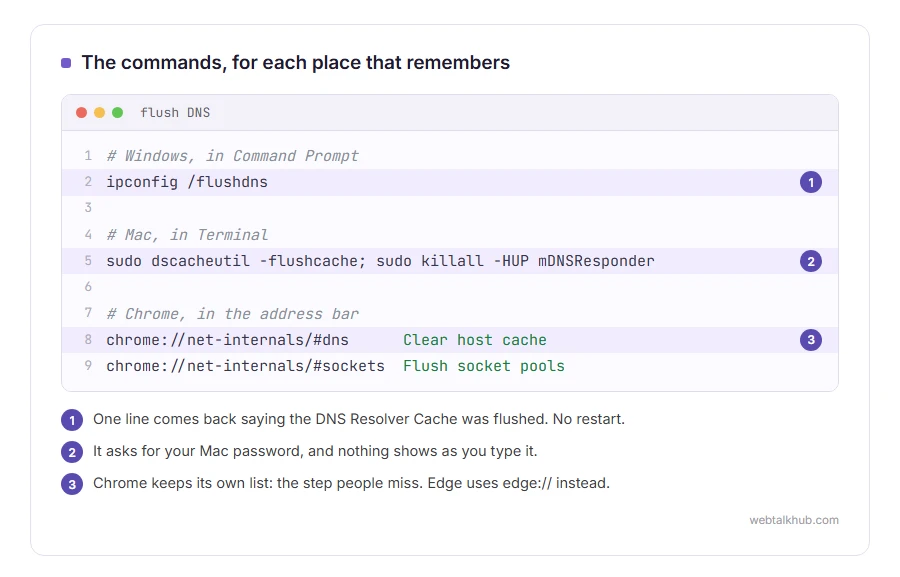
Type ipconfig /flushdns and press Enter. You get one line back saying the DNS Resolver Cache was flushed, and that is the whole job. There is no restart and nothing else to confirm.
This clears Windows’ own list only. Chrome keeps a separate one, so on a browser problem you want step 3 as well.
2) Mac: one line, and the password prompt is normal
Open Terminal from Applications, then Utilities.
Type sudo dscacheutil -flushcache; sudo killall -HUP mDNSResponder and press Enter, then type your Mac password when it asks. Nothing appears on screen as you type the password, which is how Terminal always behaves, and it says nothing when it works either.
That command line is right for every macOS from the newest one back to El Capitan. On anything older the command was different, so if it errors, look up the one for your exact version rather than forcing it.
3) Chrome keeps its own list
This is the step people miss, and it is why a site can stay broken in Chrome after a successful flush.
Type chrome://net-internals/#dns in the address bar and press Enter, then click Clear host cache. Then open chrome://net-internals/#sockets and click Flush socket pools, because Chrome also keeps open connections that carry on using the old address.
Edge uses the same pages with edge:// in front. Firefox clears its own on a restart, or through about:networking#dns.
A private window is not a clean test here, because it shares the same cache. Close Chrome completely instead, or compare in a different browser.
4) Your router remembers too
Home routers keep a cache of their own, and on most of them there is no button for it.
Restart the router and wait two minutes. That clears it on almost every model, and it clears it for every device in the house at the same time.
Keep in mind that restarting the router affects everybody using it, so do it when nobody is in a call, and on a work network ask before you restart anything.
5) If the old site still shows after all that
Then the stale answer is not on your machine, and there are three usual places for it.
Your internet provider’s DNS servers can hold an old answer for as long as the record’s own time limit says. Switching your computer to 1.1.1.1 or 8.8.8.8 steps around that in a minute.
The website’s own caching, or a service in front of it such as Cloudflare, where you clear the cache in their dashboard rather than on your computer.
And the record itself, which spreads at the speed its time to live allows. If that was set to a day, a day is what it takes, and nothing you type locally will hurry it along.
Use a checker such as dnschecker.org to see what the rest of the world is being told. If servers around the world already show the new address and only you see the old one, it is local. If they show the old one too, waiting is the only real answer.
FAQ(Flushing the DNS Cache)
Does flushing the DNS cache delete anything important?
No. It only throws away temporary answers your computer can ask for again. Nothing you have saved is touched.
How often should I do it?
Only when you have a reason. It is a fix for a specific problem, not maintenance.
Will it speed up my internet?
No, and for a moment the opposite is true, because the next few lookups have to be fetched again.
Do I need to restart after flushing?
No. It takes effect immediately.
Why does the site still load the old version?
That is your browser’s page cache rather than DNS. Press Ctrl and F5, or Cmd and Shift and R, to force a fresh copy of the page. If the site times out instead of showing an old version, see ERR_CONNECTION_TIMED_OUT.
If you have any issues, you can ask me via comment, and I will love to help you out.
If flushing did not fix it
A clean cache only helps when the answers themselves are right. When the server giving them is the problem, change the server.
- change your DNS server, the settings on Windows, a Mac, phones and the router, and which public servers to use.
