
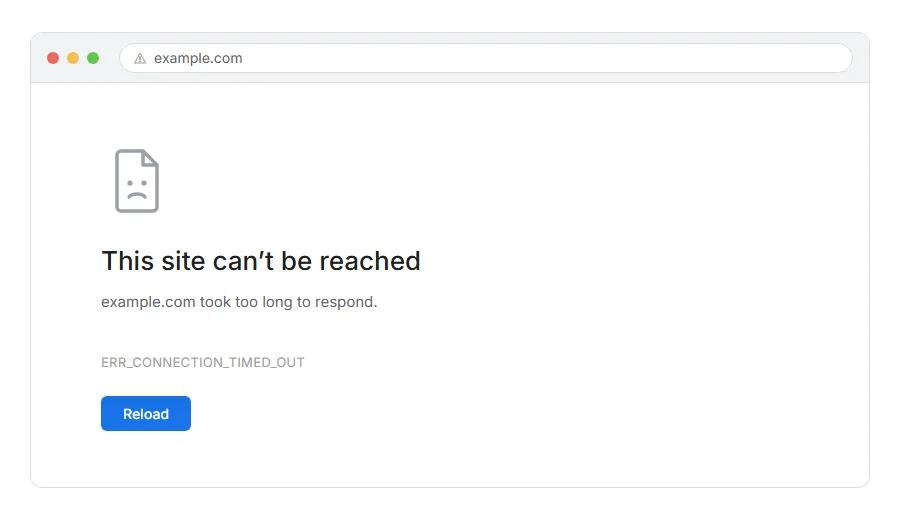
Is Chrome sitting there loading for half a minute and then giving you ERR_CONNECTION_TIMED_OUT, while every other site works normally?
Don’t worry, you are not alone. What it means is that your browser asked for the page and nothing came back before the clock ran out. Notice what did not happen: nothing refused you. That is what makes this different from most errors, because a refusal comes back quickly and silence usually means a firewall dropping the request, or a server that is down or cannot be reached.
The usual causes are:
- A VPN, a work proxy or a filter standing between you and the site
- An old address in your computer’s memory, pointing at somewhere that no longer answers
- A firewall or antivirus quietly dropping the connection
- A line in the hosts file sending that site to an old or wrong address
- The site being down, overloaded, or blocking your address at its own firewall
In this article you will learn one test that splits the problem in half, then six fixes for your own computer, and a short part for site owners, since a site that times out for one visitor and nobody else has a specific cause.
So let’s get started.
The one test worth doing first
Open the same address on your phone with wifi switched off, so it goes over mobile data.
If the page loads there, the site is up and the trouble is something between your computer and it, or the site blocking your home address, so start with fixes 1 to 6. If it fails there too, the site itself is the problem and the last section is the one to read.
That one test saves an hour of changing settings for nothing.
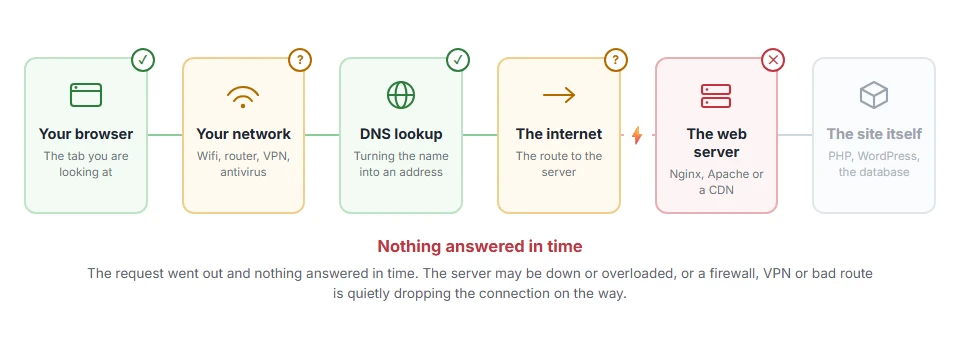
Where it actually breaks
Every page you open makes the same journey. Knowing which step this error stops at tells you which half of the list below is worth your time, because the green steps are already proven to be working.
1) Restart the router, and try a cable
A router that has been running for weeks can hold broken connection state, and a restart clears it.
Before you start, check nobody in the house is on a call, because this takes the internet down for everyone for two minutes. Then unplug the router, wait thirty seconds, plug it back in and give it two minutes to come back.
If only one site times out and everything else is fine, the router is unlikely to be the cause. Give it one restart and move on rather than doing it over and over.
2) Turn off the VPN, the proxy and anything filtering
A VPN, a company proxy and some antivirus web shields all sit between you and the site, and any of them can swallow a connection.
Disconnect the VPN and try again. On Windows, check Settings, then Network and internet, then Proxy, and switch off anything you did not set yourself.
On a work laptop the proxy is there on purpose and you may not be able to turn it off. Then this will not help, and the useful thing you can do is test from home or on your phone and tell your IT people which address times out.
3) Flush the DNS and try a different one
An old address in your computer’s memory sends you knocking on a door that is no longer there, which times out exactly like this.
Run ipconfig /flushdns on Windows, or use the Mac command in our guide to flushing the DNS cache. Then set your connection to use 1.1.1.1 or 8.8.8.8 and try again.
If the name resolves fine and nothing answers, DNS is not your problem, so skip this step and go to the firewall and hosts file below.
4) Check the hosts file
This one is rare and it is worth thirty seconds, because when it is the cause nothing else will ever fix it.
The hosts file can point a website name at an old address that no longer answers. Old development work and some blocking tools leave entries behind.
On Windows it lives at C:\Windows\System32\drivers\etc\hosts, and on a Mac it is /etc/hosts. Open it and look for a line with the site’s name in it. If there is one you did not add, put a hash at the start of it.
Some security software keeps entries there on purpose. If you find a long block of them, leave them alone and only comment out the line for the site you are trying to reach.
5) Clear Chrome’s own caches
Chrome keeps host answers and open connections of its own, separately from Windows.
Open chrome://net-internals/#dns and click Clear host cache, then chrome://net-internals/#sockets and click Flush socket pools. Close Chrome completely and open it again.
This only matters when other browsers can open the site and Chrome cannot. When every browser times out, it is not Chrome and this changes nothing.
6) Look at the firewall and the antivirus
Windows Defender Firewall, or a suite you installed, can block a program or a whole address range.
Turn the firewall off for one attempt. If the page loads, put it back on and add an exception, rather than leaving yourself open.
Never leave a firewall off after a test. A single exception keeps you protected and fixes the page.
If the site is down or blocking you
When your phone on mobile data also times out, there are three likely reasons.
The server is down or overloaded, so check it with a site such as downforeveryoneorjustme.com, and if it is down for everybody, waiting is all there is. Or your address is blocked: hosts block addresses after failed logins or too many requests, and the block usually looks exactly like this, no answer at all. Or a whole country or network is blocked, and the refusal is silence rather than a message.
A site that answers on mobile data and times out on your home internet may have banned your home address, or your provider may be blocking it or routing it badly. A VPN gets round both, so it cannot tell you which one it is.
If the site is yours
Start on the server rather than in the browser.
Check the web server is running and listening on the port you expect. Check the firewall on the server, including any host panel firewall, since these block by address and forget to tell you. Then check for a fail2ban style tool that may have banned your own address after a few failed logins, which is the most common reason a site works for everybody except you.
Our pages on ERR_CONNECTION_REFUSED and DNS_PROBE_FINISHED_NXDOMAIN cover the two errors people mix up with this one.
FAQ(ERR_CONNECTION_TIMED_OUT)
What is the difference between timed out and connection refused?
Refused means something answered and said no. Timed out means nothing answered at all, which usually points at a firewall dropping the request silently.
Why does it only happen on one website?
Because the problem is on the route to that one site, in a blocklist, or on the site itself. Or your computer holds a wrong address for that site, which is what fixes 3 to 5 are for.
Can my internet provider cause this?
Yes. Providers block some addresses and sometimes route badly. If a VPN fixes it instantly, it is either your provider or a block the site has put on your home address.
Does clearing cookies help?
No. This error happens before any page is loaded, so cookies play no part.
Why does it work on my phone but not my laptop?
Different network, different DNS, different firewall. The test at the top of this page turns that into useful information rather than a mystery.
If you have any issues, you can ask me via comment, and I will love to help you out.
