
Did your internet stop, and the Windows troubleshooter told you ethernet doesn’t have a valid ip configuration and then offered to try again, which changed nothing?
Don’t worry, you are not alone, and the message means something quite specific: your computer asked the router for an address and never got a usable one, so it has nowhere to send anything. The same thing happens on wifi, where the message says Wi-Fi in place of Ethernet, and every fix below works for both.
The causes, in the order they turn up, are:
- The router has stopped handing out addresses, or its list of them is full
- The network cable or the socket is dead
- Windows network settings were left in a broken state after an update or a VPN
- Somebody typed a fixed address in at some point
- The network adapter driver is broken
- Fast startup is bringing the adapter back half configured
In this article you will learn seven fixes in that order, from the one that takes thirty seconds to the one that takes ten minutes, and a last test that tells you whether the fault is your computer or the router.
So let’s get started.
1) Restart the router, and check the cable at both ends
The address comes from the router, so start there.
Unplug the router, wait thirty seconds, plug it in and give it two minutes. While you wait, unplug the network cable at both ends and push it back in until it clicks, and look at the lights on the socket. If you have a spare cable, use it for this test, because a cable that looks fine can have a broken wire inside and this message is what that looks like.
No lights at all on the socket means the cable or the port is dead, and nothing in the rest of this page will help until that is sorted.
2) Renew the address
This asks Windows to drop what it has and request a new one.
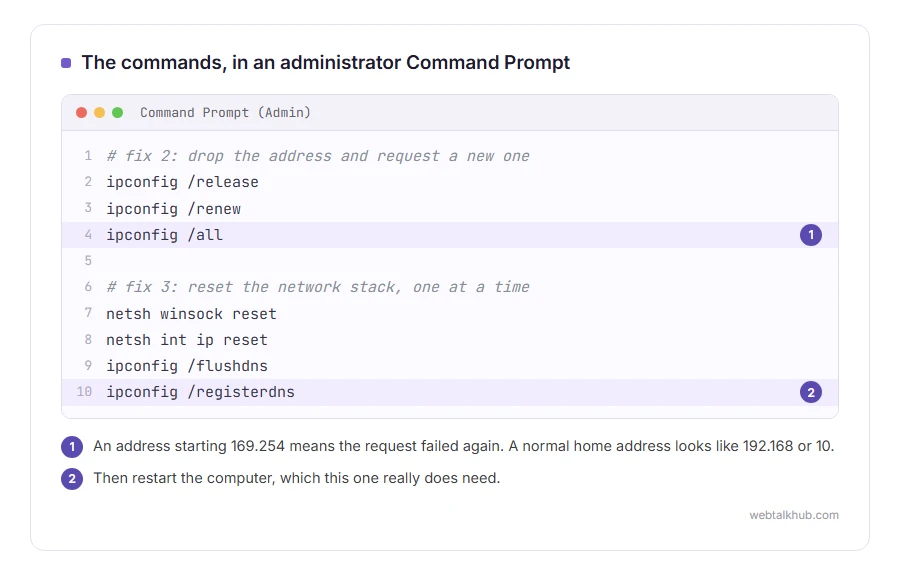
Click Start, type cmd, right click Command Prompt and choose Run as administrator. Type ipconfig /release, press Enter, then ipconfig /renew, press Enter. Then type ipconfig /all and look at the IPv4 address.
An address starting 169.254 means the request failed again and Windows gave itself a placeholder. A normal home address looks like 192.168.something or 10.something.
This will not help when the router’s pool of addresses is already full, which happens in houses with a lot of devices, and that is exactly why restarting the router comes first.
3) Reset the network stack
Windows keeps network settings that can be left broken after an update or after a VPN is uninstalled.
In the same administrator Command Prompt, run these four, one at a time: netsh winsock reset, netsh int ip reset, ipconfig /flushdns, ipconfig /registerdns. Then restart the computer, which this one really does need.
Before you run them, know the cost: this resets settings some VPN and security software relies on, so you may have to sign into a VPN again afterwards. It also wipes any fixed address or DNS server that was typed in by hand, so if you have one, write the numbers down first.
4) Make sure the adapter gets its address automatically
Somebody may have typed a fixed address in at some point, and a fixed address that does not match your router gives you this message every time.
Press Windows and R, type ncpa.cpl and press Enter. Right click your Ethernet or Wi-Fi adapter, choose Properties, select Internet Protocol Version 4 (TCP/IPv4), click Properties, and choose to obtain both the IP address and the DNS server automatically. Click OK, then disable the adapter and enable it again.
On a work computer a fixed address may be there for a reason. If the numbers were already filled in and the machine is managed by an employer, write them down before you change anything, and ask first.
5) Reinstall the network adapter
A driver can be broken by a Windows update, and this is the quickest way to rule it in or out.
Right click Start, choose Device Manager, open Network adapters, right click yours and choose Uninstall device. Do not tick the box about removing the driver software. Restart, and Windows installs it again by itself.
If you have a second computer or a phone, download the driver from the manufacturer’s site first, so you have it if Windows does not put one back.
This is the step that fixes it when the message appeared right after an update. It rarely helps when the trouble started after changing router or cable.
6) Turn off fast startup
Windows fast startup does not shut the machine down fully, and network adapters sometimes come back in a half configured state because of it.
Open Control Panel, then Power Options, click Choose what the power buttons do, then Change settings that are currently unavailable, and untick Turn on fast startup. Then shut down properly once and start again.
Your computer will take a few seconds longer to start from cold, and that is the whole cost. If the error only ever appears after a shutdown rather than a restart, this is very likely your cause.
7) Check the antivirus and any VPN software
Security suites install their own network filters, and a half removed VPN leaves adapters behind that confuse Windows.
In the adapter properties screen from fix 4, look at the list of items. If you see an entry from a VPN or a security suite you no longer use, untick it, or uninstall that software properly with the maker’s own removal tool.
Unticking is a test, not a fix. If it works, uninstall the leftover software rather than leaving a half disabled filter in place.
The test that says whether it is the computer or the router
Plug another computer, or a phone with an adapter, into the same cable and port.
If that one gets online, the trouble is on your computer and the fixes above are the right list. If nothing gets an address, it is the router or the line, and your provider is the next call.
FAQ(Ethernet Does Not Have a Valid IP Configuration)
What does 169.254 mean in ipconfig?
It is Windows giving itself a placeholder address because no router answered. It is the same problem in a different place.
Does this mean my network card has failed?
Rarely. A dead card usually shows as no adapter at all, or as a cable unplugged message. This one is about the address.
Wi-Fi says the same thing. Is it the same fix?
Yes. The message says Wi-Fi instead of Ethernet, and every step here applies.
Why did this start after a Windows update?
Usually the driver, so fix 5 is the one to try first in that case.
Can a full router really be the cause?
Yes. Home routers hand out a limited number of addresses, and a house full of devices can use them all. Restarting the router clears them.
If you have any issues, you can ask me via comment, and I will love to help you out.
