
You pressed send in Gmail on your phone and instead of going, the message sat there with the word Queued under it. Hours later it is still queued and the person is waiting.
Don’t worry, nothing is lost. Queued means Gmail has taken your message and is holding it on the phone until it can hand it over, so it is still yours: you can open it, change it or delete it. Think of it like a letter left on the hall table for somebody to post on their way out: written, addressed and still in the house. The word almost always means the phone cannot reach Google properly, not that the message failed.
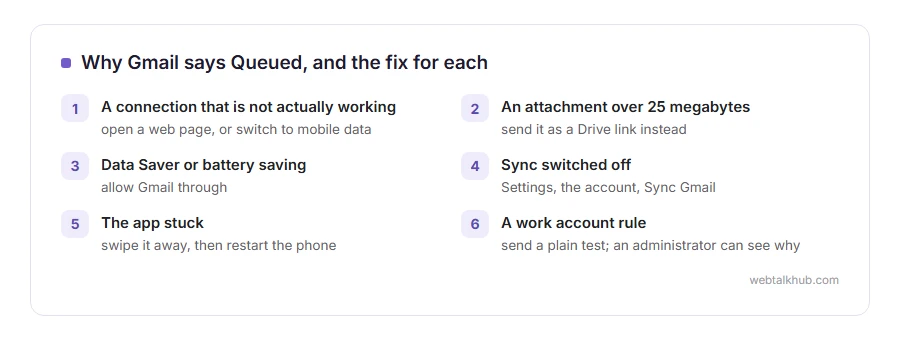
The reasons it happens are:
- The connection looks fine and is not actually working, which is normal on hotel and cafe wifi
- The attachment is too big, so the upload never finishes
- Data Saver or battery saving is stopping Gmail working in the background
- Sync is switched off for that account
- The app has got itself into a state that a restart clears
- On a work account, an administrator rule or a sending limit is holding it
In this article you will learn six fixes in that order, and where queued in Gmail is different from an Outlook outbox, which trips people up when they use both.
So let’s get started.
Where it happens, and where it does not
Queued is a mobile thing. The Gmail app holds messages it cannot send yet and shows them in the Outbox label with that word.
Gmail in a browser on a computer only holds mail back if you have turned on Gmail offline, which keeps the message in an Outbox folder and sends it by itself once you are back online. Otherwise it either sends or it tells you it failed. So if you are on a computer without Gmail offline and something looks stuck, you are looking at a different problem, and our page on email not sending covers those.
1) Give it a connection that really works
A phone can show full wifi and have no working internet, which is exactly the state that queues mail.
Open a web page in the phone’s browser. If that stalls, the connection is your cause. Turn wifi off, use mobile data for a minute, then open Gmail and pull down to refresh. Switching networks may not help if the attachment is the problem, which is the next step.
Hotel, airport and cafe wifi usually needs you to accept something on a sign in page first, and until you do, everything queues with no explanation.
2) Check the size of what you attached
Once the attachments go over 25 megabytes, Gmail swaps the file for a Drive link instead of attaching it, and on a slow connection a big file can sit half uploaded for a long time before it gives up.
Open the queued message and look at what is attached. Send the file as a Drive link instead, or shrink it first: our PDF compressor and GIF resizer both work in a phone browser.
The 25 megabytes is the size of the file on your phone, so a file showing 24 megabytes is under it, but the other person’s email provider may have a lower limit and still turn it away.
3) Turn off Data Saver and battery saving for Gmail
Both of these stop apps doing things in the background, and sending a queued message is a background job.
On Android, open Settings, then Network and internet, then Data Saver, and either switch it off or allow Gmail unrestricted data. Then check Battery and remove any restriction on Gmail. On an iPhone, open Settings, then General, then Background App Refresh, and make sure it is on for Gmail, and remember Low Power Mode does the same thing while it is on.
These settings exist to save your battery and your data, so this is a trade rather than a free win. Allowing one app through is a small cost for mail that leaves when you press send.
4) Check that sync is actually on
If sync is off for the account, everything you write waits.
In the Gmail app, open the menu, then Settings, then tap the account, and make sure Sync Gmail is ticked. On Android, also open Settings, then Accounts, and check that Gmail sync is on for that account.
On a work or school account this can be managed by an administrator and the switch may be greyed out, in which case changing it yourself will not work and you need to ask them.
5) Restart the app properly, then the phone
Swipe Gmail away from the recent apps list rather than just going to the home screen, then open it again. A surprising number of queued messages leave within seconds of that.
If it stays, restart the phone, which clears whatever state the app had got into. Restarting will not help if sync is switched off, so check step 4 before you decide the app is at fault.
Never delete the message to tidy the queue up. Once it is gone it is gone, and you will be writing it again from scratch.
6) Clear the app storage, as a last step
This is the heavy one and it is safe as long as you know what it does.
On Android, open Settings, then Apps, then Gmail, then Storage, and choose Clear cache first. Only if that fails, choose Clear storage, which wipes the app’s saved data and downloads your mail again. On an iPhone the same idea means removing and re-adding the account.
Clearing storage removes anything not yet sent, including the queued message, so copy its text somewhere first.
If it is a work or school address
A Google Workspace account can queue for reasons your phone cannot show you: a rule holding outbound mail, a sending limit already reached, or a device policy blocking sync.
Send a plain test message with no attachment. If that goes and the real one does not, you are looking at a rule about content or size rather than at the connection, and an administrator can see exactly what happened to the message.
FAQ(Queued in Gmail)
Will a queued email send by itself eventually?
Yes, as soon as the app gets a proper connection and is allowed to work in the background. If neither happens, it waits forever.
Can the other person see a queued message?
No. Nothing has been handed to Google yet, so there is nothing to deliver.
Why does it say queued on wifi but send on mobile data?
Because that wifi is blocking or intercepting the connection Gmail needs. Public networks and some office networks do this.
Does queued mean the email failed?
No. Failed messages say so and offer to retry. Queued means it has not been tried yet, or the attempt has not finished.
Is this the same as the Outlook outbox?
It is the same idea with different names, and our page on the outbox and mail stuck in it covers the Outlook side.
If you have any issues, you can ask me via comment, and I will love to help you out.
Before you change any settings
A queued message is a sending problem, so it helps to know what sending involves.
- what SMTP is, the ports, the app password, and the errors that mean each one.
- the ordinary steps, worth a look if the account is new rather than broken.
If it did send, and should not have
Queued is Gmail holding an email back. The opposite problem is one that went too soon.
- how to unsend an email in Gmail, the undo window, the 30 second setting and what works after that.
