
Do you need to send an email and want to be sure it goes to the right people, with the file attached and nothing embarrassing in it?
Don’t worry, this takes a minute once, and then it is the same everywhere. Every email program works the same way underneath: an address, a subject, a message, and a send button. What changes is where the buttons sit, and the few things that are easy to get wrong. If you do not have an address yet, start with creating a free email address.
Those few things are worth knowing before the steps:
- The difference between To, Cc and Bcc, which matters more than people think
- Attaching the file before you mention it, so you do not forget
- The subject line, which decides whether it is opened at all
- What to do when it will not send
- How to give yourself a way out when you press send too early
In this article you will learn the steps in Gmail, in Outlook and on a phone, then those five, in the order they catch people.
So let’s get started.
1) In Gmail, on a computer
Open gmail.com and sign in. Click the Compose button at the top left, and a small window opens at the bottom right of the screen.
Type the address in the To box. Gmail suggests people you have written to before, so check the one it picks rather than trusting the first suggestion. Write a subject, write the message, and click Send.
To attach a file, click the paperclip at the bottom of that window, or drag the file straight onto the message. This will not work for a file over 25 megabytes, and Gmail offers a Drive link instead, which is a good answer for large things.
2) In Outlook
In the Outlook app or at outlook.com, click New mail, or New message, at the top left.
The boxes are the same: To, a subject, the message, then Send. The paperclip is on the toolbar above the message, and Outlook has a useful extra: if it sees the word attached in your text and nothing is attached, it asks before sending.
On a work account, the address book suggests colleagues by name. Check the address underneath the name, because two people with similar names is how an email ends up in the wrong inbox.
3) On a phone
In the Gmail app, tap the pencil button at the bottom right. In the iPhone Mail app, tap the square with a pencil at the bottom right. In Outlook, the blue circle with a pencil.
Then it is the same three boxes. Attaching works through the paperclip, which offers your photos, your files and your cloud drive.
I recommend writing anything longer than a few lines on a computer if you have one. It is not a rule, and long messages typed on a phone are where most of the typos and the wrong recipients come from.
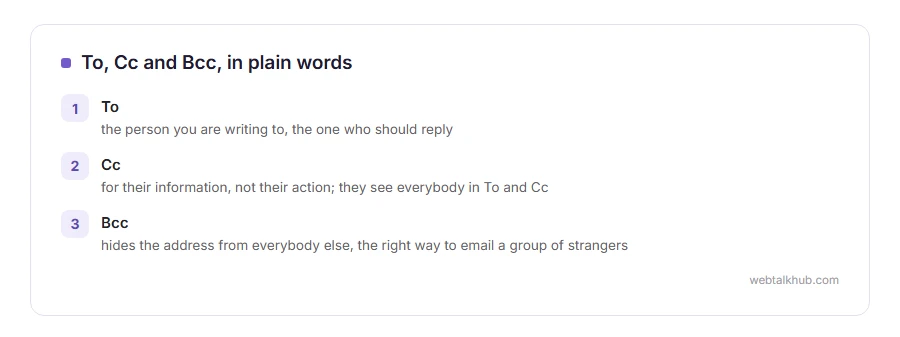
4) To, Cc and Bcc, in plain words
To is the person you are writing to, the one who should reply.
Cc means the message is for their information, not their action. They see everybody else in To and Cc.
Bcc hides the address from everybody else. It is the right way to email a group of people who do not know each other, because it stops one careless Reply All from sharing forty addresses with strangers.
Keep in mind that a person in Bcc stays hidden unless they press Reply All, which shows everybody they were there. If it matters, send it to yourself and put everyone else in Bcc, which is the ordinary way to do a mailing.
5) The mistakes that make an email fail
The attachment is too big. Most providers stop at about 25 megabytes, and business servers are often set lower. Send a link, or shrink it first: our PDF compressor and image resizer both work in the browser.
The address has a typo, and you get a bounce back within a minute. Read the first line of it, which names the fault.
It sits in the outbox and never goes, which is an app or a connection problem rather than an email problem. Our page on the outbox and mail stuck in it covers that, and email not sending covers the rest.
Give yourself a way out before you need one
Most providers can hold a message for a few seconds after you press send, and almost nobody checks how long that window is until after the mistake.
In Gmail, open Settings, See all settings, and set Undo Send to 30 seconds. In Outlook, Settings, Mail, Compose and reply, then Undo send.
It is the single most useful setting in email, and it only helps if the window is long enough to catch you. If the message has already gone, recall is a narrow and unreliable thing, which our page on how to recall an email in Outlook sets out honestly.
FAQ(How to Send an Email)
How do I send an email to more than one person?
Put the addresses in To separated by commas. If they do not know each other, use Bcc instead so nobody sees the whole list.
Why does my email need a subject?
Because people decide whether to open it from that line, and messages with no subject are more likely to be filtered as spam.
How do I attach a file?
The paperclip in any app, or drag the file onto the message on a computer. Attach it before you write about it, and you will never send the one that says see attached with nothing there.
Can I unsend an email?
Only inside the few seconds your undo setting allows. After that, a recall works in narrow circumstances and usually does not.
What do I do if it will not send?
Check the outbox, the size of the attachment, and whether you are really online. Those three cover nearly every case.
If you have any issues, you can ask me via comment, and I will love to help you out.
When the email has to sound right
Sending is the easy half. Getting the tone right for a manager or a client is the other.
- how to write a professional email, the seven parts, three short examples and the mistakes that read as careless.
The button to know about before you need it
Everybody sends one too early sooner or later.
- unsending an email in Gmail, where the Undo button appears and how to give yourself 30 seconds to use it.
