
If you have just sent an email to the wrong person, or with the wrong file attached, you are probably hunting for the recall button right now. You might fear that everyone has already read it and that there is nothing you can do.
But don’t worry. You are not alone. Every single person who uses email has sent one they wanted back, and Outlook does have a recall feature. It is just far more limited than most people expect, and knowing the limits saves you a lot of time.
Recall has a chance of working when:
- You and the person you wrote to are in the same organisation, on Microsoft 365 or Exchange, which usually means a work or school account
- The message is still in their mailbox, ideally unread
- On an older in-house Exchange server, no rule has already moved it out of their inbox
- You are at a computer rather than on your phone
Recall will not work at all when:
- You sent it to Gmail, Yahoo, iCloud, or a client or other company that does not accept recalls from yours
- You are on a personal outlook.com, hotmail.com or live.com address
- Your account is set up as POP or IMAP instead of Exchange
- They have already opened it and your admin has switched off recall for read mail
In this article you will learn four ways to deal with a sent email you regret. Two of them are the recall itself, in the old Outlook and in the new one. The third is the undo send window, which works on every account including personal ones. The fourth is a rule that holds your mail back for a minute, so you rarely need the other three at all.
You will also learn how to read the recall report, and what to say when recall is simply not possible, which is the case for most people most of the time.
So let’s get started.
1) Recall the message in classic Outlook for Windows
This is the version most offices still run, with the ribbon across the top.
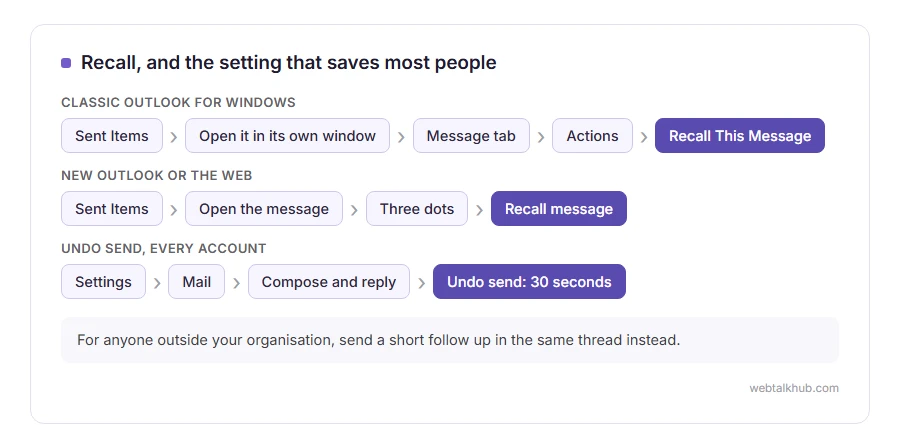
Open Sent Items in the folder list, then double click the message so it opens in its own window. That part matters, because the option never appears while you are reading in the preview pane, and this is where most people give up and decide their Outlook does not have recall.
On the Message tab, look in the Move group, click Actions, then Recall This Message. Choose to delete unread copies, or to replace the message with a corrected one, and click OK. You can skip the box asking Outlook to tell you whether it worked for each person, because on Microsoft 365 one report email comes back anyway.
If you chose the replace option, Outlook opens your message again for editing. The new version only goes out once the old one has been pulled.
If Recall This Message is missing or greyed out, that is your answer rather than a fault. Your account is not on Exchange, or your company does not offer recall. If it is greyed out on an encrypted message, recall it from new Outlook or Outlook on the web instead, which is method 2.
2) Recall it in new Outlook or Outlook on the web
The newer Outlook, and Outlook in a browser, moved this somewhere else entirely.
Go to Sent Items and open the message. On the toolbar above it, click the three dots for more actions, then Recall message, and confirm. A status line appears at the top of that message and updates itself as each recipient is dealt with, so you can come back later and see exactly who it worked for.
For anyone on a personal outlook.com account, I don’t recommend spending time on this one. Recall is a business feature, it is not in personal accounts at all, and the menu you are looking for does not exist there. Method 3 is the one for you.
3) Switch on undo send, which is the one that saves most people
Recall tries to fix a message after it has landed somewhere. Undo send stops it from leaving in the first place, and unlike recall it works on every kind of account, personal ones included.
Open Settings, then Mail, then Compose and reply, and scroll down to Undo send. Drag the slider to the longest delay it offers, which is 30 seconds, and save.
From then on, every message you send waits for those seconds with an Undo button on screen. Click it and the email opens back up as a draft with nobody any the wiser.
The only drawback is the length. Thirty seconds is the maximum Microsoft allows and you cannot extend it, so it catches the mistake you spot immediately and not the one you notice five minutes later. It also has to be switched on before you need it, which is why it is worth doing now while you are thinking about it.
4) Hold every message in the outbox for a minute
Classic Outlook for Windows can keep all outgoing mail waiting for a few minutes, which gives you a proper window instead of 30 seconds.
Go to File, then Manage Rules and Alerts, then New Rule. Pick Apply rule on messages I send, click Next twice, and say yes when it asks whether to apply it to every message. Tick defer delivery by a number of minutes, click the underlined number, set one or two minutes, and finish the rule with a name you will recognise later.
While a message waits in the outbox you can open it, change it, or delete it outright and nobody ever knows it existed.
Before you set this up, know the catch: deferred mail only leaves while Outlook is open and connected. An email written in a hurry just before you shut the laptop will sit in the outbox until the next time you open the program, so check your outbox before you close it down for the day.
What the recall report actually tells you
On Microsoft 365, one report email comes back whether you asked for it or not, with a link that shows the result for each person.
Recall succeeded means the copy was deleted from their mailbox. Recall failed means the account was never within reach in the first place, or the message had already been read and your admin has switched off recall for read mail. On an older in-house Exchange server, a message that was already opened or moved by a rule fails too. On a message sent to twenty people you can easily get both answers, because it depends on whose mailbox was within reach, and sometimes on who had already looked.
There is one thing about a failed recall that catches people out on a company’s own older Exchange server. It is not silent. The person can end up with your original message and a recall notice sitting next to it, which points straight at the thing you were hoping nobody would read. On Microsoft 365 a failed recall is silent, and the other person is not told.
When recall is not possible, this is what to do
For anyone emailing outside their own company, this is the only real option, so it deserves more than a line.
Send a short follow up quickly, in the same thread so it sits directly under the original. Say what was wrong, give the correct version, and stop. No long apology and no explanation of how it happened, because both draw more attention than the mistake did.
Something as plain as this does the job: “Apologies, please ignore my last message. The correct figure is 4,200 and the updated file is attached.”
If the mistake was a wrong recipient and the content was sensitive, tell them plainly and ask them to delete it. Most people will. If it involved customer or staff data, your organisation probably has a reporting rule, so speak to whoever handles that rather than quietly hoping it goes away.
None of this makes the original disappear. Nothing does. What it does is put the correct information in front of the reader, which is the only part still in your hands.
FAQ(Recalling an Email in Outlook)
Does the other person know I tried to recall an email?
Usually not on Microsoft 365, unless your admin has turned on recall alerts, and even then they only hear about a message that was actually recalled. On an older in-house Exchange server a failed recall can leave a notice in their mailbox, and in some setups both messages sit there together.
Can I recall an email sent to Gmail?
No. Recall only reaches Microsoft 365 or Exchange mailboxes, mostly ones in your own organisation. Once the message has been handed to Gmail it belongs to Gmail, and method 3 or the follow up above is all you have.
How long do I have to recall a message?
On Microsoft 365 the default limit is 365 days, though your admin can change it. Within that time even a read message can usually be pulled, unless your admin has switched off recall for read mail. Once they have read it, though, they have already seen it, so be quick anyway.
Why is Recall This Message greyed out?
Your account is not an Exchange or Microsoft 365 work account, you opened the message in the preview pane instead of its own window, or you are looking at a message you received rather than one you sent.
Can I recall an email on the Outlook phone app?
No, the option is not in the mobile apps at all. Get to a computer, or open Outlook in a browser.
Is there anything like recall for a personal account?
Only undo send, the 30 second window in method 3. Switch it on and treat it as your safety net.
If you have any issues, you can ask me via comment, and I will love to help you out.
Editing the attachment before you send it again
If the reason you wanted the message back was the file rather than the words, it is usually quicker to fix the file and send a corrected one. Our guide on how to edit a PDF free covers filling in, changing text and removing pages, and which free route suits each job.
So you do not need to recall the next one
Most recalls happen because an email went out too fast, to the wrong people, or in the wrong tone.
- writing a professional email, including the last read before sending that catches most of it.
