
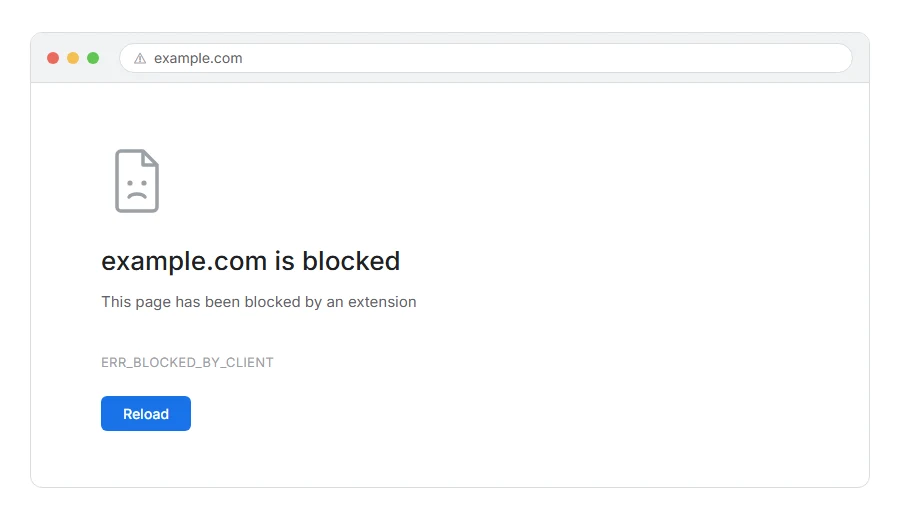
Part of a page will not load, or the whole page stays blank, and in the console or on screen you see ERR_BLOCKED_BY_CLIENT.
This one is different from nearly every other browser error, and the difference is the whole answer.
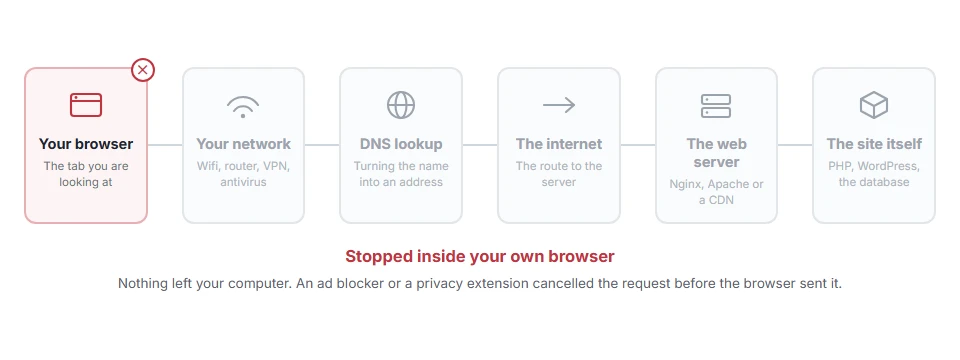
In one line: nothing on the internet blocked you. Something on your own computer did.
Think of it like a letter that never left your house because somebody at home put it in the bin. The postman did not lose it. The other end never refused it. It never went out.
The word “client” in the message means your browser. Chrome is telling you, in the least helpful way possible, that it blocked the request itself because something told it to.
Do not worry, you are not alone, and this is usually easy to find. I am here to help.
What does the blocking
In order of how often each one is responsible.
An ad blocker. uBlock Origin, AdBlock Plus, Ghostery and the rest. This is the cause most of the time.
A privacy or tracker blocker. Including the built in ones in Brave.
A security extension. Some antivirus products install a browser extension that blocks requests.
Chrome itself, blocking some ads or content through its own settings with no extension involved.
A company policy. On a managed laptop, an administrator can install blocking extensions you cannot remove.
Where it actually breaks
Every page you open makes the same journey. Knowing which step this error stops at tells you which half of the list below is worth your time, because the green steps are already proven to be working.
Step 1: Open the page in a private window
Ten seconds, and it usually tells you the answer.
Most extensions are switched off in a private window by default. If the page works there, an extension is your cause and step 2 finds it.
When this will not help: some extensions are allowed to run in private windows, so a page that still fails there does not fully clear them. Step 2 is more thorough.
Step 2: Turn extensions off, then on one at a time
Go to chrome://extensions and switch them all off. Reload the page.
If it works, switch them back on one at a time, reloading after each, until it breaks again. That extension is your answer.
You do not have to remove it. Every ad blocker lets you allow one site while blocking the rest, and that is nearly always the right answer.
When this will not help: on a work machine, extensions installed by policy cannot be turned off. They will show as managed and the switch will be greyed out. That is deliberate.
Step 3: Allow the site in your ad blocker
Once you know which one it is, this is the tidy fix.
Click the extension’s icon while on the page and look for a power button, a “pause on this site” option, or a “trust this site” option. Turn it off for that site only, then reload.
When this will not help: if the blocked thing is a genuine tracker rather than something the page needs, the block is doing its job. Ask yourself whether the missing part is something you actually wanted.
Step 4: Check your antivirus
If the extension you found belongs to your antivirus, look in the antivirus for a web protection, web shield or safe browsing feature.
Turn it off for two minutes, reload, and turn it back on. If that was the cause, add the site to its exception list rather than leaving the feature off.
When this will not help: Windows Defender rarely does this. Third party suites are the usual ones.
Step 5: Check Chrome’s own settings
Chrome blocks some things by itself, without any extension.
Look at chrome://settings/content for anything set to blocked, especially JavaScript, images, or pop ups. Also check chrome://settings/security in case Enhanced Protection is turned on and blocking something.
When this will not help: these are rarely the cause unless somebody changed them. Worth a look if steps 1 to 4 came up empty.
If it is your own site and you see this in the console
This is where it matters commercially, and it is worth understanding rather than fighting.
Ad blockers work from lists of patterns. If a file on your site matches one, it gets blocked for every visitor using that blocker.
The patterns that catch people out are ordinary. A file called ads.js. A folder called /advertising/. A tracking script. An analytics call. An element with a class name like banner-ad.
Sometimes the block is correct, because the file really is an advert or a tracker. Sometimes it is a false positive, because you happened to name a file badly.
What to do about it. If it is a false positive, rename the file or the folder to something that does not match, and it will load again. If it genuinely is advertising or tracking, accept that a share of your visitors will not load it, because they have chosen that.
What not to do. Do not build anti adblock walls that break your site for those people. Do not disguise trackers to slip past filters. Both make the experience worse and neither works for long.
When this will not help: none of this applies if the blocked file is essential to your page working. If a core script of yours is being blocked, rename it, because leaving your site broken for adblock users helps nobody.
Why the message is so unhelpful
Worth a sentence, because the wording sends people in the wrong direction constantly.
Chrome cannot see why the extension blocked the request. All it knows is that something with permission told it to stop. So it reports the only thing it is sure of: the block came from the client side.
People read “blocked” and assume the website blocked them, and then spend an hour looking at the wrong end.
Frequently asked questions
Is the website blocking me? No. That would be a 403. This error specifically means something on your own computer stopped the request before it left.
Why does it work on my phone? Because your phone probably has no ad blocker, or a different one. That fits the diagnosis rather than contradicting it.
Should I just uninstall my ad blocker? No need. Allowing one site takes two clicks and keeps the blocker working everywhere else.
Can a website detect this? It can notice that something did not load, which is how anti adblock messages work. It cannot see a full list of what you have installed, but it can sometimes spot a particular extension, including some ad blockers.
If you have any issues, you can ask me via comment, and I will love to help you out.
