
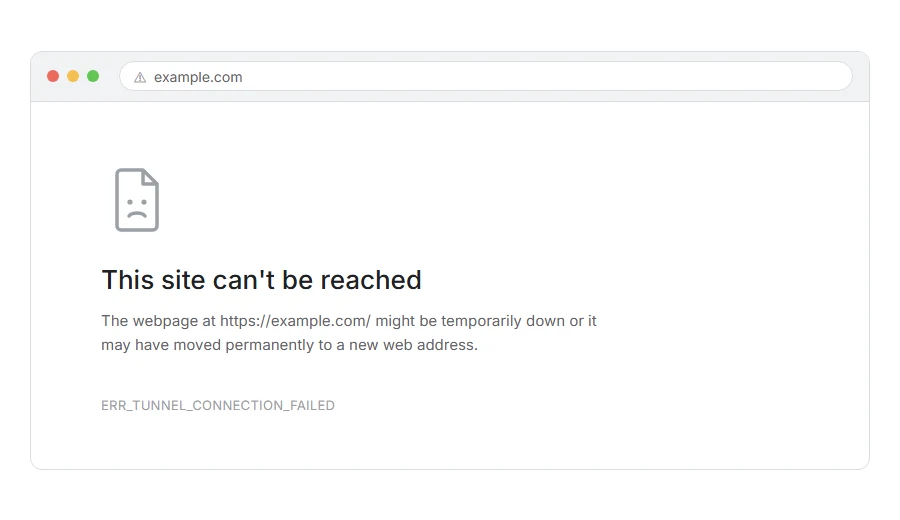
Your page will not load and Chrome says ERR_TUNNEL_CONNECTION_FAILED.
In one line: your traffic is being sent through a middleman, and the middleman could not make the connection.
Think of it like posting a letter through a forwarding service that has closed down. The address is fine and the recipient is fine. The place you handed it to is not passing anything on.
That word “tunnel” is the giveaway. It means your browser was trying to go through a proxy, and the proxy failed.
Do not worry, you are not alone, and this one has a narrow set of causes. The most common by far is a proxy that is switched on and no longer working, and often you did not switch it on yourself. I am here to help.
Where it actually breaks
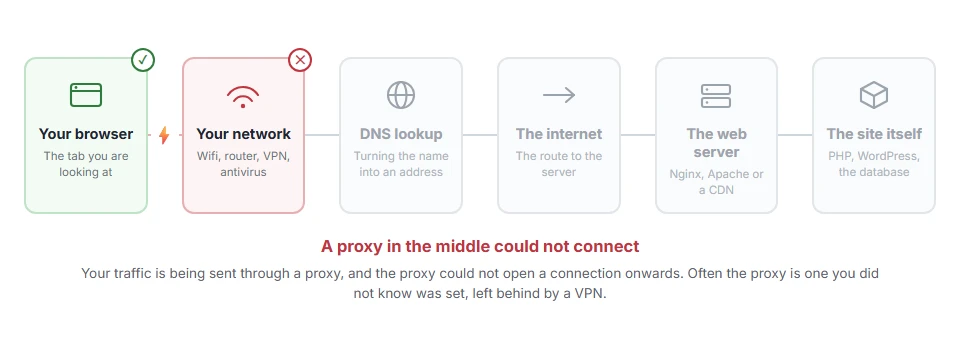
Every page you open makes the same journey. Knowing which step this error stops at tells you which half of the list below is worth your time, because the green steps are already proven to be working.
Step 1: Check your proxy settings
Nine times out of ten, this is where the problem is.
On Windows, go to Settings > Network and Internet > Proxy. Look at two things. Turn off Automatically detect settings if you do not need it. Then check Manual proxy setup and turn off Use a proxy server unless you know why it is on.
On macOS, go to System Settings > Network, pick your connection, click Details, then Proxies. Untick anything that is enabled.
Then restart Chrome and try again.
If a proxy was set and you never set one, something else did. That is usually a VPN that did not tidy up after itself, or software you removed that left the setting behind.
When this will not help: on a work laptop the proxy is often set on purpose and locked. If yours is greyed out, it is managed, and whoever runs it is the person to ask.
Step 2: Turn off your VPN and check what it left behind
A VPN that crashed, or was uninstalled badly, very often leaves a proxy setting pointing at something that no longer exists.
Turn the VPN off, then go straight back to step 1 and check the proxy settings again, because turning it off does not always clear them.
When this will not help: if you have never installed a VPN, skip this. But do check, because some free software installs one as an extra without making it obvious.
Step 3: Check for a proxy extension in Chrome
Extensions can set a proxy for Chrome alone, which is why the rest of your computer may work fine while Chrome does not.
Go to chrome://extensions and look for anything that manages connections, changes your region, or offers a free VPN. Remove what you do not use.
Then check chrome://settings/system and click the button to open your computer’s proxy settings, so you are looking at the same place Chrome is.
When this will not help: if a proxy extension is installed by policy on a work machine, you cannot remove it and it is there for a reason.
Step 4: Reset the network stack
If the settings look clean and it still fails, reset the plumbing.
On Windows, in Command Prompt as administrator:
netsh winsock reset
netsh int ip reset
ipconfig /flushdns
Then restart the computer, because the first two need it.
When this will not help: this clears settings some VPN and antivirus tools rely on. If yours stops working afterwards, reinstall it.
Step 5: Turn off antivirus web filtering
Some security suites act as a local proxy in order to inspect traffic. When that part misbehaves, this is what it looks like.
Turn off HTTPS scanning, web shield or web protection for two minutes and reload. Turn it back on afterwards.
When this will not help: Windows Defender does not work this way. Third party suites are the ones to check.
Step 6: Try another network and another browser
Two quick tests that place the problem.
If it works on mobile data, the block is on your current network. If it works in Firefox but not Chrome, the proxy is set for Chrome specifically, which sends you back to step 3.
When this will not help: these locate the problem rather than fixing it, but they save you working through the wrong list.
Step 7: If it is only one site
A proxy problem usually affects everything. If exactly one site gives this, the proxy is refusing that one destination.
On a work network that is normally deliberate. Ask rather than try to work around it, because working around a company filter is a conversation you do not want to have afterwards.
When this will not help: nothing here gets you past a block that exists on purpose, and it is not meant to.
If you are behind a company proxy on purpose
Then the proxy exists and is failing, rather than being set by mistake.
Check that you are connected to the company network or VPN, because the proxy is usually only reachable from inside. Then check whether your credentials have expired, since many corporate proxies need authentication and simply fail when it lapses.
Tell your IT team the exact error name. It points them straight at the proxy rather than at your machine, and it saves a round of pointless troubleshooting.
Frequently asked questions
What is a tunnel here? When you use a proxy for an encrypted site, your browser asks the proxy to open a tunnel to the destination and then talks through it. This error means the proxy would not or could not open that tunnel.
I never set up a proxy. Why do I have one? Something set it for you. A VPN, a removed program, or occasionally malware. Step 1 shows you and clears it.
Why does it work on my phone? Because your phone is not going through that proxy. It confirms the diagnosis rather than contradicting it.
Is it a virus? It can be, since some malware sets a proxy to intercept traffic. If you find a proxy set that you did not set, clear it and run a scan.
If you have any issues, you can ask me via comment, and I will love to help you out.
A tunnel error of a different kind
The tunnel in this error is the one a proxy builds for your browser. Cloudflare uses the same word for something else, with its own error page.
- Error 1033, the Cloudflare Tunnel error, shown on a Cloudflare page, where the fault is on the website’s side rather than yours.
