
Do you need to change something in a PDF, and every site you land on wants you to sign up or pay before you can save it?
Don’t worry, you can do most of it free, and the first thing worth knowing is why editing a PDF feels so awkward in the first place. A PDF is closer to a printed page than to a document. It stores where each letter sits rather than paragraphs that flow, which is why moving one line can push the rest into a mess.
That is why the right method depends entirely on what you are trying to do:
- Fill in a form or sign something, which is the easiest case
- Change a few words or a number in text that is already there
- Rewrite whole paragraphs, which needs a conversion
- Add or remove pages, or merge two files
- Black out something private, which has a trap in it
- Edit a scan, which is a picture of text rather than text
In this article you will learn the free route for each of those, in that order, and where each one stops working so you do not waste an afternoon on the wrong tool.
So let’s get started.
1) Fill in a form or sign it, in your browser
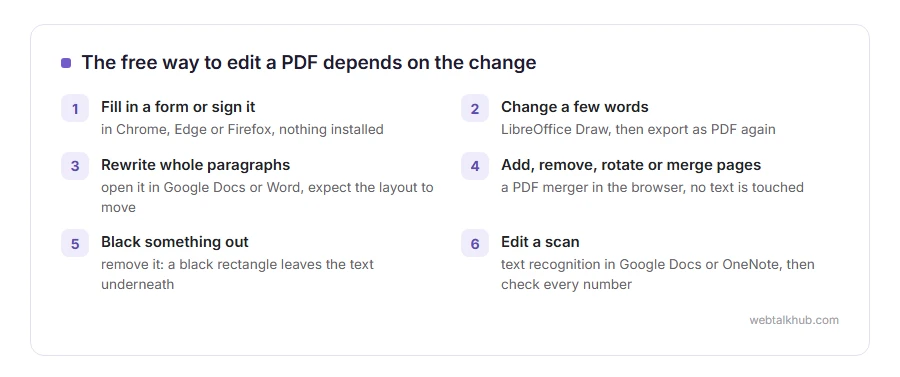
Open the PDF in Chrome, Edge or Firefox. All three let you type into form fields and save the result, with nothing installed.
If the file has proper form fields, you can click straight into them. If it does not, Edge and Chrome both have a text tool that lets you type anywhere on the page, which is enough for a name, a date or a tick.
For a signature, Preview on a Mac and Edge on Windows both let you draw one and place it. Anything that asks you to upload the document to sign it is doing the same job on somebody else’s server, which matters when the document is private.
2) Change a few words with a free desktop editor
For small text changes, LibreOffice Draw does the job and costs nothing. Open the PDF in it, click the text and type. Then export as PDF again rather than saving.
The limit is real and worth knowing before you start: LibreOffice rebuilds the layout, so a page with a careful design can shift, and a font you do not have will be swapped for one you do. For an invoice, a letter or a form it is fine. For a brochure it is not.
3) Rewrite whole paragraphs by converting to Word
When the change is a real rewrite, stop fighting the PDF and convert it.
Upload it to Google Drive, right click and choose Open with Google Docs. Google turns it into an editable document, and you can download it as a PDF again afterwards. Word does the same thing with File, then Open.
Both rebuild the layout from scratch, so expect the design to move, and check every page before you send it. This does not work well on a heavily designed file, and it works very well on plain text documents.
4) Add, remove, rotate or merge pages
This is the part you never need software for.
Our PDF merger joins files and lets you drop the pages you do not want, in your browser, with nothing uploaded. If the file is too big to email afterwards, the PDF compressor makes it smaller the same way, and JPG to PDF turns photos or screenshots into pages you can add.
Page work like this does not change any text, which is exactly why it is safe and quick.
5) Blacking something out, and the trap
Drawing a black rectangle over a name or a number does not remove it. The text is still in the file underneath, and anybody can copy it out or open the file in an editor and see it.
To do it properly, you need a tool that removes the content rather than covering it, or a low tech route: print the page, black it out with a marker, and scan it back in. Ugly, and genuinely safe.
If the document carries personal or financial details, treat the black rectangle as decoration rather than protection. That is the single most common mistake people make with a PDF.
6) Editing a scan
If the PDF came from a scanner or a phone camera, the pages are pictures. There is no text to click on, however hard you click.
Open it in Google Docs, which runs text recognition on the way in and gives you something editable, or use the free OCR in Microsoft OneNote. Then check every number by eye, because recognition mistakes a 1 for a 7, and an 8 for a B, more often than people expect.
I do not recommend this route for anything with figures that matter, such as invoices or bank statements, unless you are prepared to proofread all of it.
Which one should you use?
If you only need to sign or fill in, stay in the browser and finish in two minutes. If you need to change a word or a number, LibreOffice Draw. If you need to rewrite, convert to Word or Docs and accept that the layout will move. If you need pages moved, merged or removed, use a browser tool that does not upload your file.
And if the document is confidential, prefer anything that runs on your own machine over anything that asks you to upload it first. That is a habit worth keeping whatever tool you like.
FAQ(How to Edit a PDF)
Can I edit a PDF for free?
Yes. Browsers handle forms and signatures, LibreOffice Draw handles small text changes, and Google Docs handles rewrites. None of them costs anything.
Why can I not just type in a PDF?
Because a PDF stores the position of each character rather than flowing paragraphs. Editors have to rebuild the layout, which is why text sometimes moves when you change one word.
Is Adobe Acrobat the only proper way?
No. Acrobat is the most complete, but you have to pay for it. For most everyday jobs the free routes above are enough.
Will my file be uploaded somewhere?
It depends on the tool. Browser based tools that run on your own machine, including ours, never send the file anywhere. Most big online editors do upload it, so read the page before you use one on anything private.
How do I edit a PDF on my phone?
Fill in and sign in the Files app on an iPhone, or in Google Drive on Android. Real text editing on a phone is painful, and it is worth waiting for a computer.
If you have any issues, you can ask me via comment, and I will love to help you out.
If you only need the page as a picture
Editing is the hard road, and half the time it is not what the job needs.
- save a PDF as JPG, when the page is going into a post, a slide or a message, a picture is enough.
- what PDF stands for, the reason editing one is awkward in the first place.
