
Are you looking at a blank page that says 500 internal server error, with no menu, no design and nothing on it that tells you what went wrong?
Don’t worry, you are not alone. This is the most common server error on the web and it means something specific: the server tried to build your page and its own code stopped dead. The page is not missing, you are not blocked, and nothing on your computer caused it, which is why refreshing rarely changes anything.
On a real site, the cause is nearly always one of these:
- A plugin or a theme that just crashed, usually after an update
- A PHP version the site’s code cannot cope with
- A broken .htaccess file
- A memory limit that has been reached
- File permissions changed by a bad upload or a migration
- A database that has stopped answering
In this article you will learn what to try as a visitor in thirty seconds, then eight checks for a site owner in the order that finds the cause fastest, starting with the one that actually shows you the error instead of hiding it.
So let’s get started.
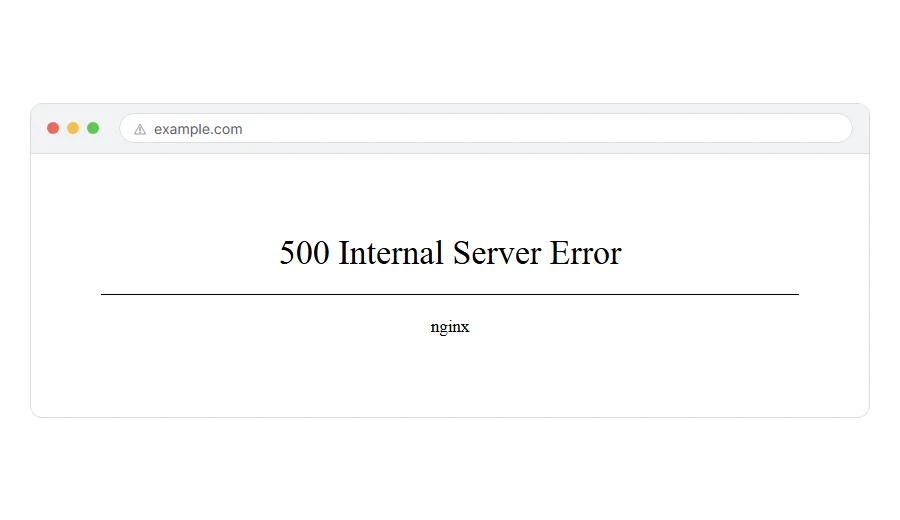
If you are just a visitor
There are three things worth trying and I will not pretend there is a fourth.
Reload the page after about thirty seconds, with Ctrl and F5. Plenty of 500s last less than a minute because something restarted. Then try the same page on your phone with wifi off, which tells you whether it is the site or your network. If it still fails, come back later, because only the site owner can fix this one.
Clearing your cookies and cache is the advice everywhere and it hardly ever helps here, since the error happens on the server before your browser is involved.
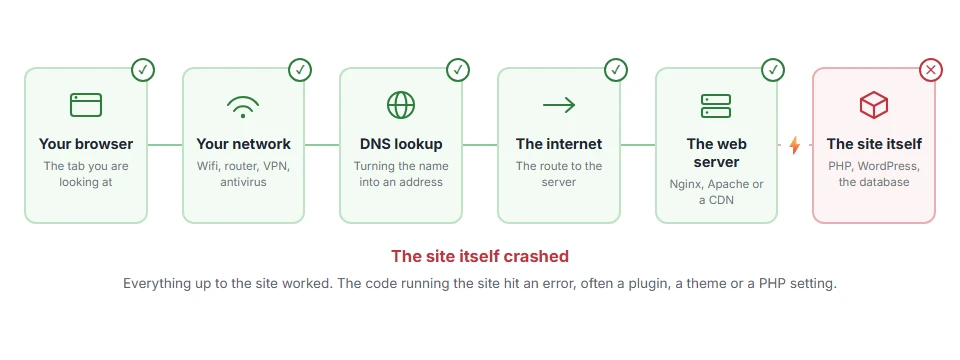
Where it actually breaks
Every page you open makes the same journey. Knowing which step this error stops at tells you which half of the list below is worth your time, because the green steps are already proven to be working.
1) Turn the real error on before you change anything
This is the step that turns a blank page into a sentence, and most people skip it.
In WordPress, open wp-config.php and above the stop editing line put define( 'WP_DEBUG', true );, define( 'WP_DEBUG_LOG', true ); and define( 'WP_DEBUG_DISPLAY', false );. Load the broken page once, then open wp-content/debug.log and read the last lines, which name the file that failed.
On any other site, open the PHP error log in your hosting panel and read the entries at the time of the error. If you cannot find a log, our guide on making PHP show errors covers where it is set and how to switch it on safely.
Put WP_DEBUG back to false when you are finished. Leaving it on exposes your paths and versions to anybody who can trigger an error.
2) Rename the plugins folder
If the site went down after an update, this finds the plugin in minutes.
In your host’s file manager or over FTP, go to wp-content and rename plugins to plugins-off. Load the site. If it comes back, rename the folder back and then rename each plugin folder in turn, checking the site each time, until the error returns and names your culprit.
Nothing is deleted and no settings are lost. Plugins come back deactivated with their settings intact.
This will not help if the error appears on a plain HTML page too, because then it is not PHP at all and step 4 is where to look.
3) Switch to a default theme
If the plugins are not it, the theme is next.
In wp-content/themes, rename your active theme’s folder so WordPress falls back to a default one such as Twenty Twenty-Five. If there is no default theme there, download one from wordpress.org and unzip it into that folder.
Renaming loses the customiser settings tied to that theme name, and they come back when you rename it back.
4) Look at .htaccess
A broken line in this file gives a 500 on every page, including ones that have nothing to do with WordPress.
Rename .htaccess to .htaccess-off and load the site. If it works, the file was the problem: log in to WordPress, open Settings, then Permalinks, and click Save, which writes a fresh, correct file.
Before you rename it, copy the old one somewhere. Security plugins and caching plugins keep their rules in there, and you want to be able to put them back.
5) Check the PHP version
A 500 that appeared the day your host changed something is usually this.
In your hosting panel, look at the PHP version for the site. If it was moved up, put it back one version and reload. If the site returns, you have found it, and you now know some plugin or theme has not been updated for years.
Going back is a breathing space rather than a plan, because old PHP versions stop getting security fixes.
6) Raise the memory limit
If the log says allowed memory size exhausted, this is the fix and only this.
In wp-config.php add define( 'WP_MEMORY_LIMIT', '256M' ); above the stop editing line. Some hosts cap it from their side, in which case the panel or a support ticket is the way.
Memory is not a cure for anything else. If the log says something different, raising it just delays the same crash.
7) Check file permissions
After a migration or a clumsy upload, permissions can end up wrong, and a file the server cannot read gives a 500.
Folders should be 755 and files 644 on most hosts. Your file manager can apply that to everything at once, and the honest limit is that a few hosts want different numbers, so check their documentation before changing everything.
A file set to 777 is both a security risk and a common cause of this error on servers running suPHP, so do not use it as a quick fix.
8) Ask the host the right question
If none of the above has found it, the answer is in a log you cannot see.
Ask them for the exact server error log lines for your site at the minute it happened, not whether everything looks fine at their end. That one question ends most of these conversations, because a 500 always writes a line somewhere.
If the message names the database rather than the code, our page on error establishing a database connection is the right one. If WordPress shows its own wording instead, see there has been a critical error on this website.
FAQ(500 Internal Server Error)
Is a 500 error my fault as a visitor?
No. Nothing you did caused it and nothing on your computer can fix it, which is why the visitor section is so short.
How long does a 500 last?
There is no fixed answer. Some clear in seconds because a process restarted, others last until somebody fixes the code. Anybody quoting you a number is guessing.
Does a 500 hurt my search rankings?
A short one, no. Days of 500s on pages that are crawled will cost you, because search engines stop trusting a page that never answers properly.
Why do I get it on one page only?
Because that page runs code the others do not, which points at a plugin, a shortcode or a template rather than the whole site.
Is it a hack?
Rarely. A crashed plugin, a PHP version change and a broken .htaccess are all far more common, so read the log before assuming the worst.
If you have any issues, you can ask me via comment, and I will love to help you out.
Where this number sits
The first digit is the useful part, and 5 means the site rather than you.
- every status code, explained, including the Cloudflare numbers that are not part of the standard.
