
Is your PHP page showing nothing but a blank white screen or a 500 error, and every search for php show errors gives you a different set of lines to paste, with no word on why some of them do nothing at all?
Don’t worry, the error is there, and PHP is only keeping it from you. On most servers the messages are switched off on purpose, so visitors never see your file paths. It is like a warning light on a car’s dashboard with tape over it: the fault is real, the light is only hidden, and the job is to peel the tape back safely.
There are five places to switch errors on, and which one works depends on your setup:
- Three lines at the top of the script, for most errors
- php.ini, which also catches syntax errors
- .htaccess, on Apache servers only
- WordPress’s own switch, WP_DEBUG
- A log file instead of the screen, for a live site
In this article you will learn each of them, when to use which, and why the famous three lines give you nothing for a syntax error.
So let’s get started.
1) Three lines at the top of the script
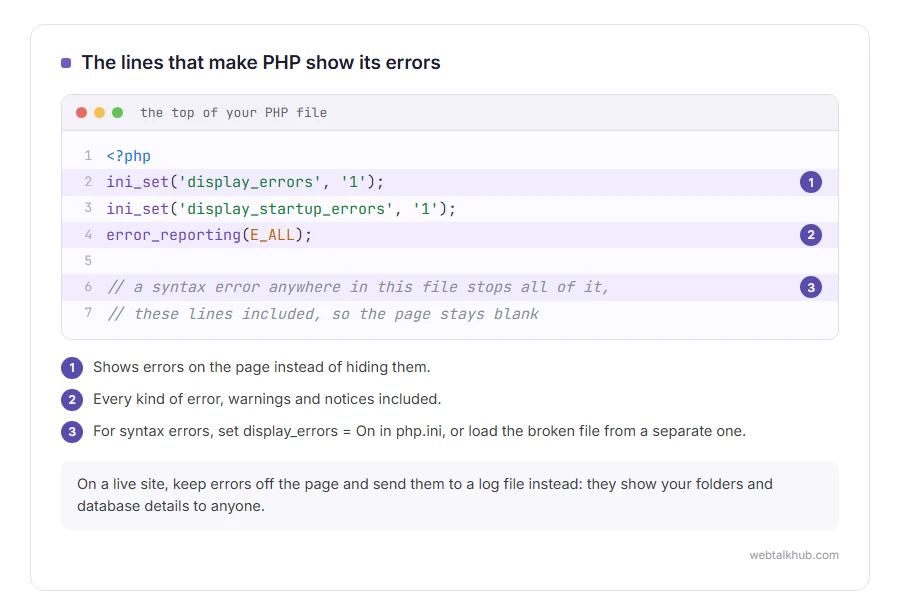
Put these straight after the opening <?php of the file you are testing:
<?php
ini_set('display_errors', '1');
ini_set('display_startup_errors', '1');
error_reporting(E_ALL);
The first line shows errors on the page, and the third asks for every kind of error, warnings and notices included. The second is for errors while PHP is starting up, which are over before your script runs, so it is harmless here but only works in php.ini. Reload the page and the message appears with the file name and line number.
This will not help with a syntax error in that same file, such as a missing semicolon. PHP reads the whole file before running any of it, so a file it cannot read never runs these lines. I tested it: a missing semicolon with display_errors off in the configuration gives a blank page, the lines above included.
There is a way round it without touching the server settings. Put the lines in a small separate file that then loads the broken one:
<?php
ini_set('display_errors', '1');
error_reporting(E_ALL);
require 'broken-page.php';
Open that file in the browser instead, and the syntax error in broken-page.php shows, because the settings were already on when PHP tried to read it.
2) php.ini, which also catches syntax errors
Setting it in PHP’s own configuration file works for every error, syntax errors included, because it is on before any of your code is read.
First find the right file, because a server can have several. Make a page containing <?php phpinfo();, open it in the browser and look at Loaded Configuration File, then delete that page afterwards. Don’t go by php --ini in a terminal, because that shows the file the command line uses, and the web server can read a different one.
In that file, set:
display_errors = On
display_startup_errors = On
error_reporting = E_ALL
Then restart the web server, or PHP-FPM if your server uses it, because PHP only reads the file when it starts. On cPanel hosting you usually cannot edit the file directly, and the MultiPHP INI Editor has a display_errors switch instead.
Keep in mind that this changes every site using that php.ini, not just the page you are fixing. It is the right setting for your own computer and the wrong one for a live server.
3) .htaccess, on Apache servers only
On an Apache server where PHP runs as an Apache module, two lines in the site’s .htaccess file do the same job:
php_flag display_errors on
php_value error_reporting -1
Notice the -1. Names such as E_ALL only exist inside PHP, so Apache’s files need the number instead, and -1 means every error.
Before you change .htaccess, find out how PHP runs on your server. Most shared hosts now run it through PHP-FPM or FastCGI, and there these lines are not understood, so the whole site answers with a 500 internal server error. If that happens, remove the two lines and the site comes straight back.
4) WordPress: WP_DEBUG in wp-config.php
WordPress has its own switch. If your site runs on WordPress, I recommend this one over the other four, because it keeps the errors off the page and puts them all in one file. In wp-config.php, above the line that says “That’s all, stop editing!”, set:
define( 'WP_DEBUG', true );
define( 'WP_DEBUG_LOG', true );
define( 'WP_DEBUG_DISPLAY', false );
With these three, errors are written to a file called debug.log inside wp-content, and visitors see nothing. This is how to read the real error behind “There has been a critical error on this website“. Our wp-config.php generator can write the debug lines for you.
The drawback is where that file sits. wp-content/debug.log can be opened by anybody who types its address, and it can hold file paths and database details, which is why WordPress’s Site Health warns about it. Switch WP_DEBUG back to false and delete debug.log when you have your answer, or give WP_DEBUG_LOG a path outside the website folder instead of true.
5) On a live site, log errors instead of showing them
On a site people actually visit, errors on the page are a gift to anybody probing it: they show your folder structure, your database name and which plugins you run. So on a live server, keep them off the screen and send them to a file:
display_errors = Off
log_errors = On
error_log = /home/youruser/logs/php-errors.log
Use a folder outside the one your website is served from, so the log cannot be downloaded. If error_log is left empty, PHP writes to the web server’s own error log, and on cPanel the Errors page shows its latest entries.
FAQ(Showing PHP Errors)
Why is my PHP page completely blank?
A fatal error or a syntax error stopped the script, and display_errors is off, so there was nothing to show. Section 1 or 2 makes the message appear, and the error log always has it.
Where is the PHP error log?
Wherever error_log in php.ini points. When it is empty, the errors go to the web server’s error log, which your hosting panel usually shows. The phpinfo page from section 2 lists the current value.
Is it safe to leave display_errors on?
On your own computer, yes. On a live site, no, for the reasons in section 5. Switch it back off as soon as you have the message.
Why do I see some errors but not warnings or notices?
error_reporting leaves them out. Setting it to E_ALL, or -1 in .htaccess, includes every kind.
If you have any issues, you can ask me via comment, and I will love to help you out.
