
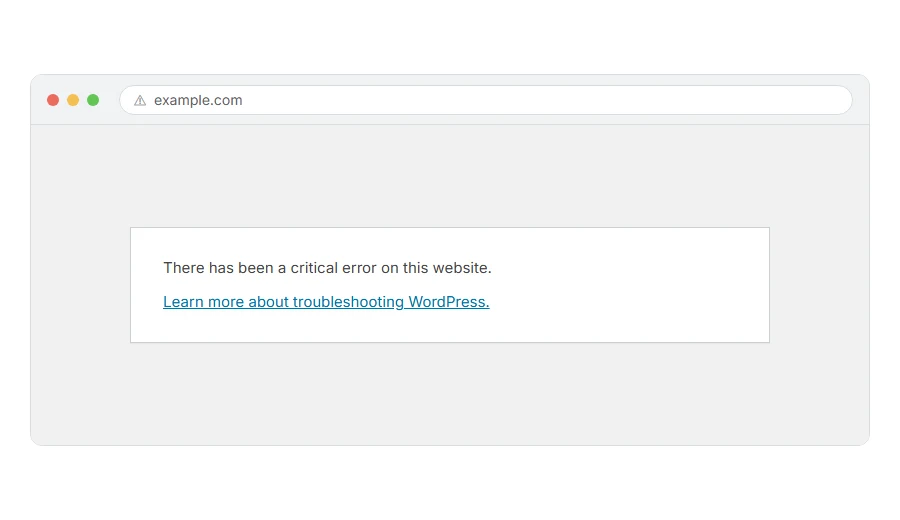
Is your site showing one line of grey text saying there has been a critical error on this website, with no design, no menu and often no way into the dashboard either?
Don’t worry, nothing is lost. Your posts, pages and settings live in the database, and this is code failing to run rather than data going missing. WordPress is hiding the details from visitors on purpose, which is sensible for them and unhelpful for you, so the first job is to read the message it will not show you.
The usual culprits are:
- A plugin that was just updated, or that does not get on with your PHP version
- A theme doing the same thing
- A PHP version your host changed underneath you
- A memory limit that has been reached
- Core files left half updated after an update that stopped partway
In this article you will learn seven fixes in the order that finds the cause fastest, starting with two ways to see the real error, which is the step most people skip.
So let’s get started.
Where it actually breaks
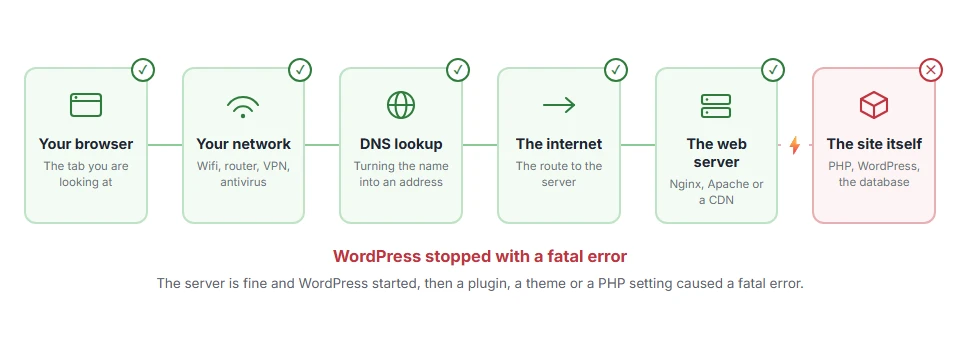
Every page you open makes the same journey. Knowing which step this error stops at tells you which half of the list below is worth your time, because the green steps are already proven to be working.
1) Look in your email before anything else
WordPress sends the site administrator an email when this happens, and that email contains the plugin or theme name and the exact line that failed.
Search your inbox for “Your Site is Experiencing a Technical Issue”, and check the spam folder too, because these often land there. The email also holds a recovery link that lets you into the dashboard with the broken plugin paused, which is the easiest way back in.
This will not help if your site cannot send mail at all, which is common, so if nothing is in the inbox do not sit waiting for it. Go to step 2.
2) Turn the error message on so you can read it
This puts the real reason into a file you can open.
Open wp-config.php with your host’s file manager or over FTP, find the line that says stop editing, and above it put define( 'WP_DEBUG', true );, define( 'WP_DEBUG_LOG', true ); and define( 'WP_DEBUG_DISPLAY', false );. If a WP_DEBUG line is already there set to false, change that one rather than adding a second.
Now load the broken page once and open wp-content/debug.log. The last lines name the file and the line number that failed, and that is usually a plugin folder name in plain sight.
Set WP_DEBUG back to false when you are done. Leaving it on is a security risk, because errors can reveal paths and details about your setup. Outside WordPress the same idea works through PHP’s own settings, which our guide to showing PHP errors goes through.
3) Turn plugins off without the dashboard
If you cannot get in, you can still switch plugins off from the files.
In your host’s file manager or over FTP, go to wp-content and rename the folder plugins to plugins-off. That stops every plugin loading at once. Load the site. If it comes back, log in and open the Plugins screen at /wp-admin/plugins.php, which switches off every plugin it cannot find. Only then rename the folder back to plugins, and turn the plugins back on one at a time from that screen, checking the site after each, until the error returns and names your culprit.
This deletes nothing and loses no settings. After that visit to the Plugins screen, plugins come back deactivated and their settings are still in the database. Skip the visit and every plugin is still active when you rename the folder back, so the error comes straight back. Keep in mind that a site using a must-use plugin will not be fully switched off this way, since those live in a different folder.
4) Switch to a default theme
If the plugins are not it, the theme is next.
In wp-content/themes, rename your active theme’s folder and WordPress falls back to a default theme such as Twenty Twenty-Five, if one is present. If there is no default theme in that folder, download one from wordpress.org and unzip it there.
Renaming the theme folder loses the customiser settings stored against that theme name, so rename it back after the test and they come back. This does not work as a test on a block theme with no default theme installed, because WordPress has nothing to fall back to.
5) Check the PHP version
A critical error that appeared right after a host update is very often a PHP version jump.
In your hosting panel, look at the PHP version for the site. If it was moved to a much newer version, put it back one version and reload. If the site returns, you have found it, and now you know which plugin or theme has not been updated for years.
Going back is a temporary measure rather than a plan. Old PHP versions stop getting security fixes, so use the time to replace whatever cannot cope.
6) Raise the memory limit
If the log says “Allowed memory size of … exhausted”, this is your fix and only this.
In wp-config.php, above the stop editing line, add define( 'WP_MEMORY_LIMIT', '256M' );. Some hosts cap this from their side, in which case you have to ask them or change it in the panel.
Memory is only the answer when the log says so. Raising it for any other error just delays the same crash.
7) Replace the core files
Rare, and worth knowing for when nothing above fits, especially after an update that stopped halfway.
Download WordPress from wordpress.org, unzip it, delete the wp-content folder from the unzipped copy, then upload the rest over your site and overwrite what is there. Your content, themes and plugins are untouched because wp-content was removed from the copy first.
Before you start, take a backup of the files and the database. This step is safe, and every step that overwrites files deserves a way back.
While the site is down
If the site is a business, put something in front of it. Most hosts have a maintenance page you can switch on in one click, which is better for a customer than a line of grey text.
Our pages on WordPress recovery mode and not being able to reach wp-admin cover the two situations that usually come with this one.
FAQ(Critical Error on This Website)
Have I lost my website?
No. Your posts, pages and settings are in the database, and this is code failing to run. Once the broken piece is disabled, everything comes back as it was.
Why does WordPress not just tell me what is wrong?
Because a public error message tells an attacker about your file paths and versions. Step 2 turns the detail on for you without showing it to visitors.
It happened right after I updated a plugin.
Rename that plugin’s folder as in step 3, get the site back, then check whether the plugin has a newer version or a known problem with your PHP version.
Can a hack cause this?
It can, and it is well down the list. A crashed plugin, a theme and a PHP version change are all far more common, so read the log before assuming the worst.
The email never arrived. Why?
Most WordPress sites cannot send mail reliably without a proper sending service, which is worth fixing afterwards because this email is genuinely useful.
If you have any issues, you can ask me via comment, and I will love to help you out.
If the message names the database
A critical error and a database error look similar and are not the same. If your screen says it cannot connect to the database rather than that something went wrong, our page on error establishing a database connection is the one to read, because the causes are on the hosting side.
If the page says 500 rather than this
WordPress hides its own crashes behind that sentence. When the server shows the plain 500 internal server error page instead, with no WordPress wording at all, that page works through the eight checks in the order that finds the cause fastest.
