
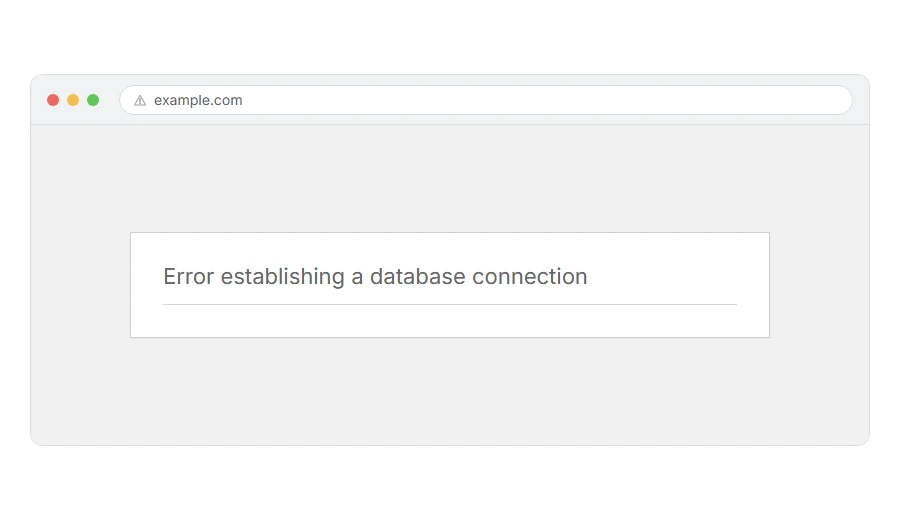
Is your whole site replaced by one white page saying error establishing a database connection, with no menu, no design, and no way into wp-admin either?
Don’t worry, your content is almost certainly fine. That message means WordPress could not reach the database where your posts and settings live, not that anything has been deleted. The files are on the server, the database is on the server, and something between them is refusing or failing.
There are six causes, and they are in this order for a reason:
- The database server is down or overloaded, which on shared hosting is the most common of all
- The login details in wp-config.php are wrong, usually after a move or a host change
- The database user has lost its permissions
- The database itself needs repairing
- A plugin, theme or update has corrupted something
- You have run out of disk space or hit a database limit on your plan
In this article you will learn how to tell which one you have, starting with a test that takes thirty seconds, and what to say to your host when they tell you everything looks fine from their side.
So let’s get started.
The thirty second test that splits the problem
Open your wp-admin address. Two things can happen and they mean different things.
If you get the same database message, the database is unreachable for everything. If you instead see a message about the database needing repair, WordPress can reach it and the tables are damaged, which is cause 4 and a much easier fix.
Write down which one you got, because it saves you reading the wrong half of this page.
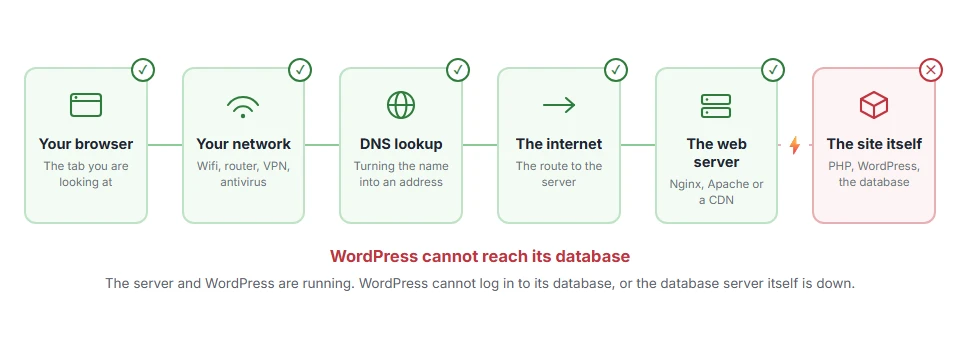
Where it actually breaks
Every page you open makes the same journey. Knowing which step this error stops at tells you which half of the list below is worth your time, because the green steps are already proven to be working.
1) Check whether the database server is simply down
On shared hosting this is the most common cause by a distance, and it is not your fault or your bug.
Open your hosting panel and look at the status page, or try phpMyAdmin. If phpMyAdmin will not connect either, the database server is down or overloaded and nothing in your site can fix it. Contact the host and wait.
This will not help if your host’s status page says everything is green, which it often does during a short overload. Ask them directly whether MySQL was restarted or hit a connection limit in the last hour, because that question gets a real answer.
2) Check the details in wp-config.php
If the site was moved, the host changed something, or you changed a password, this is the cause.
Open wp-config.php in your host’s file manager and read the four lines: DB_NAME, DB_USER, DB_PASSWORD and DB_HOST. Compare them with what your hosting panel says for the database. DB_HOST is usually localhost, and on some hosts it is a specific server name, which is the one people get wrong.
Copy and paste rather than typing, because a single space inside the quotes breaks it silently and looks perfectly fine on screen.
3) Check the user still has permission
A user can exist and have no rights to that database, which produces exactly this error.
In your panel, open the MySQL databases screen, find the user, and check it is attached to the database with all privileges. Reattaching it takes a few clicks and does not touch your data.
If you are not comfortable in that screen, I recommend asking the host to confirm the user is attached, rather than creating a new user, because a second user with the wrong name just adds confusion.
4) Repair the database
If WordPress told you the database needs repair, or a table is marked as crashed, this is the fix.
Add define( 'WP_ALLOW_REPAIR', true ); to wp-config.php, above the stop editing line. Then open yoursite.com/wp-admin/maint/repair.php and choose repair, or repair and optimise.
Take the line back out afterwards, because that page has no login and anyone can run it while the line is there.
5) Rule out a plugin, a theme or a bad update
A plugin cannot usually break the connection itself, and a half finished update can leave a broken table behind.
Rename the plugins folder to plugins-off over FTP or in the file manager, then load the site. If it comes back, rename it and turn plugins on one at a time until it breaks again.
This does not work when the database server is the problem, which is why it comes fifth rather than first. Do the test at the top of the page before you spend time here.
6) Check your disk space and plan limits
A full disk stops MySQL writing, and a plan with a maximum database size or a connection cap does the same thing at a busy moment.
Look at the disk usage figure in your panel. If it is at or near the limit, clear old backups first, because backup plugins are the usual reason a small site fills a disk.
What to say to your host
Support replies faster when you give them something specific, so send them this.
Tell them the exact time it started, whether phpMyAdmin also fails, and ask them directly whether MySQL was restarted, whether you hit max_connections, and whether the account is at its disk or database size limit. Those three questions cover nearly every server side cause.
Our pages on there has been a critical error on this website and WordPress recovery mode cover the errors that look similar and are not this one.
FAQ(Error Establishing a Database Connection)
Have I lost my posts?
Almost certainly not. This is a connection problem, so the content is sitting in the database waiting to be reached.
Why does it come and go?
That pattern points at an overloaded database server or a connection limit, rather than at wrong details, which would fail every time.
Can too much traffic cause it?
Yes. When every database connection is in use, new visitors get this message until things quieten down.
I changed nothing and it broke.
Then the host is the first place to look. Password resets and server moves happen on their side too, and they do not always announce them.
Is it safe to leave WP_ALLOW_REPAIR in the file?
No. Remove it as soon as the repair is done, because that page needs no login while it is there.
If you have any issues, you can ask me via comment, and I will love to help you out.
