
Have you got a PDF that needs to be a JPG, for a post, a slide or a message, and every site that offers it wants you to upload the document first?
You do not have to upload anything. Every computer and phone can capture a PDF page as a picture with what is already installed, a Mac can export it at full quality, and on Windows a free program does the same without the document leaving your computer.
Whether you searched for save pdf as jpg or for exporting a page as a picture, it is the same job. Which route suits you depends on what you are doing with it:
- One page, quickly: screenshot it, which nobody thinks of first
- One page at proper quality: export it, with Preview on a Mac or a free program on Windows
- Every page as separate pictures: the export route
- On a phone: a screenshot, or a shortcut when it has to be a JPG
Before you start, check how many pages you need out of it, because one page and forty pages are two different jobs.
In this article you will learn all four, what actually decides the quality of the result, and when JPG is the wrong format to ask for.
So let’s get started.
1) The quickest way: capture the page
If the picture is for a message, a slide or a quick note, this takes ten seconds.
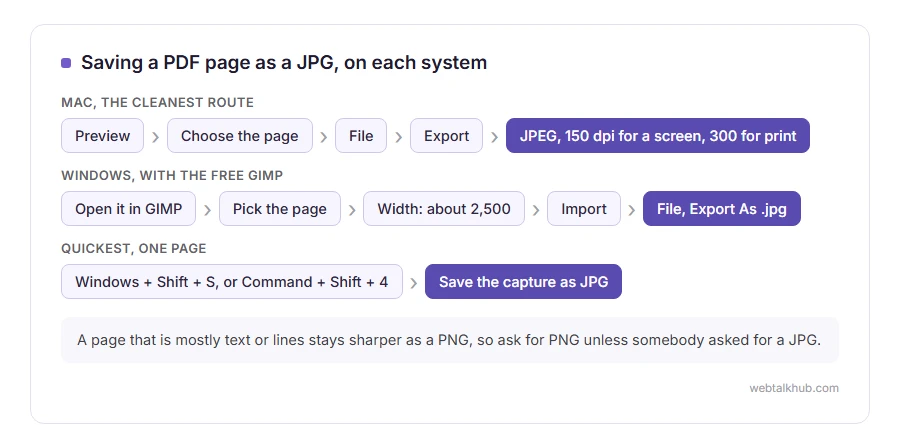
Open the PDF, zoom so the page fills the screen, and use Snipping Tool on Windows, with Windows and Shift and S, or Command and Shift and 4 on a Mac. Then save the capture as a JPG.
This will not help if the result has to be printed: the picture is only as sharp as your screen was, so it is fine for the web and not for paper. Zoom in before you capture and it improves noticeably.
2) On Windows, a free program does it properly
Windows has nothing built in that saves a PDF page as a JPG at full quality. The Photos app does not open PDF files at all, so any route through it stops at the first step, and the capture in step 1 is only as sharp as your screen.
For a sharp page, I recommend GIMP, which is free and works entirely on your own computer. Open the PDF with it and a box asks what to import.
Type the page number under Select range, and set the Width to about 2,500 pixels for print or 1,250 for a screen, which suits an A4 or Letter page. Click Import, then File, Export As, type a name ending in .jpg and click Export.
GIMP asks for a quality last: leave it at 90, which keeps text clean at a sensible size. This is more than a picture for a message needs, where step 1 is quicker, and it is worth it when the page will be printed.
3) On a Mac, Preview does it properly
This is the cleanest route on any system, and it is already installed.
Open the PDF in Preview, choose the page in the sidebar, then File, Export, and pick JPEG. Set the quality slider and, importantly, the resolution: 150 dpi for a screen, 300 dpi if it will be printed.
Preview exports one page at a time. Select several and you still get only the first, which is worth knowing before you go looking for the rest.
For every page at once, use Automator, which is also on every Mac. Make a new Quick Action with Render PDF Pages as Images, set to JPEG, then Move Finder Items to choose the folder. After that it appears when you right click a PDF in Finder, under Quick Actions.
4) On a phone
On an iPhone, open the PDF, zoom so the page fills the screen and take a screenshot. It lands in Photos as a PNG, which is sharper for text anyway. The print preview pinch that some guides suggest makes another PDF, not a picture.
If it really has to be a JPG, the Shortcuts app, which is already installed, can do it with its Make Image from PDF Page action, set to JPEG instead of PNG. It takes a few minutes to set up once, so it only pays off if you do this often.
On Android, open the PDF in Google Drive or your reader, and take a screenshot, or use the reader’s own share as image if it has one. Drive itself does not export a page as a picture, which is worth knowing before hunting through the menus.
What actually decides the quality
Two things, and neither is the tool you used.
The resolution you export at, measured in dpi, decides how many pixels the page becomes. 72 to 150 is fine on screen, 300 is what a printer wants, and our page on what DPI means has the one sum that turns a print size into a pixel width.
And the JPG quality setting, which throws detail away to make the file smaller. For a page of text, that shows up as fuzzy letters far sooner than it does on a photo.
When JPG is the wrong answer
If the page is mostly text, lines or a diagram, PNG keeps it sharp and is often a smaller file than a JPG of the same page. JPG smears hard edges, which is exactly what text is made of.
So ask for PNG unless somebody has specifically asked for a JPG. Our page on JPG vs PNG sets out the trade in more detail.
And if what you really need is the PDF made smaller rather than turned into a picture, our PDF compressor does that in your browser without uploading the file anywhere.
FAQ(Saving a PDF as JPG)
Can I save every page of a PDF as a separate JPG?
Yes. On a Mac, the Automator Quick Action in section 3 writes one JPG per page. On Windows, GIMP opens several pages as separate pictures if you choose Images under Open pages as, and you export each one. Doing it page by page is only sensible for a handful of pages.
Does saving as JPG lose quality?
Yes, a little, because JPG is lossy. It is invisible on a photo page and visible on text, which is why PNG is usually the better choice for documents.
Is there a way without any website or software?
A capture, yes, on any computer or phone. At full quality, only on a Mac, where Preview and Automator are already installed. Windows has no built in way at full quality, which is why section 2 uses a free program rather than a website.
Why is my JPG blurry?
Either you captured the screen at a low zoom, or you exported at a low dpi. Zoom in first, or set 300 dpi when exporting.
Are the online converters safe?
They work, and your document goes to somebody else’s server, which matters for anything private. Prefer the routes above, which keep the file on your computer, for contracts, statements and anything with personal details on it.
If you have any issues, you can ask me via comment, and I will love to help you out.
Other PDF problems with a quick fix
If the PDF would not even open without a password, or you still need to make one, these cover it.
- take the password off a PDF, four ways, and which kind of password each one handles.
- turn a Word document into a PDF, on Windows, a Mac, the web and a phone.
