
Somebody has asked for your CV, your form or your report as a PDF, and you need to save a Word document as a PDF without it losing its layout on their screen.
Word does this itself, on every version from the last fifteen years, and it takes about ten seconds. The part worth knowing is the difference between saving as PDF and printing to PDF, because only one of them keeps your links and headings working.
What decides how good the PDF comes out:
- Using Save As rather than Print
- The Standard or Minimum size choice
- Whether headings become bookmarks
- On a Mac, which of the two PDF options you pick
In this article you will learn the route in Word on Windows, a Mac, the web and a phone, the free ways to do it without Word, and what to do when the PDF comes out too big.
So let’s get started.
1) Word on Windows
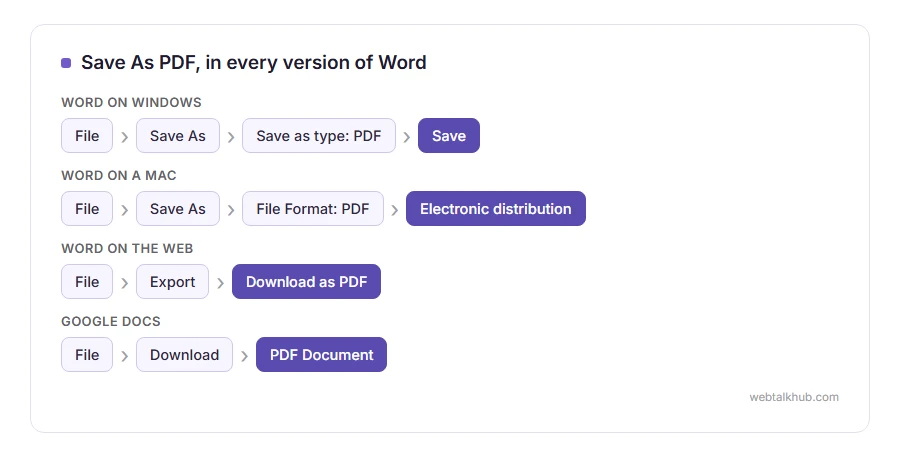
Open the document, click File, then Save As, and pick the folder. In the Save as type list choose PDF, then click Save.
Before you click Save, look at two settings in the same window. Optimize for Standard keeps pictures sharp enough to print, while Minimum size makes a smaller file for email and screens. The Options button lets you save only some pages, and tick Create bookmarks using Headings, which gives the PDF a clickable contents panel.
File, then Export, then Create PDF/XPS does exactly the same job. It is the same feature with a different door.
2) Word on a Mac
Click File, then Save As, and set File Format to PDF. Word for Mac then offers two choices, and they are not the same.
Best for printing makes the PDF on your own Mac. Best for electronic distribution and accessibility sends the document to Microsoft’s online service to build the PDF, which gives better tagging for screen readers and needs an internet connection. For a private document, I recommend Best for printing, since it never leaves your computer. The catch is that links may not work in a PDF made with Best for printing, a known issue in Word for Mac, so pick the other option when links matter.
3) Word on the web
In Word online, click File, then Export, then Download as PDF, and click Download in the box that opens. The PDF is made on Microsoft’s servers and downloaded to your computer, which is fine for anything already stored in OneDrive.
4) Word on a phone
In the Word app on an iPhone or Android phone, open the menu with three dots and look for Export or Save a Copy, depending on the version, then choose PDF.
The bookmarks option does not work from the phone apps, so a long document with a contents page comes out better from a computer.
5) Without Word
Google Docs: upload the file to Google Drive, open it, then File, Download, PDF Document. Complicated layouts can shift a little, since Google Docs rebuilds the document in its own way first.
LibreOffice: it is free, opens Word files directly, and has File, Export As, Export as PDF, with more settings than Word itself.
Why printing to PDF is second best
Microsoft Print to PDF, and the same option on a Mac, makes a PDF that looks right and has lost its links and headings. Printing treats the document as pages on paper, and paper has nothing to click.
Picture a photocopy of a book rather than the book itself: everything is there, and the contents page no longer takes you anywhere. Printing is the answer only when an app has no save option at all.
If the PDF comes out too big
Nearly always it is pictures. In Word, click a picture, then Picture Format, then Compress Pictures, and apply it to all pictures before saving as PDF.
If the PDF is already made, our PDF compressor makes it smaller in your browser with nothing uploaded, and the PDF merger joins several into one.
If the fonts look different
Word puts the fonts into the PDF, so the other person does not need them installed. The exception is a font whose licence forbids that. On Windows, Word then saves that text as a picture so it still looks the same. That needs Bitmap text when fonts may not be embedded ticked in Options, and without it the PDF reader may show another font instead.
The catch is that text saved as a picture cannot be selected, searched or read aloud, so if that matters, switch it to a standard font before you save.
FAQ(Save Word as PDF)
Does saving as PDF change my Word document?
No. Word makes a separate PDF file and your document stays exactly as it was.
Can the other person edit the PDF?
Not easily, which is usually why they asked for one. Our guide on how to edit a PDF covers what is possible, and our page on what PDF stands for explains why editing is awkward.
Why are my links not clickable in the PDF?
Most often it was printed to PDF rather than saved as PDF. Save it again with File, then Save As. On a Mac, pick Best for electronic distribution and accessibility, since links may not work with Best for printing.
How do I save only one page as PDF?
On Windows, click Options in the Save As window and set the page range. On a Mac, save the whole document, then take the page you want out of the PDF.
Can I save as PDF with a password?
On Windows, the Options button has Encrypt the document with a password. Anybody opening the PDF will then need it.
If you have any issues, you can ask me via comment, and I will love to help you out.
If you only needed some of the pages
Saving the whole document and then taking out the pages you want is often quicker than fiddling with page ranges in Word.
- Our Split PDF tool keeps just the pages you pick, as one file or several, with the text still sharp and selectable.
