
You wrote the message, pressed send, and nothing happened. Maybe it sits there. Maybe an error flashes up and disappears before you can read it. Either way it has not gone, and you need it gone today.
Don’t worry, you are not alone, this is one of the most common things people write to me about. The thing worth knowing before you change a single setting is that email not sending is four different problems wearing the same coat, and the fix depends on which one you have.
The four look like this:
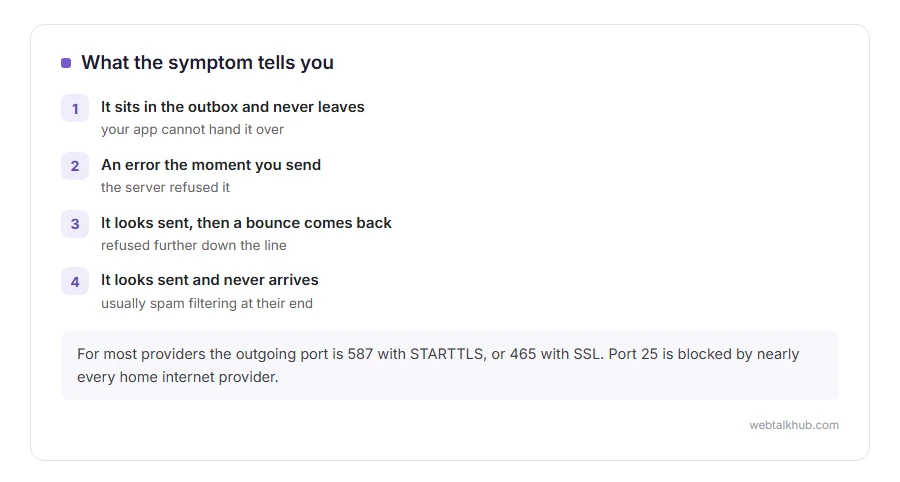
- It sits in the outbox and never leaves, which means your app cannot hand it over
- An error appears the moment you send, which means the server refused it
- It looks sent, and a bounce comes back later, which means it was refused further down the line
- It looks sent, nothing comes back, and they still never got it, which is usually spam filtering at their end
In this article you will learn how to tell which one you have in about a minute, then the checks for each, and finally what to do when it is a website contact form rather than a mailbox.
So let’s get started.
1) Prove the app itself is connected
Open a web page. If the internet is fine but mail is not, check whether the app is offline: in classic Outlook that is the Work Offline button on the Send / Receive tab. On a phone, switch airplane mode on and off, then open the app again.
Restarting the app will not help if the network itself is the problem. On a hotel or office network the ports mail uses are often blocked outright. Try the same send on mobile data with wifi off, which rules that in or out in a minute.
Our page on the outbox and mail stuck in it goes through that case in detail, because it has its own list of causes.
2) Check the outgoing server settings
This is the step people get wrong after changing provider, phone or laptop.
You need the outgoing server address, the port and the right security setting. For most providers today that is port 587 with STARTTLS, or port 465 with SSL. Port 25 is blocked by nearly every home internet provider and should not be used for sending.
Get the exact values from your provider’s own help page rather than from memory, and read them back twice. Guessing the port does not work here, as the wrong one fails silently on some apps and with a vague error on others.
The incoming settings can be perfect while the outgoing ones are wrong, which is exactly why you can receive mail and not send it.
3) Use an app password if you have two step sign in
If your account has two step verification, an older mail app will be refused with a vague authentication error even though the password is right.
In Google, open your account security page and create an app password. Microsoft has the same thing under security settings. Paste that into the mail app in place of your normal password.
Some providers have withdrawn app passwords and now require you to add the account through a browser sign in window. If there is no app password screen at all, that is why, and hunting for it will not work.
4) Look at the size before you blame anything else
Attachments are the most common refusal. Most providers cap a message at about 25 megabytes, and the encoded size is roughly a third larger than the file on your disk.
Send a link from your cloud drive instead, or shrink the file. For a PDF that is only slightly over, our PDF compressor runs in your browser and uploads nothing.
Business mail servers are often set far lower, sometimes 10 megabytes, and the cap that matters is the smaller of yours and theirs.
5) Check whether you have hit a sending limit
Every provider limits how many messages an account can send in a day and how many recipients each message can have.
If you were sending to a long list, split it, wait a few hours, and use a proper mailing service for anything regular. An account that has tripped a limit usually recovers by itself within a day.
Sending the same message again and again while it fails makes this worse, because every attempt counts towards the limit. Waiting only works if the limit is the real cause, so check the error wording before you sit on your hands for a day.
6) Read the first line of the bounce, not the whole thing
A bounce contains one line that matters and a lot of technical detail that does not.
550 user unknown or address not found means the address is wrong, so check the spelling with the person. Mailbox full means their side is out of space and there is nothing on yours to fix. Blocked, listed, or spam means a filter or a blocklist refused you, and if it names a blocklist, look your sending address up on that list and follow their removal process.
A bounce that arrives days later usually means your provider kept trying to hand it to their server and gave up, which is often a problem at their end.
7) If it sends but never arrives
Check your sent folder first. If the message is there, it left you.
Ask them to search their spam folder, and their other tabs if they use Gmail. If they find it, ask them to mark it as not spam, which helps your next message land.
If nothing is there either, send a plain test with no links and no attachment. When the plain one arrives and the original did not, the content was the problem, usually a link or an attached file type.
This one cannot be fixed from your side alone. What you can do is make your mail look ordinary and ask them to add you to their contacts.
8) If it is your website rather than your mailbox
A contact form on a WordPress site that goes quiet is a different animal. The site is trying to send mail through the web server, and most hosts either block that or send from an address that fails every modern spam check.
The reliable answer is to send through a real mail account or a sending service, using an SMTP plugin with your provider’s outgoing server details.
Test with a real outside address, for example a Gmail account, not with an address at the same domain. Mail to yourself can be delivered locally and prove nothing at all.
FAQ(Email Not Sending)
Why can I receive email but not send it?
Because incoming and outgoing use different servers and different settings. A wrong outgoing port or a refused password affects sending only.
What port should I use for sending?
Port 587 with STARTTLS suits most providers today, with 465 and SSL as the alternative. Port 25 is blocked on nearly every home connection.
My email says it sent but nobody gets it.
Check your sent folder to confirm it left, then look at their spam. If both look clean, send a plain message with no attachment and compare.
Can antivirus stop email from sending?
Yes. Mail scanning sits between your app and the server and can break sending. Turn that feature off for a test, then put it back on.
How long should a message take to send?
Seconds, normally. Anything still trying after a minute has a real reason, so start reading the error rather than waiting.
If you have any issues, you can ask me via comment, and I will love to help you out.
If you want the background rather than the fix
Two pages explain what is actually happening behind a send button.
- what SMTP is, the server that does the sending, and the settings it asks you for.
- how to send an email, the plain steps in Gmail, Outlook and on a phone.
