
You sent an email an hour ago and somebody has just told you it never arrived. You open your mail app and there it is, sitting in a folder called Outbox, exactly where you left it.
Don’t worry, nothing is lost here. The outbox is the folder that holds messages your app has taken but not yet handed to the mail server. Sent items means the server took it and it is out of your hands. Outbox means it is still on your own device, which is good news, because a message sitting there can still be opened, changed or deleted and nobody will ever know it existed.
A message gets stuck in the outbox for one of five reasons:
- The app is offline, or in an offline mode somebody switched on and forgot about
- A sign in box is waiting behind another window, so the send never gets permission
- The attachment is too big, so the upload keeps failing and starting again
- A rule is holding the message on purpose for a few minutes
- The message itself is damaged, which is rare and usually follows a copy and paste
In this article you will learn six ways to free it, in that order, because the list runs from the most likely cause down to the least. It covers classic Outlook, the newer Outlook, iPhone Mail and the Gmail version of the same thing.
So let’s get started.
1) Check that the app itself is online
Being online in your browser is not the same as being online in your mail app, and this catches people every week.
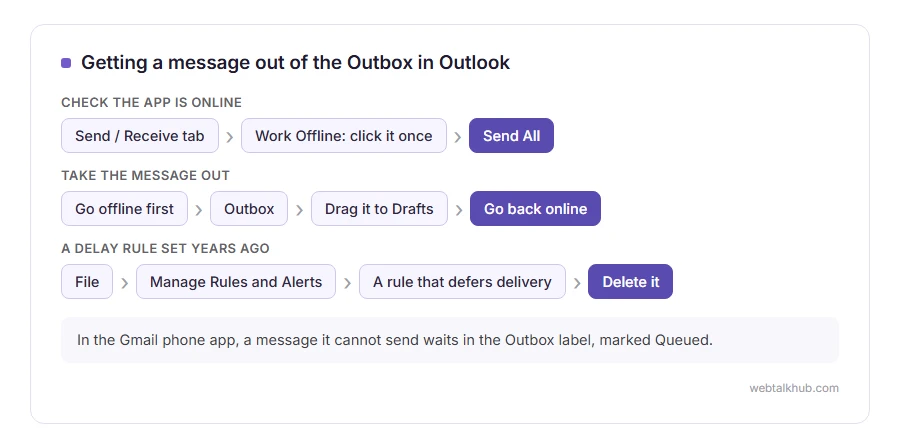
In classic Outlook for Windows, open the Send / Receive tab and look at the Work Offline button. If it is highlighted, the app is deliberately not talking to the server. Click it once, then click Send All. On a phone, turn airplane mode on and off again, then open the Mail app and pull down to refresh.
This will not help if the app was online all along, and it takes five seconds to rule out, which is why it goes first.
2) Look for a sign in box hiding behind the window
Open the stuck message by double clicking it. If a sign in window appears, there is your cause, sitting behind the main window where you could not see it.
Sign in, close the message and send it again. If your account uses two step verification, an ordinary password may be refused and you will need an app password from the account’s security settings.
Do not keep hammering the password if it is refused. Several failed attempts and some providers lock the account for a while, so wait fifteen minutes and try once more. If you are on a work or school account, I recommend asking whoever runs your mail at that point rather than guessing, because a managed account can be locked by a policy you cannot see.
3) Check the size of the attachment
Most providers cap a message at about 25 megabytes including the attachment, and plenty of business servers are set lower than that.
Open the message and look at what is attached. If it is large, take it out and send a link from your cloud drive instead, or shrink the file first. Our PDF compressor and GIF resizer both work in the browser and upload nothing.
Keep in mind that the cap counts the encoded size, which is roughly a third larger than the file on your disk, so a file showing 24 megabytes can still be refused.
4) Take the message out while the app is offline
A message that keeps trying to send can lock itself, and then the app will not let you delete it because it is busy sending.
Go offline first, with Work Offline in Outlook or airplane mode on a phone. Now open the outbox and drag the message to Drafts, or delete it outright. Go back online and it stays where you put it.
On an iPhone this needs a swipe to the left on the message, and some versions of iOS hide that until you tap Edit first. If it will not move at all, close the app completely, open it again, and repeat while offline.
5) Look for a delay rule that somebody set years ago
Classic Outlook can hold every outgoing message for a few minutes. It is a useful safety net and a confusing one when you have forgotten it is there.
Open File, then Manage Rules and Alerts, and look for a rule that defers delivery. Delete it, or shorten it, if it no longer suits you.
Remember that deferred mail only leaves while Outlook is open, so a message written just before you close the laptop waits until next time. On a shared computer, check whether somebody set that rule for a reason before you remove it.
6) Rebuild the message, when nothing else works
If one message will not go while everything else sends fine, the message itself is the problem.
Open it, copy the text into a brand new email, attach the files again, and send that one. Then delete the old one from the outbox while offline. Paste as plain text with Ctrl and Shift and V, in case the formatting is what broke it.
It feels like giving up, and it is quicker than anything else at this point.
The Gmail version of the same thing
The Gmail phone app has one too. A message it cannot send waits in the Outbox label, marked Queued, usually because there is no usable connection.
The fix is the same idea: get a real connection, open Gmail, and let it send. If it stays queued on wifi, try mobile data, because some networks block the ports mail needs. There is more on our queued in Gmail page.
FAQ(Outbox and Stuck Email)
Does a message in the outbox get sent eventually?
Only if the reason for the hold goes away. An offline app or a wrong password will hold it there forever.
Can the other person see a message sitting in my outbox?
No. Nothing has been handed over, so there is nothing for anybody else to see.
Why does the message disappear from the outbox and come back?
The app is trying to send, failing and putting it back. That pattern usually means an attachment or a password problem.
Is the outbox the same as drafts?
No. Drafts are messages you have never tried to send. The outbox holds the ones you have.
My email is not sending at all, from any folder.
Then it is the account or the connection rather than one message, and our page on email not sending works through that. If you wanted the message back because you regret it, see how to recall an email in Outlook.
If you have any issues, you can ask me via comment, and I will love to help you out.
The same problem in a document
A page you cannot delete has the same feel as a message you cannot send: something invisible is holding it. Our guide on deleting a page in Google Docs shows how to see the empty paragraphs and breaks that keep a page alive.
The rest of the sending picture
An outbox is one stop on a longer road, and these two cover the others.
- sending an email properly, including the To, Cc and Bcc question that causes half the trouble.
- what IMAP is, why your phone and your laptop show the same mailbox, or fail to.
