
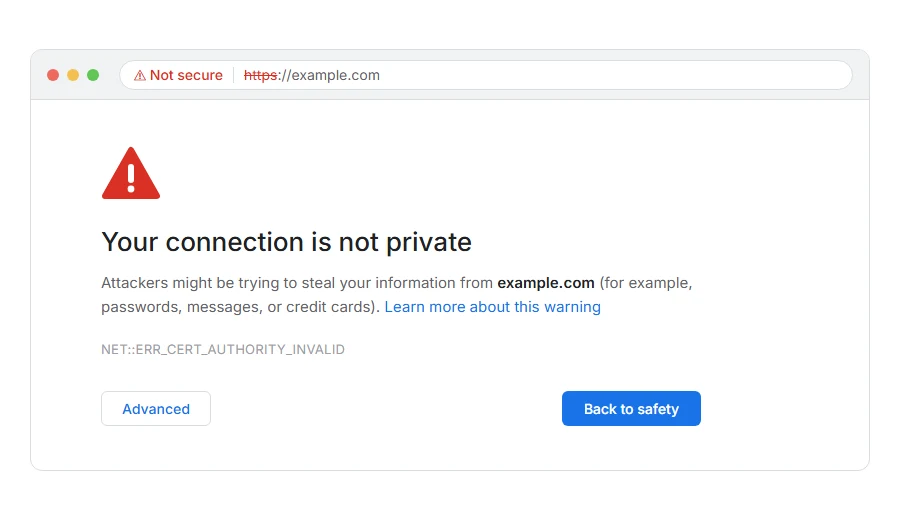
Are you seeing a red warning triangle and the words your connection is not private, with no page behind it and a Proceed button hidden away under Advanced?
Don’t worry, you are not alone, this appears on millions of screens a day. What it means is that your browser checked the site’s security certificate, something did not add up, and it stopped rather than send your details into a connection it cannot vouch for. That is the browser doing its job, not a virus and not a hacked account.
Before the fixes, read the code printed under the message, because it tells you which check failed:
- NET::ERR_CERT_DATE_INVALID means the certificate has expired, or your clock is wrong
- NET::ERR_CERT_AUTHORITY_INVALID means it was not issued by an authority your browser trusts, and our page on ERR_CERT_AUTHORITY_INVALID covers that one
- NET::ERR_CERT_COMMON_NAME_INVALID means the certificate is for a different address than the one you are on
- ERR_SSL_PROTOCOL_ERROR is a different failure entirely, before any certificate is checked, and it has its own page: ERR_SSL_PROTOCOL_ERROR
In this article you will learn six fixes, the first five for anyone seeing this on their own computer and the last one for people who own the site. At the end there is the part most guides skip: when you should not click Proceed at all.
So let’s get started.
Where it actually breaks
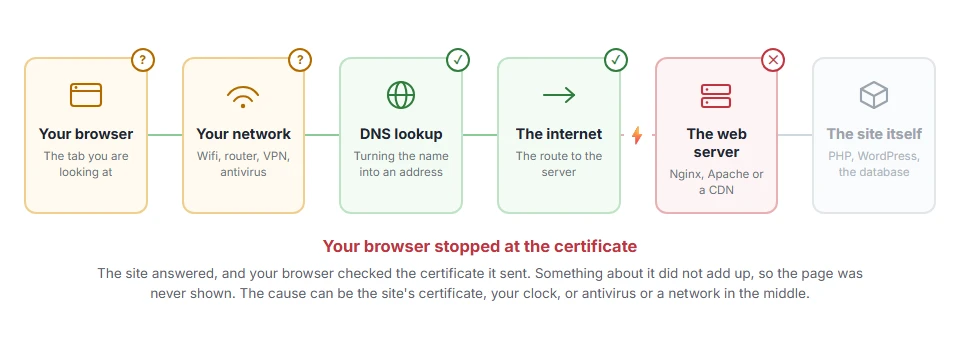
Every page you open makes the same journey. Knowing which step this error stops at tells you which half of the list below is worth your time, because the green steps are already proven to be working.
1) Check your clock first
A wrong clock breaks certificates on every site at once, because every certificate is only valid between two dates.
On Windows, open Settings, then Time and language, and switch on set time automatically. On a Mac it is System Settings, then General, then Date and Time. On a phone the same setting is under date and time.
If your laptop battery is old and the clock resets whenever you shut down, you have found it. This will not help if only one site is failing, though, because a clock problem never picks favourites.
2) On public wifi, finish the sign in
Airport, hotel and cafe networks push you to a sign in page by intercepting your connection, which sets off this exact warning before you have done anything.
Open any plain address that is not secure, for example neverssl.com, and the sign in page should appear. Complete it and then go back to the site you wanted.
At home, or on your own mobile data, there is no sign in page and this is not your cause, so skip this step.
3) Try an incognito window
Open the same address in an incognito window, where extensions are off and the normal cache is ignored.
If it loads there, work back through your extensions at chrome://extensions, especially ad blockers, privacy tools and anything that scans pages.
A success in incognito could be the cache rather than an extension, so clear cached images and files before you blame one of them.
4) Look at your antivirus and its HTTPS scanning
Security suites that inspect encrypted traffic put their own certificate in the middle of it. When that certificate is not installed properly, or has expired, you get this warning on every secure site.
Look for HTTPS scanning, SSL scanning or web shield in the antivirus settings, and turn it off for a few minutes. If the warning goes, update the antivirus or leave that one feature off.
If you are not comfortable changing antivirus settings, I recommend checking the clock and trying your phone first, because those two rule out most cases without touching anything.
5) Restart the browser properly
Chrome remembers recent secure connections, so a site that has already been repaired can keep failing on your machine alone.
Close every Chrome window and open it again. The Clear SSL state button in Windows Internet Options does not touch Chrome, so skip it.
This is a local memory only. If the site is genuinely broken, the warning comes straight back, which is useful information rather than a wasted minute.
6) If the site is yours, it is one of three things
Owners, in my experience it is nearly always one of these.
It expired. Renew it, then restart the web server, because many setups keep the old certificate in memory until they are restarted.
The chain is incomplete. Install the intermediate certificate your issuer gave you. This is the sneaky one, because it works in some browsers and fails in others, so it survives for months without being noticed.
The name does not match. A certificate for example.com does not cover www.example.com unless it was issued for both. Cover both names and point your redirect at the one the certificate covers.
Test the result with an online SSL checker rather than your own browser, since your browser may still be showing you a cached answer. If your site sits behind Cloudflare, test the origin server too, because a valid certificate at Cloudflare can hide a broken one behind it.
When you should not click Proceed
The Advanced link gives you a Proceed option, and sometimes it is fine. It is reasonable on your own site, on your own network, when you already know the certificate is self signed or newly installed, and on a page where you are not typing anything.
Do not continue on anything with a sign in box, a payment form or personal details. Do not continue on public wifi. And do not continue on a big, well known site, because a bank or a mail provider does not have a broken certificate, so what you are seeing is more likely to be something sitting between you and them.
Clicking Proceed once tells Chrome to trust it for a week, even after a restart, so if you do it by mistake, click Not secure in the address bar and choose Turn on warnings.
FAQ(Your Connection Is Not Private)
Is this warning always a real problem?
It is always a real check that failed. The cause is often small, like a clock or an expired certificate, but the failure itself is genuine.
Why do I get it on every site, not just one?
Look at your clock, your antivirus and your network. Those three are the only things that can break every site at once.
Does it mean the site has been hacked?
No. Hacked sites usually have a perfectly valid certificate. This is about identity, not about the content of the page.
Can I turn the warning off?
You can, and you should not. Browsers offer flags for developers, and using them on your everyday browser removes the only protection you have against a connection being intercepted.
It works in Firefox but not Chrome.
Each browser keeps its own list of trusted authorities and its own cache. A missing intermediate certificate is the usual reason for that split.
If you have any issues, you can ask me via comment, and I will love to help you out.
The padlock, explained properly
Behind every padlock is a certificate and a protocol, and the two get mixed up constantly.
- the difference between SSL and TLS, why certificates are still sold as SSL when every secure site now runs TLS.
If the code under the warning is one of these
The line of capitals under the warning says which check failed, and two of them come up constantly.
- NET::ERR_CERT_COMMON_NAME_INVALID, the certificate is made out to a different name than the address you typed.
- NET::ERR_CERT_DATE_INVALID, an expired certificate, or much more often, the clock on your own device.
