
You have hit a full page warning saying your connection is not private, with NET::ERR_CERT_AUTHORITY_INVALID in the details.
In one line: the site presented a certificate, and your browser does not trust whoever signed it.
Think of it like being shown an ID card from an office nobody has heard of. The card might be perfectly genuine. Your browser has no way to know, so it refuses to vouch for it.
Do not worry, you are not alone. This has a handful of ordinary causes, and I am here to help. But I am going to start with the part most pages skip.
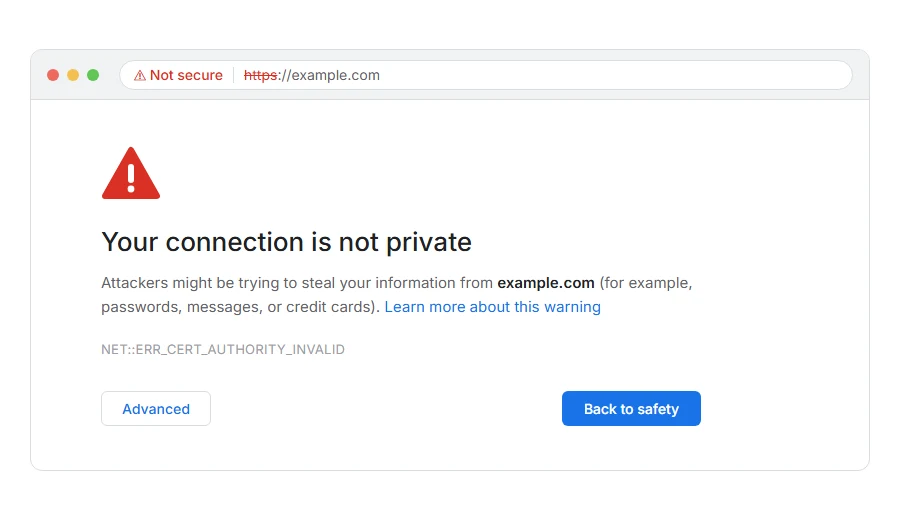
Read this before you click through
Chrome lets you continue anyway on this warning. Sometimes that is fine and sometimes it is a bad idea, so here is the honest version.
It is usually fine on a site you own, a development machine, a printer or a router on your own network, or a device with a self signed certificate. You know why the certificate is unusual.
It is not fine on anything where you will type a password, a card number or anything private. And it is not fine on public wifi, because this warning is exactly what an interception attack looks like from the inside.
If you do not know why the warning is there, treat it as real. That is the whole point of it.
Where it actually breaks
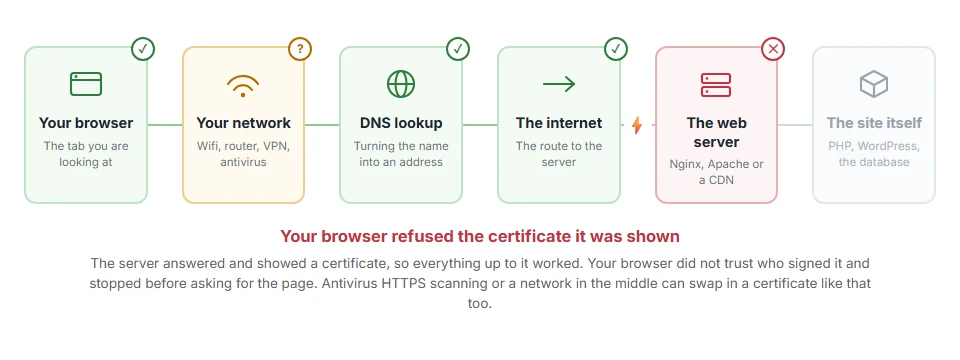
Every page you open makes the same journey. Knowing which step this error stops at tells you which half of the list below is worth your time, because the green steps are already proven to be working.
Step 1: Check your computer’s clock
Do this before anything else, because it is common and it takes ten seconds.
Certificates are valid between two dates. If your clock is wrong by months or years, everything looks untrustworthy to you and perfectly normal to everyone else.
Set the date and time to update automatically, then reload.
When this will not help: if the clock is right to the minute, this is not your cause. It is still worth the ten seconds, because a wrong clock produces several different certificate errors and people rarely think of it.
Step 2: Try a private window and another browser
This tells you whether the problem is your profile or your machine.
If it works in a private window, an extension is interfering. If it works in a different browser, something in the first browser’s certificate store is the issue.
When this will not help: if every browser on the machine shows it, the problem is at machine level or at the site. Carry on.
Step 3: Turn off antivirus HTTPS scanning
This is the biggest cause on Windows machines and it surprises people.
Security suites that inspect encrypted traffic do it by issuing their own certificates on the fly, signed by their own authority which they install on your machine. When that goes wrong, or when the certificate was not installed properly, every site starts failing this way.
Look for HTTPS scanning, SSL scanning or web shield in your antivirus, turn it off, and reload.
If that fixes it, you have found the cause. Either leave it off, or reinstall the antivirus so it installs its certificate properly.
When this will not help: if you only have Windows Defender, it does not do this. Third party suites are the suspects.
Step 4: Check whether you are behind a company network
Many workplaces inspect traffic the same way antivirus does, using their own certificate authority installed on company machines.
On a company laptop that is set up and normal. On your own laptop connected to their wifi, it is not, and you will see this warning on many sites at once.
Many sites failing at once is the tell. One site failing is the site’s problem. Everything failing is your machine or your network.
When this will not help: if it is a company machine and the certificate should be trusted, the missing piece is on their side and their IT team is who to ask.
Step 5: Update your browser and your operating system
The list of trusted authorities lives in your browser or your operating system, and it changes over time.
A machine that has not been updated in a long while will not trust authorities that came along since. Old Android phones and old Windows installs hit this most.
Update both, restart, and try again.
When this will not help: on a device too old to receive updates, there may be no way forward. That is an uncomfortable answer but it is the true one.
If it is your own site
Then visitors are being warned away, and there are three usual causes.
The certificate chain is incomplete
This is the most common by a wide margin, and it is the one that makes a site work in one browser and fail in another.
A certificate is signed by an intermediate, which is signed by a root your browser trusts. Your server must send the intermediates along with the certificate. If it only sends the certificate, some browsers fill the gap from memory and some refuse.
Run an SSL checker against your domain. It will say plainly whether the chain is complete. If it is not, reinstall the certificate using the full bundle your provider supplied, not just the certificate file. Our page on the SSL certificate chain shows the one command that lists every link, and the fix for Certbot, Nginx, Apache and hosting panels.
It is self signed
A self signed certificate is not signed by anyone your browser trusts, so it will always produce this warning for everybody.
That is fine on a development machine. On a live site, get a proper certificate. Let’s Encrypt issues them free and most hosts have a one click option.
The certificate is from an authority that is no longer trusted
Rare, but it happens when a certificate authority is distrusted by browsers, which has occurred more than once.
Reissue with a different provider. Your host can usually do it for you.
When this will not help: none of this helps if the certificate has simply expired. That produces a different error, ERR_CERT_DATE_INVALID, and the fix is to renew rather than to reissue.
Frequently asked questions
Is the site dangerous? Not necessarily. Usually it is misconfigured rather than malicious. But on public wifi, or anywhere you were about to type a password, treat the warning as real.
Why does it happen on every site suddenly? That points at your machine rather than the sites. Wrong clock, antivirus HTTPS scanning, or a network inspecting traffic. Steps 1, 3 and 4.
Can I add an exception permanently? You can, and on your own development machine that is reasonable. On anything else you are switching off a check that exists for a good reason.
I renewed my certificate and it still warns. Then the chain is probably incomplete. Reinstall with the full bundle and run an SSL checker to confirm before telling visitors it is fixed.
If you have any issues, you can ask me via comment, and I will love to help you out.
If the certificate error names something else
Error names are easy to mix up, and the wrong page wastes your time. If what you are looking at is not quite what this one describes, one of these will be closer.
- ERR_BAD_SSL_CLIENT_AUTH_CERT, the site is asking for your certificate, not showing you a bad one.
- ERR_SSL_VERSION_OR_CIPHER_MISMATCH, no secure connection could be built at all, usually old TLS on the server.
The warning screen this code appears on
This code is one of several that can sit under the red your connection is not private warning. That page explains what each code means and when it is safe to click through, which is the part people get wrong.
The other certificate error people mix up with this one
Here the signer is the problem. When the name is the problem, the message changes.
- NET::ERR_CERT_COMMON_NAME_INVALID, why www and the bare domain both need to be on the certificate.
