
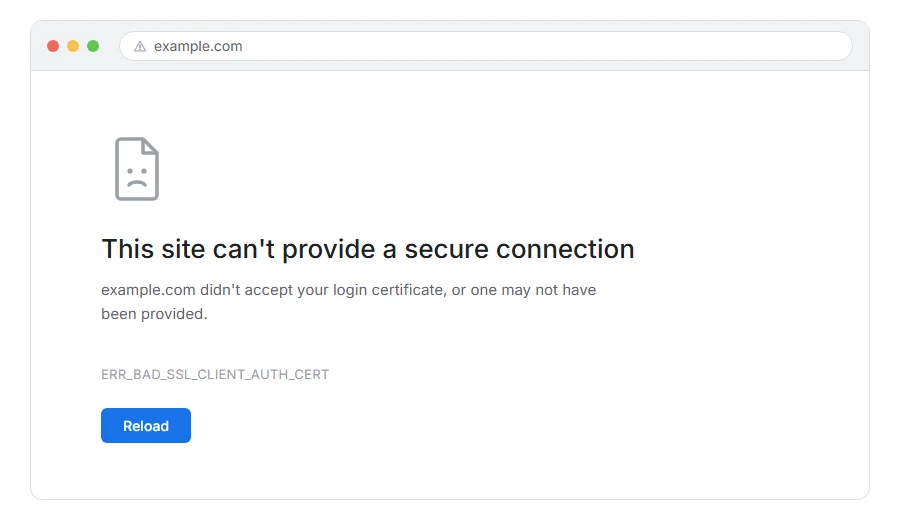
You are trying to reach a site and Chrome stops you with ERR_BAD_SSL_CLIENT_AUTH_CERT.
This one is less common than the other certificate errors, and it works the opposite way round, which is why the usual advice does not fit.
In one line: the site asked your browser to prove who it was with a certificate, and the certificate it got was not accepted.
Think of it like a building where the door checks your pass rather than you checking theirs. Most websites show you their ID. This kind asks for yours.
Do not worry, you are not alone. If you are seeing this, you are almost certainly on a work system, a bank, a government portal or a developer setup, because those are the places that ask. I am here to help.
Where it actually breaks
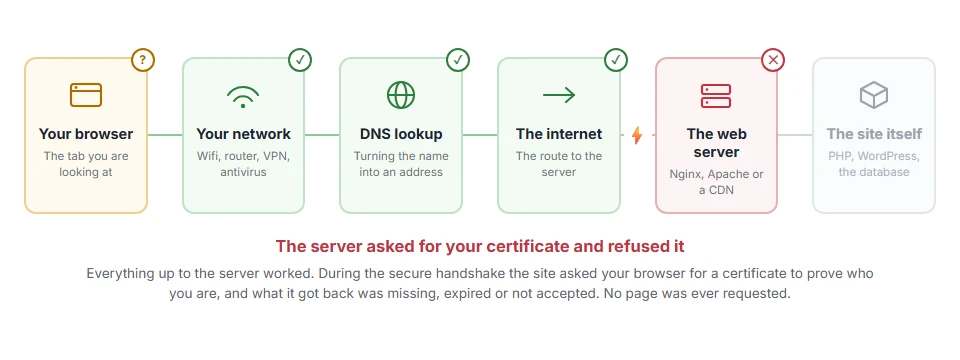
Every page you open makes the same journey. Knowing which step this error stops at tells you which half of the list below is worth your time, because the green steps are already proven to be working.
First, understand which way round this is
Most certificate errors are about the site’s certificate. ERR_CERT_AUTHORITY_INVALID and ERR_CERT_DATE_INVALID both mean your browser does not trust the site’s certificate.
This one is about your certificate. The site requested client authentication, your browser offered a certificate, and the site rejected it.
That matters because it means the fix is usually on your machine rather than theirs, though not always.
Step 1: Work out whether you should have a certificate at all
If you have no idea what a client certificate is and you are trying to reach an ordinary website, something is wrong at their end rather than yours. A site that asks every visitor for a certificate is misconfigured.
If it is a work system, a bank, a tax portal or a customer system, then yes, you are meant to have one, and it was probably installed for you when you were set up.
When this will not help: on a personal machine trying to reach a public site, none of the rest of this page applies. Contact the site and tell them they are requesting client certificates from ordinary visitors.
Step 2: Check whether your certificate has expired
The most common cause by a wide margin. Client certificates are usually issued for a year.
On Windows, press the Windows key and type certmgr.msc. Open Personal, then Certificates. Look at the Expiration Date column.
On macOS, open Keychain Access, choose the login keychain and the My Certificates category, and check the expiry.
If it has expired, nothing on your machine will fix it. Whoever issued it has to issue a new one.
When this will not help: an expired certificate cannot be renewed by you. Go to whoever issued it.
Step 3: Check the certificate is actually installed
If the list is empty, the certificate was never installed on this machine, or it was installed for a different user account.
If somebody sent you a .pfx or .p12 file, double click it and follow the wizard to install it. You will usually need the password it came with.
When this will not help: if you do not have the file, ask for it. It cannot be recovered from anywhere else, and it should never be sent unprotected.
Step 4: Check you picked the right one
If you have more than one certificate, Chrome asks which to use and remembers your answer. Picking the wrong one once means it keeps using the wrong one.
Close every Chrome window completely and reopen. That clears the remembered choice for the session and Chrome will ask again.
When this will not help: if only one certificate is installed, there is nothing to pick wrongly.
Step 5: Check the whole chain is present
A client certificate is signed by an issuer, and the site may need to see that issuer to trust yours.
In certmgr.msc, look under Intermediate Certification Authorities and Trusted Root Certification Authorities for the organisation that issued yours. If the issuer is missing, your certificate cannot be validated even though it is present and in date.
Whoever issued yours can supply the chain.
When this will not help: on a managed machine these are usually installed by policy and should already be there. If one is missing, that is an IT matter.
Step 6: Try a different browser
This tells you where the certificate lives.
Chrome and Edge use the operating system’s certificate store on Windows. Firefox keeps its own. So a site that works in Firefox but not Chrome usually means the certificate is in Firefox’s store and not the system one.
When this will not help: on macOS, Chrome and Safari both use Keychain, so this test tells you less there.
Step 7: Clear the SSL state
Windows caches certificate decisions, and a stale one keeps a fixed problem looking broken.
Open Internet Options from the Start menu, go to the Content tab, and click Clear SSL state. Then restart Chrome.
When this will not help: this is Windows only, and it clears a cache rather than fixing a wrong or missing certificate.
If you run the site
Then you are requesting client certificates, and there are three things worth checking.
Are you requesting them on the whole site when you meant to request them on one section. That is the usual configuration mistake, and it locks out every ordinary visitor.
Is your certificate authority list current, since a client certificate signed by an issuer you no longer trust will be rejected exactly like this.
And is the request set to optional or required. If it is required and a visitor has no certificate, they get an error instead of a login page, which is a poor experience where a page explaining what they need would be better.
Frequently asked questions
Can I click through this warning? No. Unlike a site certificate warning, there is no continue button, because the site genuinely will not talk to you without a certificate it accepts.
Is the site unsafe? No. It is asking for stronger authentication than usual, which is the opposite of unsafe.
Why did it work yesterday? Expiry is the most likely answer. Client certificates run out quietly and the first sign is usually this error.
Can I make my own certificate? For a site you control, yes. For somebody else’s, no. It has to be one they issued and trust.
If you have any issues, you can ask me via comment, and I will love to help you out.
