
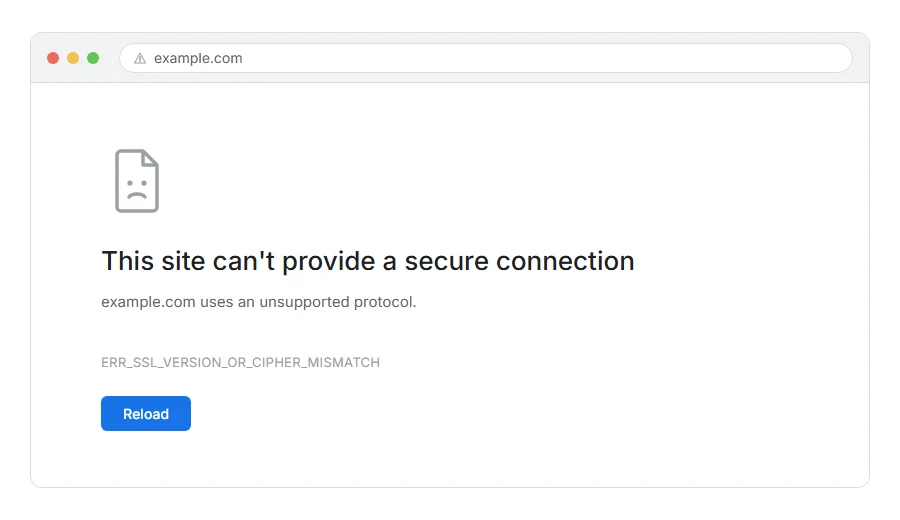
Chrome has stopped before loading anything and told you it cannot provide a secure connection, with ERR_SSL_VERSION_OR_CIPHER_MISMATCH printed underneath.
In one line: your browser and the server could not agree on a way to encrypt the conversation, so neither of them would start it.
Think of it like two people who want to talk in private but share no language. Nobody is being rude. They simply have no common way to speak, so nothing is said at all.
That is why the page shows nothing rather than partly loading. The refusal happens before a single byte of the page is sent.
Do not worry, you are not alone. This one usually comes down to something old on one side, and I am here to help you work out which side.
Where it actually breaks
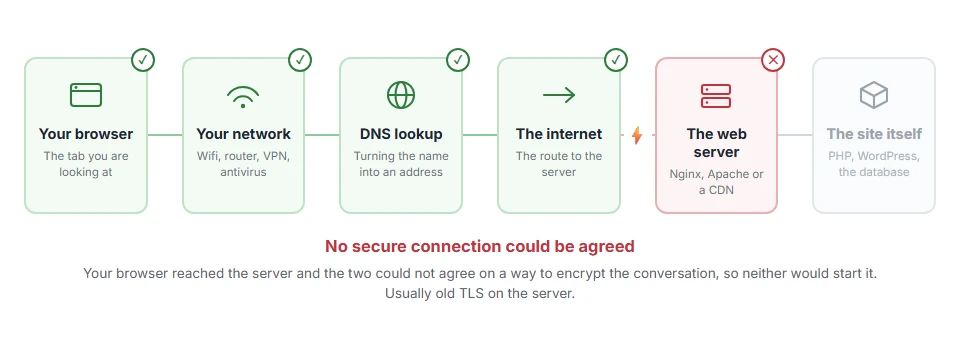
Every page you open makes the same journey. Knowing which step this error stops at tells you which half of the list below is worth your time, because the green steps are already proven to be working.
First, work out which side is old
This is the whole diagnosis and it takes thirty seconds.
Open the same site on your phone, on mobile data, in a modern browser. If it loads there, your computer or browser is the old one. If it fails there too, the server is the old one and no amount of fixing your machine will help.
Everything below is arranged around that answer.
If the site works elsewhere, the problem is your side
Step 1: Update your browser
Encryption standards move, and old browsers get left behind by design rather than by accident.
In Chrome go to the three dots, Help, About Google Chrome, and let it update. Do the same in whatever browser you use. Then restart it properly, not just the tab.
When this will not help: if your browser is already current, this is not it. Go to step 2.
Step 2: Check your computer’s date and time
This one is easy to mix up with this error, so know what you are looking for.
Certificates are only valid between two dates, so a clock that is wrong by months or years does break secure sites. But it gives a different Chrome error, “Your clock is behind” or “Your clock is ahead”, not this one.
If you do see that message, set the date and time to update automatically, then reload.
When this will not help: if Chrome is showing ERR_SSL_VERSION_OR_CIPHER_MISMATCH and not a clock message, the clock is not the cause. Go to step 3.
Step 3: Turn off QUIC in Chrome
Chrome’s newer protocol occasionally trips over middleboxes and produces this error.
Go to chrome://flags, search for Experimental QUIC protocol, set it to Disabled, and relaunch Chrome.
When this will not help: if you are not using Chrome or a Chrome based browser, this flag does not exist.
Step 4: Turn off antivirus HTTPS scanning
Security suites that inspect encrypted traffic sit in the middle of the handshake, and some still use old settings when they do it.
Look for a setting called HTTPS scanning, SSL scanning or web shield, and turn it off for two minutes to test. Turn it back on afterwards.
When this will not help: Windows Defender does not do this by default. Third party suites are the ones to suspect.
Step 5: Clear your SSL state
Windows keeps a small cache of certificate decisions and it can go stale.
Open Internet Options from the Start menu, go to the Content tab, and click Clear SSL state. Then restart your browser.
When this will not help: this is Windows only. On a Mac, restarting the browser is the equivalent and usually enough.
If the site fails everywhere, the problem is the server
Now you are either the owner or you are telling the owner what to check. Either way, these are the causes in order.
The server only supports old TLS
Modern browsers dropped TLS 1.0 and 1.1 some years ago. A server still offering only those will be refused by every current browser, which looks exactly like this.
The fix is to enable TLS 1.2 and 1.3 on the server. On a managed host, ask support to do it, because you usually cannot.
The certificate does not cover this name
A certificate issued for example.com does not automatically cover www.example.com, and the other way round.
Run an SSL checker against the exact address that fails, including the www. or the lack of it, and read what names the certificate actually lists.
The certificate chain is incomplete
This one is worth checking while you are there, but it does not cause this error. When a broken chain does cause trouble, the browser shows a different error, an untrusted certificate, not a cipher one.
Certificates come with intermediate certificates that link them back to a trusted root. If the server sends the certificate but forgets the intermediates, some browsers fill in the gap from memory and some refuse.
An SSL checker will say plainly whether the chain is complete. If it is not, reinstall the certificate including the full bundle your provider gave you.
The cipher list is too narrow
If somebody hardened the server a while ago and pinned an exact list of ciphers, that list ages badly. Browsers drop old ciphers and eventually nothing overlaps.
The fix is to move back to a current recommended cipher list rather than a hand picked one from years ago.
When this will not help: on shared hosting you cannot change ciphers or TLS versions at all. Only the host can, and they will usually do it if you ask and explain.
What not to do
I would rather say this plainly than let you find it in a forum.
Do not disable certificate checks in your browser to get past it. Some pages suggest command line flags that turn security warnings off. That is not a fix, it is removing the smoke alarm.
Do not install a random certificate somebody sends you to solve it. That is a well known way to get yourself into real trouble.
If the site is genuinely broken, it is the owner’s job to fix. If it is your site, the sections above are the fix.
Frequently asked questions
Is it safe to visit the site anyway? There is no “anyway” here. Chrome will not let you click through this one, and that is deliberate. Unlike a name mismatch warning, this failure means no secure connection could be built at all.
Why does it work in Firefox but not Chrome? Usually a cipher gap. The two browsers do not offer the same list of ciphers, so Firefox can sometimes agree on one with an old server when Chrome cannot. That means the server is genuinely misconfigured, even though one browser is forgiving about it.
I just installed a certificate and now I get this. Usually the new certificate is not active yet or does not cover that exact name. Check both with your host.
Does it mean the site is dangerous? No. It usually means the site is behind on its configuration. Old, not malicious.
If you have any issues, you can ask me via comment, and I will love to help you out.
The other certificate and encryption errors
Error names are easy to mix up, and the wrong page wastes your time. If what you are looking at is not quite what this one describes, one of these will be closer.
- NET::ERR_CERT_AUTHORITY_INVALID, the certificate exists but your browser does not trust who signed it.
- ERR_BAD_SSL_CLIENT_AUTH_CERT, the site asked for YOUR certificate and did not accept it, which is the opposite way round.
If Chrome named a different problem
These secure connection errors are easy to mix up. If Chrome said ERR_SSL_PROTOCOL_ERROR, the handshake failed before any certificate was checked. If it showed the red warning and the words your connection is not private, the certificate was checked and something about it did not add up. Firefox words these differently. If it showed SSL_ERROR_RX_RECORD_TOO_LONG, the site sent back plain text where an encrypted reply should have been.
