
Are you getting ERR_SSL_PROTOCOL_ERROR in Chrome on a site that worked yesterday, while every other site loads perfectly?
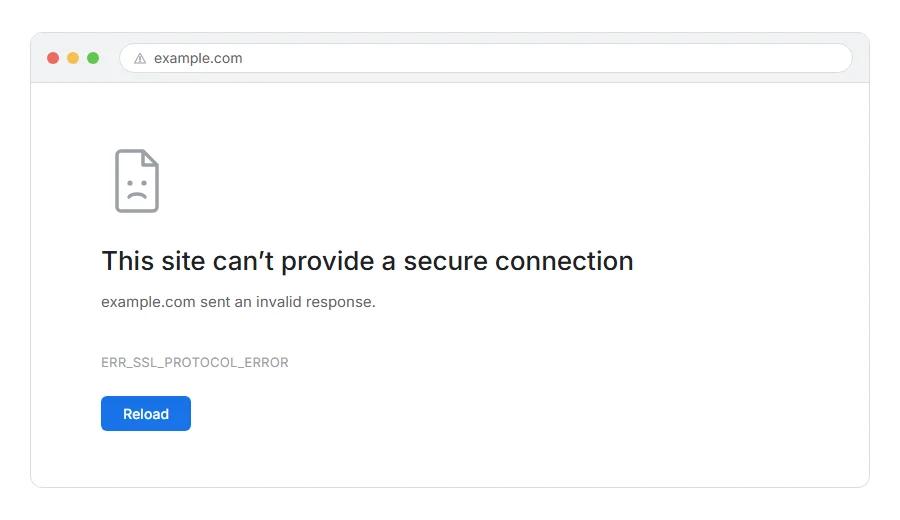
Don’t worry, you are not alone. It is a common one and it is usually something small. What the message means is that your browser and that server tried to agree on a secure connection and could not, so Chrome stopped before any page was loaded. It is not a virus, and it is not your account.
The causes worth knowing about are:
- Your computer’s clock is wrong, though Chrome usually shows a clock warning for that instead
- Chrome is holding an old, failed connection in its memory
- An extension, usually an ad blocker or a privacy tool, is interfering
- Your antivirus is inspecting encrypted traffic and doing it badly
- A VPN, a work proxy or a school filter is standing in the middle
- The site itself has a broken certificate or a broken TLS setup
In this article you will learn nine checks, starting with the ones on your own computer because that is where most of these come from, and finishing with the server side for anyone who owns the site. Before any of them, one quick test tells you which half you need.
So let’s get started.
The quick test: is it you or the website?
Open the same address on your phone with wifi switched off, so it uses mobile data.
If the page loads on the phone, the problem is on your computer or your network and checks 1 to 6 are yours. If it fails there too, the site is the problem and you can skip to check 7.
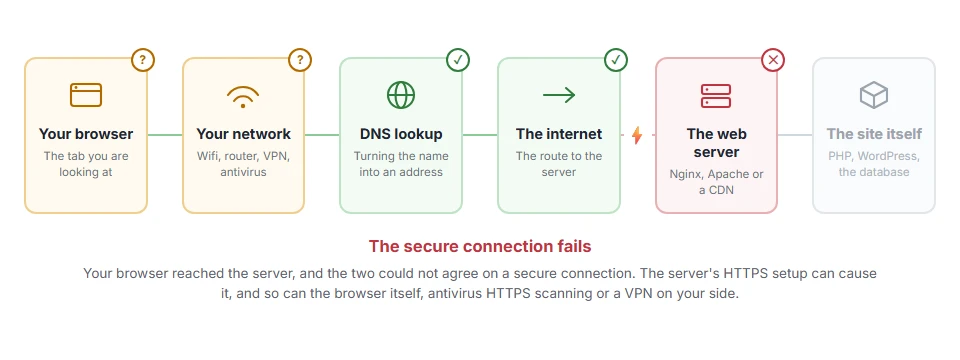
Where it actually breaks
Every page you open makes the same journey. Knowing which step this error stops at tells you which half of the list below is worth your time, because the green steps are already proven to be working.
1) Check your computer’s clock
A wrong clock usually brings Chrome’s clock warning rather than this error, but it is easy to rule out, so it goes first.
A certificate is only valid between two dates. If your clock is days out, every certificate looks expired or not yet valid, and secure connections start failing all over the place. On Windows, open Settings, then Time and language, and switch on set time automatically. On a Mac it is System Settings, then General, then Date and Time.
If your laptop battery is old and the clock resets every time you shut down, you have just found your answer. This will not help if only one site is failing, though. One site failing is never a clock problem.
2) Clear the SSL state and the cached files
Chrome keeps a short memory of past secure connections, and a stale entry keeps failing long after the site has been fixed.
On Windows, search for Internet Options from the Start menu, open the Content tab, and click Clear SSL state. Then in Chrome open Settings, Privacy and security, Delete browsing data, and clear cached images and files. Close every Chrome window and open it again, because Chrome keeps connections alive in the background.
Stick to cached files unless you actually want to be signed out of things, as clearing cookies will log you out everywhere. If the site was repaired only a few minutes ago this might not work yet, because Chrome holds its memory of a failed connection for a while.
3) Try an incognito window, then your extensions
Open the site in an incognito window, where extensions are off by default.
If it works there, an extension is interfering, and the usual suspects are ad blockers, privacy tools and anything promising to speed up or secure your browsing. Turn them off one by one in chrome://extensions until the site loads.
Incognito also ignores your normal cache, so a success there could be either cause. Test with extensions disabled in a normal window before you blame one of them.
4) Look at your antivirus and its HTTPS scanning
Many security suites inspect encrypted traffic by sitting in the middle of it with their own certificate, and when that goes wrong this exact error is what you see.
Look for a setting called HTTPS scanning, SSL scanning, encrypted web scan or web shield, and switch it off for a few minutes. If the page comes back, you have found it. If you cannot see which setting it is, I recommend switching the whole web shield off for sixty seconds rather than hunting through menus, then putting it straight back on.
Turn the feature back on afterwards even when it was the cause, and add an exception for that one site instead, or update the antivirus. Leaving your whole machine unprotected to fix one page is a bad trade.
5) Disconnect the VPN or proxy for one test
A VPN, a corporate proxy or a school filter breaks the handshake in the same way, because each of them is also standing in the middle of the conversation.
Disconnect the VPN and try again. On a work laptop you may not be allowed to turn the filter off, so test the same address on your home network or your phone instead, and tell your IT people which site fails.
If you are at home with no VPN, skip this step. It is a workplace and public wifi problem far more than a home one.
6) Check whether the site is stuck on an old TLS version
Browsers dropped support for TLS 1.0 and 1.1 years ago, so a server that only speaks those now fails for everybody, and Chrome shows it as ERR_SSL_VERSION_OR_CIPHER_MISMATCH rather than this error.
You cannot fix that from your side, and you should not want to, because a connection on those versions is no longer private in any meaningful sense. If you find a guide telling you to re-enable TLS 1.0 with a Chrome flag, it is out of date, those flags were removed.
If the site is yours
The good news for owners is that this error is nearly always fixable in the server configuration, and the next three checks cover the server side.
7) Test the certificate and the chain from outside
Run your domain through an online SSL checker such as SSL Labs or SSL Shopper, and read two things: whether the chain is complete, and which TLS versions your server offers.
A missing intermediate certificate brings Chrome’s privacy warning with ERR_CERT_AUTHORITY_INVALID, not this error. It often works in one browser and fails in another, which is exactly why it survives unnoticed for months.
A checker sees your server from outside, so if your site sits behind Cloudflare you are testing Cloudflare rather than your own server. Test the origin address as well, or you will fix nothing.
8) Turn on TLS 1.2 and 1.3
On your server or in your hosting panel, enable TLS 1.2 and 1.3 and turn the older versions off.
On cPanel or Plesk this is usually one switch. On a server you manage it is a line in the Apache or Nginx configuration, and it does nothing until you restart the web server.
A handful of very old devices cannot use TLS 1.2 at all. If those are your customers, that is a business decision rather than a technical one, and I would not hold a whole site back for them.
9) Make sure the certificate matches the address people arrive on
If the certificate is issued for one name and visitors land on another, Chrome shows its privacy warning with ERR_CERT_COMMON_NAME_INVALID rather than this error. The classic pair is a certificate for example.com being used on www.example.com.
Make sure the certificate covers both names, and that your redirect sends people to the version it covers. And remember that renewing a certificate does not always load it: on many setups the old one stays in memory until the web server is restarted.
When Chrome names a different problem, our pages on ERR_SSL_VERSION_OR_CIPHER_MISMATCH and ERR_CERT_AUTHORITY_INVALID go into those two in detail. If your site sits behind Cloudflare and visitors see a Cloudflare page instead, that is error 525.
FAQ(ERR_SSL_PROTOCOL_ERROR)
Is ERR_SSL_PROTOCOL_ERROR dangerous?
The error itself is not. It is the browser refusing to continue without a secure connection, which is the safe behaviour.
Why does it happen on one site only?
Because the failure is about that server’s settings, or about something on your machine reacting to them. One site failing points at the server. Every site failing points at your computer.
Can I ignore it and continue to the site?
There is no continue button here, and that is on purpose. Chrome could not build a secure connection at all, so it has nothing to show you.
Does clearing cookies help?
Rarely. Clearing the SSL state and the cached files is the part that matters for this one.
It works in Firefox but not Chrome. Why?
The two have different rules about old TLS versions and incomplete chains. It usually means the server is misconfigured in a way that Firefox still tolerates. If Firefox refuses too and says SSL_ERROR_RX_RECORD_TOO_LONG, the server is answering the secure port in plain HTTP.
If you have any issues, you can ask me via comment, and I will love to help you out.
When the handshake fails rather than the protocol
A browser saying the protocol failed and a log saying the handshake failed are close cousins. If what you have in front of you is the words ssl handshake failed, in curl or in a server log rather than in Chrome, that page has the one command that shows which side gave up.
What the protocol in the name actually is
The error talks about SSL, and your browser has not used SSL for years.
- SSL vs TLS, which versions exist, which ones are switched off, and how to see which one a site uses.
