
Are you tired of opening your inbox and finding half of it is rubbish you never asked for? Offers, newsletters you do not remember joining, and a few that are plainly trying to catch you out.
Don’t worry, you are not alone in this, every inbox older than a year looks the same. But let me be straight with you before anything else: you will not stop spam completely. Your address is already on lists that other people own, and nobody can take it off them. What you can do is cut the amount that reaches your inbox down to almost nothing, and that is what this article is about.
The reason you are getting so much is usually one of these:
- Your address appeared in a data breach at a company you had an account with
- It was scraped off a website, a forum or a public page
- You handed it to a shop or a service that sold its list on
- You have been deleting spam instead of reporting it, so your provider never learned
- You clicked unsubscribe on real spam, which told them a person reads that mailbox
In this article you will learn seven things that genuinely reduce it, in the order that gives you the biggest drop first. They work in Gmail, Outlook and Yahoo, and the last one is about finding out whether your address has leaked.
So let’s get started.
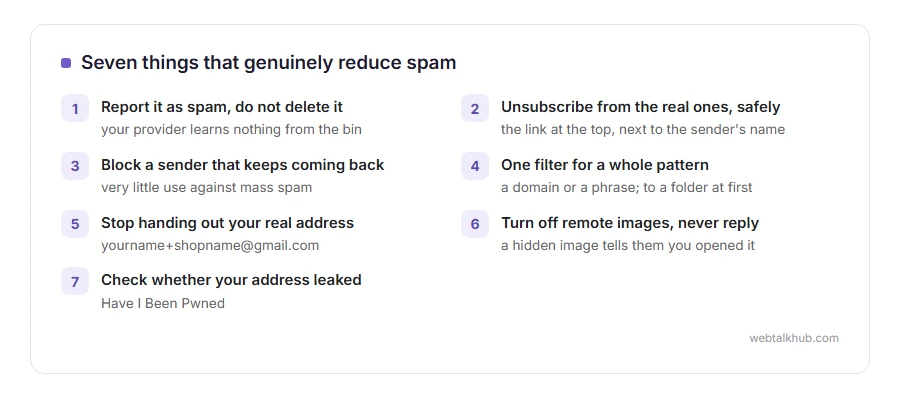
1) Report it as spam, do not delete it
This is the habit that does the most, and almost everybody gets it the wrong way round.
Deleting a spam message does not work as a way of teaching your provider anything, because it learns nothing from the bin. Marking it as spam teaches it something about that sender, that wording and those links, for you and for everybody else on the same service.
In Gmail, tick the message and click the exclamation mark icon. In Outlook, select it and choose Report, then Report junk. In Yahoo, tick it and press the Spam button. Do that for a week instead of deleting, and the difference is easy to see.
One thing to be careful about: never report a newsletter you actually signed up for. Unsubscribe from that one instead, or you teach the filter to distrust mail you asked for.
2) Unsubscribe from the real ones, the safe way
Proper companies have to give you a way out, and using it works.
In Gmail and Outlook there is an unsubscribe link at the top of the message, next to the sender’s name. Use that one rather than the link in the footer, because your provider handles it for you. Gmail and Outlook.com also list all your subscriptions on one page, and our guide on how to mass unsubscribe shows where.
If you only have a footer link, open it and take the one click option if there is one. If it asks you to sign in, or to type your address again, close the tab and report it as spam instead.
This only works for real companies. Unsubscribing from actual spam confirms your address is live and read by a human being, which makes the problem worse rather than better.
3) Block the sender, and know what blocking can and cannot do
Blocking sends that sender straight to junk. It is worth doing for a person or a company that keeps coming back, and it does very little against mass spam, because the address changes every time.
In Gmail, open the message, click the three dots at the top right of it, and choose Block sender. In Outlook, select the message, then Junk, then Block sender. In Yahoo it lives in Settings, More settings, Security and privacy.
The limit is worth knowing before you spend an afternoon on it. Blocking only works if the sender keeps the same address, and mass spammers change theirs constantly, so a hundred addresses walk straight around it. For those you need a filter, which is next.
4) Write one filter that catches a whole pattern
This gives the biggest single drop and hardly anybody does it.
In Gmail, open Settings, then Filters and blocked addresses, then Create a new filter. You can match a whole domain, a phrase that keeps appearing, or a word in the subject, and then choose Delete it or Skip the inbox. In Outlook the same thing is in Settings, Mail, Rules. In Yahoo it is Settings, More settings, Filters.
A filter on a domain, for example anything from mailer.example.com, kills every future address behind it in one go.
For the first month, send the matches to a folder rather than to the bin. A filter that deletes is a filter you cannot check, and you want to see what it caught before you trust it.
5) Stop handing out your real address
Most spam starts with a form you filled in years ago, and a second address breaks that chain for everything new.
Gmail supports plus addressing with no setup at all: give a shop [email protected] and the mail still reaches you. If it turns up in a list later, you know exactly who sold it, and you can filter that exact address into the bin.
If you pay for iCloud+, Hide My Email makes a random forwarding address you can switch off whenever you like. Firefox Relay does the same job on any provider.
Some websites reject a plus sign in the address box, and a few strip it silently, so check the confirmation email arrives before you rely on it.
6) Turn off remote images, and never reply
Spam often carries a tiny hidden image. When your mail app fetches it, the sender learns that the address is real and that the message was opened.
Gmail proxies images, which blunts this. In Outlook and Apple Mail it is worth turning remote images off in the settings and using the show images button when you want them.
Replying does the same thing much louder, even when you are replying to tell them where to go. So does clicking unsubscribe on something that is plainly criminal rather than commercial.
The cost of this one is small but real: genuine newsletters look broken until you click show images. Most people decide that is a fair trade.
7) Find out whether your address has leaked
If the amount of spam jumped suddenly, your address has probably appeared in a breach of a site you used.
Put it into Have I Been Pwned. It tells you which known breaches include your address, which accounts need a new password, and whether the leak came with your old passwords attached.
Be clear about what this does not do. It will not help with the spam you are already getting, because it cannot pull your address back out of a list that other people hold. Its value is knowing which passwords to change today. Whether a leaked password can be read at all depends on how the site stored it, which our guide to password hashing explains.
When it is worth changing address
Sometimes a mailbox is simply too dirty to clean.
Think about a new address when the spam is mostly phishing aimed at your bank or your work, when one old address turns up in several breaches, or when your filters catch hundreds a week and real mail is getting lost among them.
Keep the old one alive for six months, forward it to the new one, and move accounts over as they write to you. It is a week of small annoyances spread over half a year, which is why it is a last resort rather than a first move.
FAQ(Stopping Spam and Junk Email)
Does marking spam actually train the filter?
Yes. Providers use those reports for your account and for their wider filtering, so it is the most useful thirty seconds you can spend on this.
Why did my spam suddenly increase?
Usually a breach, or an address scraped from a public page. A sudden jump nearly always means a list has been sold and resold.
Is it safe to open a spam email?
Opening it is nearly always safe today. Clicking links, opening attachments and enabling content are the parts that are not.
Should I pay for extra filtering?
Aliases and better filtering do help. What no provider can do is remove your address from lists that other people already hold.
My own mail is going to other people’s spam folders. Same problem?
No, that is the opposite direction and it has its own causes. Our page on email not sending covers the sending side, and there is more on Gmail not receiving emails if messages are going missing on the way in.
If you have any issues, you can ask me via comment, and I will love to help you out.
If you are on Yahoo Mail
The steps above are worded for Gmail and Outlook. Yahoo puts the same tools in different places, and our page on how to block emails on Yahoo walks through the blocked list, the filters and the limit of 1,000 addresses that catches people out.
How your mail is stored
Filters behave differently depending on how your account is set up.
- IMAP and what it syncs, a rule that files mail into a folder your app does not sync looks exactly like mail vanishing.
For one sender who will not stop
Spam comes from everywhere. A single person or company is easier to shut out.
- how to block someone on Gmail, and how to block a whole domain when they keep changing address.
