
Is your inbox full of newsletters and shop emails you never really signed up for, and opening each one to find its tiny unsubscribe link feels like a job for a whole week?
You can do most of it from one page now. Gmail, Outlook.com and Yahoo each keep a list of the senders you are subscribed to, with an unsubscribe button next to each one. It is like cancelling every delivery at the post office in one visit, instead of writing to each sender in turn.
Here is where each one lives:
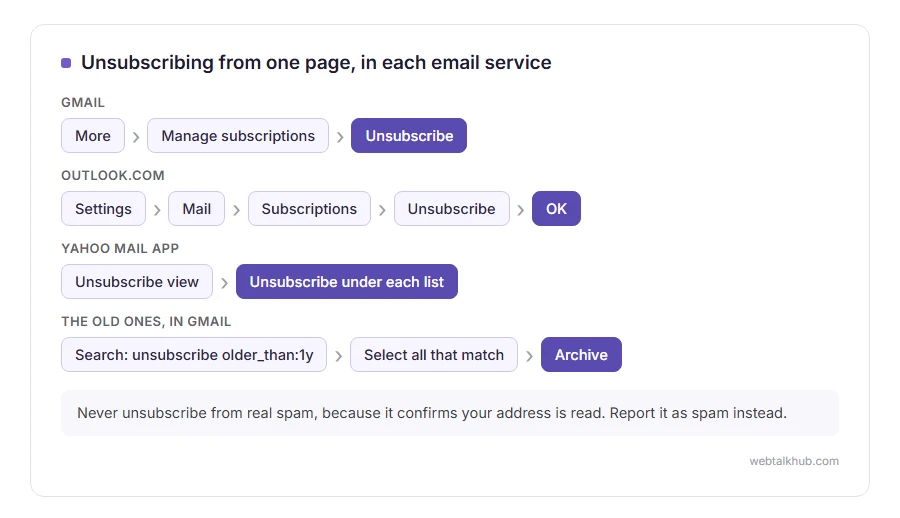
- Gmail: Manage subscriptions, in the left menu
- Outlook.com: Settings, Mail, Subscriptions
- Yahoo Mail: the Unsubscribe view in the app
- The old ones already in your inbox: one search and one delete
- Unsubscribe apps: what they take in return
In this article you will learn how to mass unsubscribe in each of them, how to clear out what has already arrived, and the one kind of email you should never unsubscribe from.
So let’s get started.
1) Gmail: Manage subscriptions
On a computer, open Gmail, click More in the menu on the left, then Manage subscriptions. In the Gmail app, open the menu at the top left and tap Manage subscriptions.
You get every sender you are subscribed to, sorted so the ones that email you most are at the top, with the number of emails each has sent recently. Click a sender’s name to see what they have been sending before you decide. Next to each one is an Unsubscribe button, and Gmail sends the request to the sender for you.
It can take a few days to take effect, and more emails may arrive in the meantime. Google is also rolling the page out gradually, so if Manage subscriptions is missing from your menu, it may not have reached your account yet. Until it does, the Unsubscribe link Gmail shows next to the sender’s name in each email does the same job one at a time.
2) Outlook.com: Settings, Mail, Subscriptions
In Outlook.com, open Settings, then Mail, then Subscriptions. The list shows the newsletters and mailing lists Outlook has spotted in your mail. Select Unsubscribe next to one and confirm with OK.
Microsoft is open about what the list misses. Mail that went to your Junk folder, and senders you have already blocked, may not appear, and neither may lists whose emails come from different addresses. Those are the ones to handle from the email itself.
For old mail from one sender, Outlook’s Sweep helps too: select one email from them, choose Sweep, and it can delete everything from that sender in your inbox at once.
3) Yahoo Mail: the Unsubscribe view
In the Yahoo Mail app, tap the Unsubscribe view tab. It lists your mailing lists, and each one has its own Unsubscribe button underneath.
On the Yahoo website, open an email from the list and use the Unsubscribe link Yahoo shows at the top of it.
The drawback is that Yahoo has no select all, so you tap through the list one sender at a time. It is still much quicker than hunting for the link at the bottom of each email.
4) Clear out the ones already in your inbox
Unsubscribing stops new emails. Everything that has already arrived stays where it is, and in Gmail one search finds most of it.
In the Gmail search box, type:
unsubscribe older_than:1y
That finds every email more than a year old with the word unsubscribe in it, which is nearly every newsletter. Tick the box above the list to select the page, then click Select all conversations that match this search in the banner that appears, and choose Archive or Delete.
Be careful before you press Delete. Bank emails, receipts and account notices often carry the word unsubscribe in their footer too, so scroll through the results first. If you are not sure, Archive is the safer choice, because archived mail still turns up in a search later.
5) Unsubscribe apps: read what they take in return
There are services that connect to your mailbox and unsubscribe you from everything in a few clicks. They work, and the free ones pay for themselves in another way.
Unroll.me, the most widely known free one, says on its own data page that it shares information about the commercial emails you receive, and some demographic details, with clients such as e-commerce businesses and data brokers, for market analysis. The paid services charge a subscription instead.
I don’t recommend handing over your whole inbox for a job the built in pages above now do for free. If you use one anyway, remove its access afterwards in your Google or Microsoft account’s security settings.
The one kind of email you should never unsubscribe from
Real spam. Unsubscribing from a company you know is fine, because a real business stops. Clicking unsubscribe in actual spam only confirms to the sender that somebody reads your address, and more arrives.
Report those as spam instead. Our guide on how to stop spam and junk emails covers the difference and the filters that deal with the rest, and for one sender who keeps coming back, blocking them in Gmail takes a minute.
FAQ(Mass Unsubscribing)
Why do I still get emails after unsubscribing?
It takes time to reach the sender’s list. Gmail warns that it can take a few days, and in the US the CAN-SPAM Act gives companies up to 10 business days to act on a request. After that, more email means the sender is ignoring you, so report it as spam.
Is it safe to click unsubscribe?
From a company you recognise, yes. The buttons Gmail, Outlook and Yahoo show are the safest way, because your email service sends the request, rather than your browser opening a page the sender chose.
Is there one button that unsubscribes from everything?
No. None of the three has a single unsubscribe all button, and that is deliberate, because some of the lists are ones you want. The subscription pages above are as close as it gets.
If you have any issues, you can ask me via comment, and I will love to help you out.
