
Do you need the words of a YouTube video as text, to quote a line, study a lecture, or skim a long talk instead of sitting through all of it?
YouTube already has a transcript for most videos. It just keeps the button at the very bottom of the description, where few people ever scroll. Think of it like the subtitles on a DVD: they were on the disc all along, and you only had to find the menu that switches them on.
Here is where it is, depending on what you need:
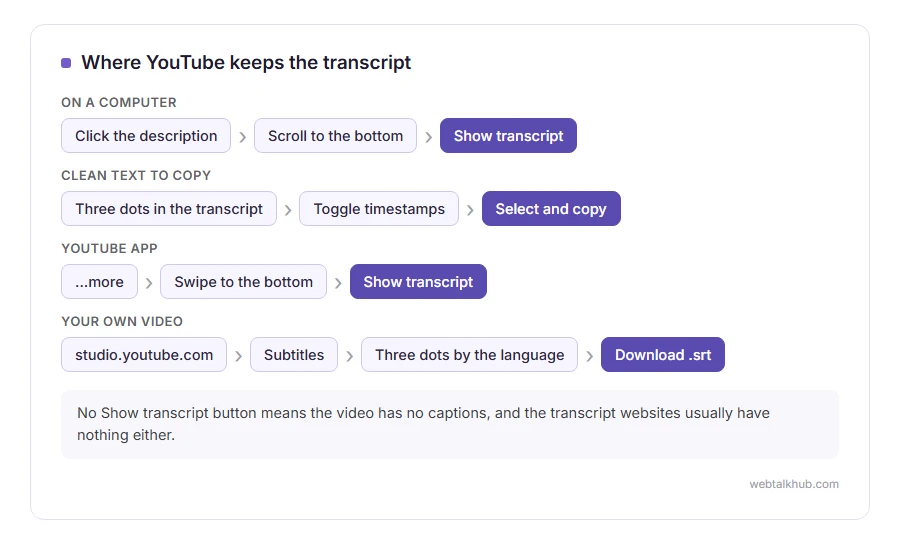
- On a computer: the Show transcript button, at the end of the description
- The same text without the timestamps, ready to copy
- On a phone: the same button, inside the YouTube app
- For your own videos: a proper caption file, from YouTube Studio
In this article you will learn how to get a YouTube transcript in each of those ways, and what to do when a video has no transcript at all.
So let’s get started.
1) On a computer: Show transcript
Open the video on youtube.com and click the description under it to expand it. Scroll to the very bottom of the description, past the links and chapters, and you will find a Transcript section with a Show transcript button.
Click it and the transcript opens in a panel beside the video, one line per caption with its time. Clicking any line jumps the video to that moment, which is handy for finding the one sentence you remember.
If the video has captions in more than one language, a language menu sits at the bottom of the panel. The words (auto-generated) next to a language mean YouTube’s speech recognition wrote it, not the creator.
This will not help if the button is missing, because that means the video has no captions at all. Section 5 covers that case.
2) Copy it without the timestamps
The timestamps are useful for jumping around and a nuisance in a document. On a computer you can hide them before copying.
In the transcript panel, click the three dots at its top right and choose Toggle timestamps. Now click at the start of the first line, drag to the end, press Ctrl + C (or Command + C on a Mac), and paste it wherever you need it.
Expect one short line per caption rather than paragraphs, because that is how captions are stored. For a long transcript it is quicker to paste it into a document and join the lines there than to tidy it by hand.
3) On a phone or tablet
In the YouTube app, open the video and tap …more under the title to open the full description. Swipe to the bottom and tap Show transcript.
The transcript opens under the player, and tapping a line jumps to it, just like on a computer.
The drawback is copying: the app has no option to hide the timestamps, and selecting a long transcript on a small screen is fiddly. If you need the text rather than just to read along, I recommend opening the video on a computer, where section 2 takes a minute.
4) Your own video: download the caption file from YouTube Studio
For videos on your own channel there is a proper file, with every caption and its exact timing.
Go to studio.youtube.com and click Subtitles in the menu on the left. Choose the video, then click the three dots next to the language you want, choose Download, and pick the format.
.srt is the one most video editors and players read. .vtt is the web format, and .sbv is YouTube’s own simple format. All three are plain text, so you can also open them in Notepad or TextEdit.
This only works for videos you own or manage. For anybody else’s video, the transcript panel in sections 1 to 3 is the official way.
5) When there is no Show transcript button
No button means the video has no captions, and there are a few usual reasons:
- The video is new, and YouTube has not finished making its automatic captions yet
- The creator removed the automatic captions and never added their own
- The video is in a language YouTube cannot caption automatically
- There is little speech in it, only music or very noisy sound
The many transcript websites do not solve this. Most of them read the same captions YouTube has, so when YouTube has none, they have none either. The ones that do work make their own transcript by running the sound through speech recognition, which usually means an upload, a sign up, or a paid plan.
If the video is new, it is worth trying again the next day before looking for another way.
FAQ(YouTube Transcripts)
How accurate is a YouTube transcript?
A transcript the creator uploaded is usually exact. An automatic one is good for clear speech in a quiet room and gets names, technical terms and strong accents wrong, and it never says who is speaking.
Can I download the transcript of someone else’s video?
Not as a file through YouTube. You can copy it from the transcript panel, as in section 2. The caption file download in YouTube Studio only works for your own videos.
Can I see the transcript in another language?
Only in the languages the video has captions for, which the menu at the bottom of the panel lists. For the captions on screen, the player’s Settings, Subtitles/CC, Auto-translate shows them in another language as the video plays.
If you post videos yourself, the steps for uploading a video to YouTube go through publishing one, from the title and thumbnail to who can see it.
If you have any issues, you can ask me via comment, and I will love to help you out.
