
You have a video ready, a family clip, a tutorial or your first proper channel upload, and you want to upload a video to YouTube without it getting stuck on a setting you did not know was required.
The upload itself takes a minute to start. What catches people is everything around it: a channel that has to exist first, the made for kids question that cannot be skipped, the 15 minute limit on new accounts, and processing that leaves the video blurry for the first hour.
Here is what you need before you begin:
- A Google account, and a YouTube channel on it
- The video file, ideally an MP4
- A title and a short description
- Ten minutes for the settings screens
This article walks through uploading from a computer and from the phone app, every setting on the way, and what to do when the upload is refused or looks worse than the original.
Before you start, check the length of your video. If it is longer than 15 minutes and your account is new, verify the account first, as explained below, or the upload will stop at the end and you will have waited for nothing.
1) Create a channel if you do not have one
A Google account does not come with a channel. Sign in at youtube.com, click your picture at the top right, and choose Create a channel. Pick a name, which you can change later, and it is ready.
2) Upload from a computer
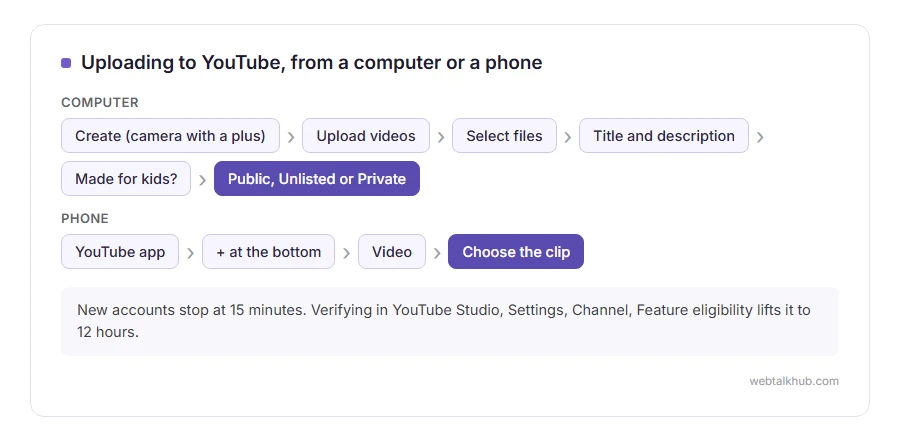
Click the Create button, the camera with a plus sign at the top right, then Upload videos. Drag the file into the window or click Select files.
The upload starts straight away while you fill in the details, so a large file keeps going in the background. Do not close the tab until the progress bar at the bottom says the upload is complete.
3) Upload from a phone
Open the YouTube app, tap the plus button at the bottom, then Video, and choose the clip from your gallery. The app takes you through the same details as the computer, on fewer screens.
A phone upload over mobile data uses a lot of data and stops if the signal drops. I recommend Wi-Fi for anything longer than a couple of minutes.
4) Title, description and thumbnail
The title is what people search, so say what the video actually shows, in the words they would type. The description can hold links and timestamps.
YouTube offers three thumbnails taken from the video. Uploading your own picture needs a verified account, and YouTube now suggests 3840 by 2160 pixels, in a 16:9 shape. Our image resizer gets a picture to that size in your browser.
5) The made for kids question
Every upload has to answer whether it is made for children, and it cannot be skipped. This is a legal requirement in the United States, and it changes what viewers can do: videos made for kids lose comments and some other features.
Answer honestly. Marking an ordinary video as made for kids to be safe switches off features you probably want.
6) Visibility: public, unlisted or private
Public means anyone can find it. Unlisted means only people with the link can watch, which is right for sharing with family or a client. Private means only you and people you invite.
You can also schedule a public video for a later date and time. Unlisted is the one most people want for a first test upload.
Why a video longer than 15 minutes is refused
New accounts are limited to 15 minutes per video. Verifying your account with a phone number, in YouTube Studio under Settings, Channel, then Feature eligibility, lifts that to the full limit of 12 hours or 256 GB, whichever comes first.
This will not help if the video is already uploading, because the limit is checked on the file you sent. Verify first, then upload again.
Why the video looks blurry at first
YouTube makes the low resolution version first so the video can go live quickly, and the HD and 4K versions follow later. For a long video that can take an hour or more.
Keep in mind that nothing is wrong with your file when this happens. Give it time before deleting and uploading again, which only starts the wait from the beginning.
If YouTube refuses the file
MP4 with H.264 video is the safest format. An iPhone records HEVC in a .MOV file by default, and YouTube accepts that as well. If you have a GIF you want on YouTube, our GIF to MP4 converter turns it into a video in your browser first.
If you would rather keep a video on your own website instead of YouTube, our guide on uploading a video to WordPress without YouTube covers that route.
FAQ(Upload a Video to YouTube)
How long does it take to upload a video to YouTube?
The upload depends on your connection and the file size. Processing then adds anything from a few minutes to over an hour for HD versions of long videos.
Why can I not upload a video longer than 15 minutes?
Your account is not verified yet. Verify it with a phone number in YouTube Studio and the limit rises to 12 hours.
Can I upload a video without making it public?
Yes. Choose Unlisted to share it by link only, or Private to keep it to yourself.
Which format should I upload?
MP4 with H.264 video and AAC sound is what YouTube recommends, but it also takes the HEVC .MOV files that iPhones record.
Can I change the title after uploading?
Yes. Open YouTube Studio, choose Content, and click the video to edit its title, description and thumbnail at any time.
If you have any issues, you can ask me via comment, and I will love to help you out.
Before and after the upload
Uploading is the middle of the job. These cover what comes before it and what you can still change afterwards.
- How to make YouTube videos with just a phone, recording, sound, light and free editing, before you ever reach this screen.
- How to edit YouTube videos, trimming, blurring and adding music after a video is up, without losing its views.
- How to get a YouTube transcript, the text of any video, and a caption file for your own.
