

Your business has a name, maybe a website, and your emails still go out from an address ending in gmail.com or hotmail.com. You want a proper business email address, something like [email protected], and you would like to set it up without it bouncing or landing in everybody’s spam folder.
It needs two things, and neither is complicated. A domain, which is the yourbusiness.com part, and an email provider that hosts mailboxes for that domain. Then a few records in the domain’s DNS tell the rest of the internet where your email lives.
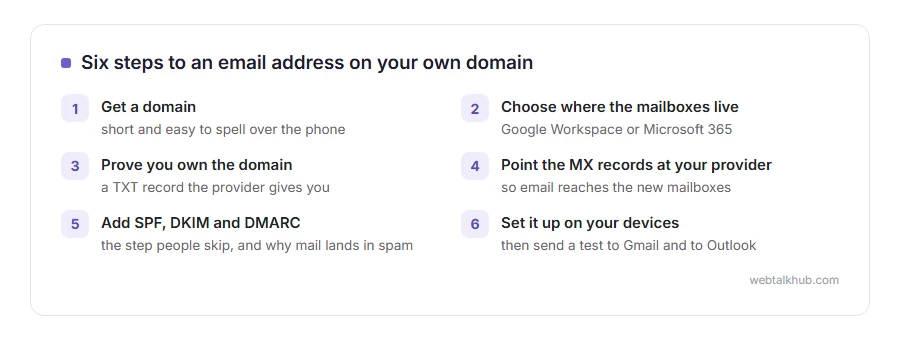
Here is the whole job in order:
- Buy a domain, if you do not have one
- Choose where the mailboxes will live
- Prove to that provider that you own the domain
- Add the MX records so email reaches you
- Add SPF, DKIM and DMARC so your emails are trusted
- Set the address up on your phone and computer
In this guide I will go through each step, compare the main providers without the sales talk, and explain the one mistake that sends a brand new business address straight to spam.
So let’s get started.
1) Get a domain
If you already have a website, you already have a domain, and you can use it for email as well. If not, domains are sold by registrars such as Namecheap, Cloudflare, GoDaddy and Porkbun, usually for a yearly fee.
Pick something short and easy to spell over the phone. You will say it out loud far more often than you think.
2) Choose where the mailboxes live
Google Workspace gives you Gmail with your own domain, plus Drive and Calendar. It is the natural choice if you already live in Gmail. It is paid per user, with no free plan.
Microsoft 365 gives you Outlook with your own domain, plus Word and Excel on the business plans. It suits anybody who works in Office all day.
Your web host. Many hosting plans include email on your domain at no extra cost. The mailboxes are usually small and the webmail plain, and for one or two addresses that is often plenty.
Zoho Mail has a free plan for a handful of users, with limits on storage and on which apps you can use. iCloud+ and Proton Mail also support your own domain on their paid plans.
If you are a one person business, I recommend starting with whatever your web host includes, or the provider whose app you already use every day. Moving later is possible, and it is a job you only want to do once.
3) Prove you own the domain
Every provider asks you to add a TXT record to your domain’s DNS, a line of text they give you. It proves the domain is yours before they accept email for it.
You add it where your domain’s DNS is managed, which is your registrar or Cloudflare unless you have moved it. Our page on what DNS is explains the record types if the screen looks unfamiliar.
4) Point the MX records at your provider
MX records tell every mail server in the world where to deliver email for your domain. The provider gives you their values, and you replace any old MX records with those.
Before you change anything, take a screenshot of the existing records. If email was already working on that domain somewhere else, the moment the MX records change, new email goes to the new place.
5) Add SPF, DKIM and DMARC
This is the step people skip, and it is the reason new business addresses land in spam.
SPF is a TXT record listing which servers may send email for your domain. DKIM is a key your provider generates, added as another record, which signs every message you send. DMARC tells receiving servers what to do with email that fails those checks. Gmail and Yahoo have required them from bulk senders since 2024, and every server looks at them.
Your provider’s setup guide gives the exact values. Our page on what SMTP is explains why email needs these checks at all.
6) Set it up on your devices
Google and Microsoft have their own apps, and you simply sign in. For anything else, add the account in your phone’s mail app with the provider’s IMAP and SMTP settings. Our guides to IMAP and SMTP explain what each setting means.
Send a test email to a Gmail address and one to an Outlook address. If either lands in spam, the SPF or DKIM record is missing or mistyped.
When a free workaround does not work
Gmail lets you send from another address using Send mail as, and plenty of guides suggest it for a business address. This does not work well without a real mailbox and proper records behind it, because the email is often flagged as sent on behalf of somebody else.
It is fine as a stopgap, and it is not a business email address.
FAQ(Business Email Address)
Can I get a business email address for free?
Sometimes. Many web hosting plans include one, and Zoho Mail has a limited free plan. Google Workspace and Microsoft 365 are paid. If all you need is a free personal address, our guide on creating an email address compares Gmail, Outlook, Yahoo, Proton Mail and iCloud.
Do I need a website to have a business email?
No. You need a domain, and the domain does not have to show a website at all.
Why do my new business emails go to spam?
Almost always because SPF, DKIM or DMARC is missing. Add all three from your provider’s instructions and send a test again.
Can I keep my Gmail and use a business address?
Yes. Google Workspace puts your business address in the same Gmail you know, and the phone app can hold both accounts side by side.
How long does the setup take?
About an hour of work. The DNS changes can then take a few hours to reach everybody.
If you have any issues, you can ask me via comment, and I will love to help you out.
