
Are you ready to build a website with WordPress, for a business, a club or a blog, and you want the steps in the right order rather than twenty tabs of advice that disagree with each other?
WordPress runs a large share of all websites, and it is free. What costs money is the place it lives and the name people type to find it. The first hour decides most of what follows, so the order below matters more than any single step in it.
The whole job, in the order it has to happen:
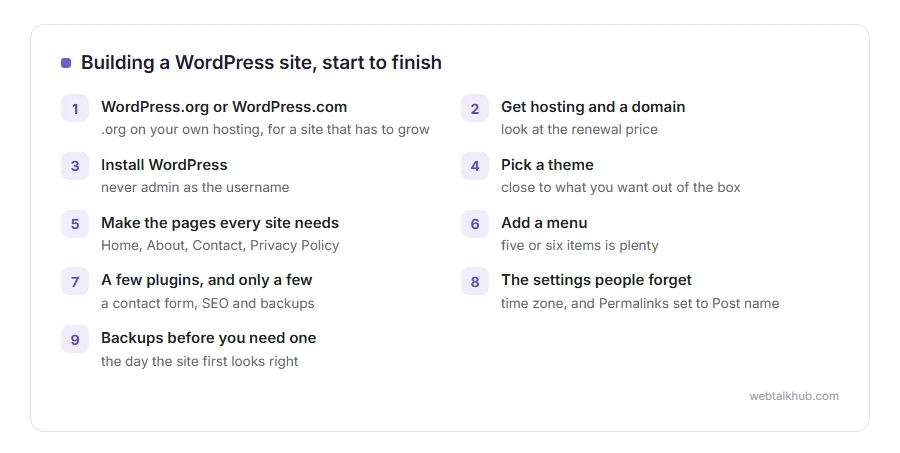
- Choose between WordPress.org and WordPress.com
- Get hosting and a domain
- Install WordPress
- Pick a theme
- Make the pages every site needs
- Add a menu
- Install a few plugins, and only a few
- Change the settings people forget
- Set up backups before you need one
In this guide I will show you each step, what it costs, and the mistakes that are painful to undo later.
So let’s get started.
1) WordPress.org or WordPress.com
They share a name and are not the same thing. WordPress.org is the free software you install on hosting you choose, and you can do anything with it. WordPress.com is a company that hosts WordPress for you, simpler to start, with plugins and themes limited on the cheaper plans.
For a first site that has to grow, I recommend WordPress.org on ordinary hosting. It is the version every tutorial, plugin and theme assumes, including every guide on this site.
2) Hosting and a domain
Hosting is the computer your site lives on, rented by the month or year. A domain is the name, such as yourbusiness.com, renewed every year. Most hosts sell both and give you the first year of the domain free.
Any mainstream host with one click WordPress installation is fine for a new site. Look at the renewal price rather than the first year, because the first year is the discount. The cheapest plan does not work well once a site gets busy, so expect to move up a plan as it grows.
3) Install WordPress
In the hosting control panel, find the WordPress installer, choose your domain, and pick an admin username and a long password. It takes about two minutes.
Do not use admin as the username. It is the first name every automated attack tries.
When it finishes, you get a link to the dashboard, usually yourdomain.com/wp-admin. Bookmark it, and if you ever lose it, our guide on finding the WordPress admin login has every way back in.
4) Pick a theme
The theme decides how everything looks. Go to Appearance, then Themes, then Add Theme, and try a few from the free directory. The block themes let you edit headers and footers directly, like editing a page.
Pick one that looks close to what you want out of the box. Keep in mind that a theme needing hours of changes to look right is a theme that will fight you forever. While you compare them, a test page filled from our lorem ipsum generator, with headings switched on, shows how each theme handles a page of text.
5) Make the pages every site needs
Under Pages, then Add Page, create a Home page, an About page, a Contact page, and a Privacy Policy, which WordPress starts for you under Settings.
Then go to Settings, then Reading, and set your home page to show the Home page you made, rather than a list of blog posts, unless the site is a blog.
6) Add a menu
Go to Appearance, then Menus, or Appearance, then Editor, then Navigation on block themes. Add your pages in the order people should read them.
Five or six items is plenty. Our guide on creating a submenu covers tucking extra pages underneath.
7) A few plugins, and only a few
Every plugin is more code to update and one more thing that can break. Start with a contact form, an SEO plugin and a backup plugin, and add others only when you need something specific. A plugin that has not been updated for a year or more will not help you for long, because abandoned plugins are how many WordPress sites get broken into.
Our guide on installing a WordPress plugin shows the safe way, including where to check that a plugin is still maintained before you trust it.
8) The settings people forget
Under Settings, then General, set your site title, tagline and time zone. Under Settings, then Permalinks, choose Post name, so your addresses read like yourdomain.com/about rather than a string of numbers.
Change Permalinks on day one, not after launch. Changing them later breaks every link people have already shared, which is exactly the kind of mistake that is painful to undo.
Your logo and title live under Appearance too, and our guides on changing the logo and changing the site title show where on every kind of theme.
9) Backups before you need one
Take a backup the day the site first looks right, and set it to repeat automatically. Most people only think about backups after something breaks, when it is too late.
Our guide to backing up a WordPress site for free explains how, and how to update WordPress covers keeping it safe after that.
FAQ(Build a Website With WordPress)
Is WordPress really free?
The software is. Hosting and a domain cost money every year, and some themes and plugins are paid.
How long does it take to build a WordPress site?
A simple site with four or five pages can be live in an afternoon. Writing the words usually takes longer than building it.
Do I need to know code to use WordPress?
No. Everything in this guide is done with the mouse. Code only comes in if you want something no theme or plugin already does.
Can I move from WordPress.com to WordPress.org later?
Yes. WordPress.com lets you export everything, and it can be imported into a self hosted site, though themes and some settings need redoing.
What should I do right after launching?
Take a backup, add the site to Google Search Console, and change the login address. Our guides on Search Console and changing the login URL cover the last two.
If you have any issues, you can ask me via comment, and I will love to help you out.
Still deciding which WordPress?
Step one above is a choice between two things with the same name, and it is worth a proper look.
- WordPress.com vs WordPress.org, what each lets you install, what each costs, and who looks after it.
