
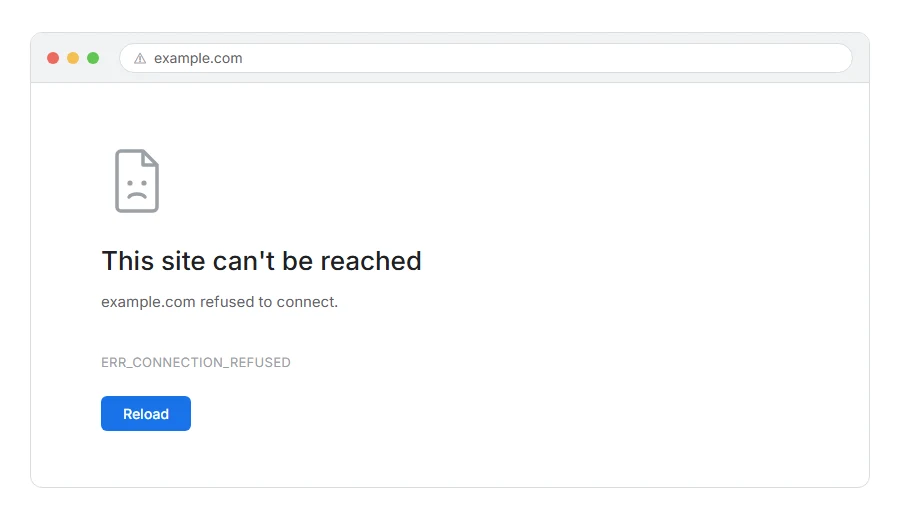
The page will not open and your browser says ERR_CONNECTION_REFUSED, or on some browsers “unable to connect”.
In one line: your computer reached the far end, and the far end said no.
Think of it like knocking on a door and hearing somebody inside shout “not open”. That is different from nobody being home, and different from you having the wrong street. Somebody was there and turned you away.
That distinction rules out a lot immediately. Your DNS found an address and a machine there answered, so it is not a routing problem. That address can still be an old one, which Step 6 checks.
Do not worry, you are not alone. Most of the time this is either the site being down or something on your machine blocking the port. I am here to help you tell which.
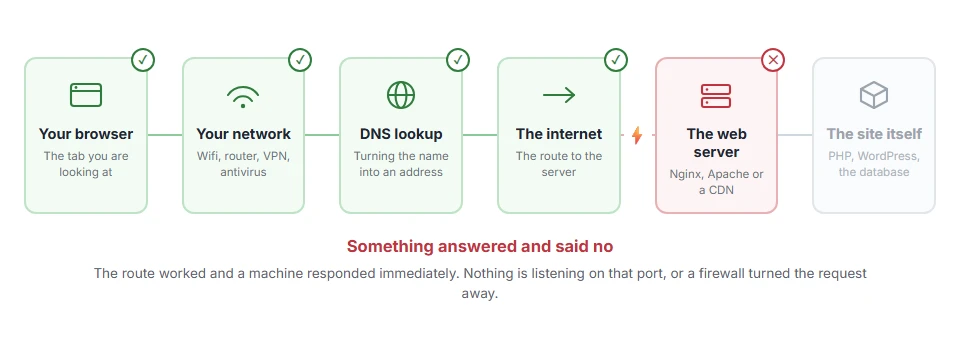
Where it actually breaks
Every page you open makes the same journey. Knowing which step this error stops at tells you which half of the list below is worth your time, because the green steps are already proven to be working.
Step 1: Check whether the site is down for everyone
Do this first, because if the site is down you can stop.
Open the site on your phone with wifi off, so it goes over a completely different connection. Or use one of the “is it down” checker sites.
If it is down for everybody, nothing on your computer will change that. Come back later.
When this will not help: if it loads for others and not for you, the problem is local and the rest of this list is for you.
Step 2: Restart your router and flush your DNS
The plumbing reset. Unglamorous and often right.
Unplug the router for thirty seconds and plug it back in. Then, on Windows, open Command Prompt as administrator:
ipconfig /flushdnsOn macOS, in Terminal:
sudo dscacheutil -flushcache; sudo killall -HUP mDNSResponderWhen this will not help: if you are on mobile data, there is no router involved.
Step 3: Turn off your VPN, proxy and firewall, one at a time
Any of the three can refuse a connection before it ever leaves your machine.
Turn off the VPN and try. Then check your proxy settings, because a proxy that is set but no longer running refuses everything. On Windows that is under Settings, Network and Internet, Proxy. Turn off “use a proxy server” unless you know you need it.
Then turn your firewall or antivirus off for two minutes, load the page, and turn it straight back on.
When this will not help: on a managed work laptop, all three may be locked and set on purpose. If your workplace has blocked the site, none of this gets you past it and you should ask rather than fight it.
Step 4: Clear your browser cache and try a private window
A stale cached redirect can send you to a port nothing is listening on.
Open a private window first, because if it works there you have narrowed it to your browser without clearing anything.
When this will not help: if the private window refuses too, the problem is below the browser and clearing the cache will not touch it.
Step 5: Check the address for a port number
This one catches developers rather than ordinary visitors, so skip it if it does not look familiar.
If the address has a colon and a number in it, such as example.com:8080, then you are asking for a specific door rather than the usual one. If nothing is listening on that door, you get a refusal.
Try the address without the port and see whether the normal site loads.
When this will not help: if there is no colon in your address, this is not your cause.
Step 6: Try a different DNS server
If your provider’s DNS is pointing at an old address for the site, you will reach a machine that no longer serves it and get refused.
Set your DNS to Cloudflare’s 1.1.1.1 and 1.0.0.1, or Google’s 8.8.8.8 and 8.8.4.4, then flush your cache again and retry.
When this will not help: on a work or school network the DNS is often locked. If you cannot change it, you cannot rule this one out from your side.
Step 7: If it is your own site
Then something on your server is refusing, and there are three usual reasons.
The web server is not running. Nginx or Apache has stopped, or crashed and not come back. Your host’s control panel will show it, or a restart from there will fix it.
A firewall is blocking the port. Port 80 and 443 need to be open. A firewall rule added recently is the classic cause, especially after somebody tightened security.
You are on the wrong address. A DNS record still pointing at an old server will send visitors somewhere that has nothing listening. Check your A record matches your current server.
If you are on shared hosting, you cannot see any of this. Message support, tell them visitors are getting ERR_CONNECTION_REFUSED, and ask whether the web server is running and whether ports 80 and 443 are open for your account.
When this will not help: if only some visitors get it, the block is probably by address rather than site wide. Ask your host to check the firewall log for that visitor’s address.
Refused, reset and timed out are three different things
Knowing which one you have saves half the work, and browsers are not always clear about it.
Refused means something answered and said no. Nothing is listening, or a firewall said no.
Reset means the conversation started and was then cut off mid sentence.
Timed out means nobody answered at all and your browser stopped waiting.
Refused is the most informative of the three, because it proves the machine at the far end is alive.
Frequently asked questions
Is ERR_CONNECTION_REFUSED my fault? Often not. Step 1 tells you in under a minute whether the site is down for everyone.
Why does it happen on one site only? Because it is specific to that machine and that port. Either their server is not running, or something between you and them is blocking it.
Can my internet provider cause it? Yes, either by blocking a site or by handing you an old address for it. Step 6 rules the second one out.
It started right after I installed a VPN. Is that related? Almost certainly. Turn it off and test. If that fixes it, change the server in your VPN app rather than living with it.
If you have any issues, you can ask me via comment, and I will love to help you out.
When nothing answers at all
Refused and timed out are not the same. Refused means something answered and said no. If the page instead hangs for a long time and then gives up, you are looking at ERR_CONNECTION_TIMED_OUT, which usually means a firewall is dropping the request silently or the machine at the other end is down or cannot be reached.
