
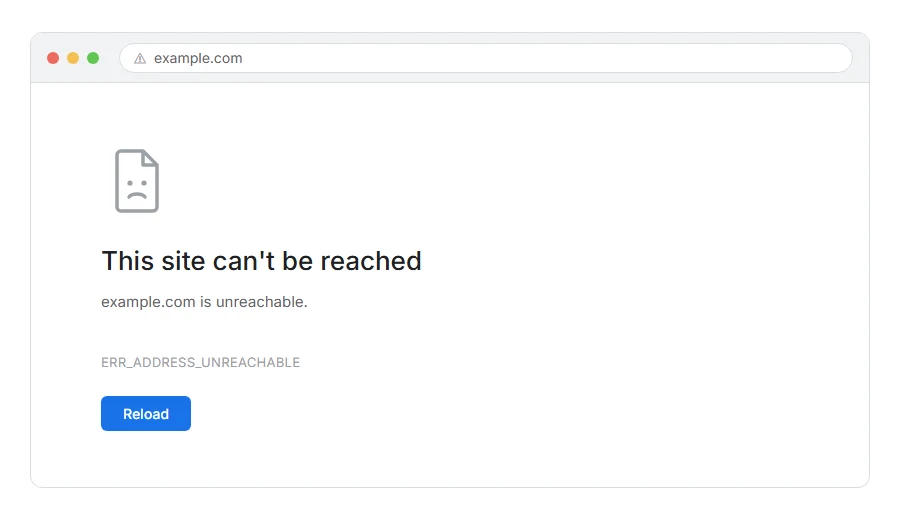
The page will not open for you, and Chrome says the site cannot be reached, with ERR_ADDRESS_UNREACHABLE underneath.
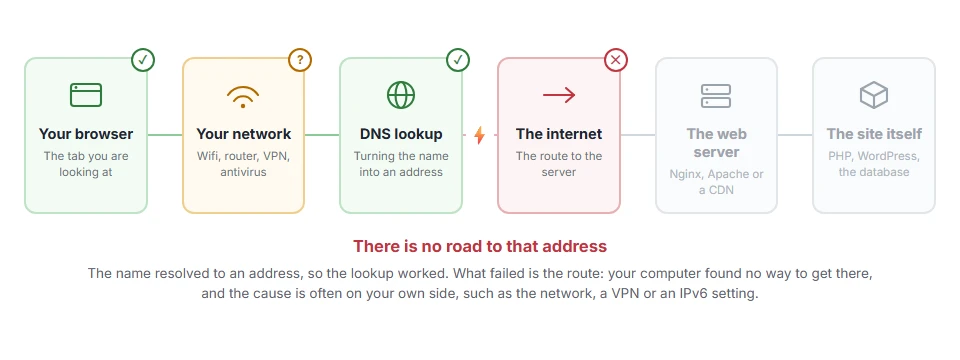
In one line: your computer worked out where to go, set off, and found no road there.
Think of it like having a correct street address for a house that has no road leading to it. The address is real. You simply cannot get to it from where you are standing.
That rules out a fair amount straight away. This is not a spelling mistake and it is not a name lookup failure, because your computer got as far as having an address to try. The break is in the route.
Do not worry, you are not alone. Most of these come down to your own network or an address that no longer points anywhere useful, and I am here to help.
Where it actually breaks
Every page you open makes the same journey. Knowing which step this error stops at tells you which half of the list below is worth your time, because the green steps are already proven to be working.
Step 1: Check it on another network
Do this first, because it splits the problem in half.
Turn wifi off on your phone and load the page over mobile data. If it works there, your home or office connection is the problem. If it fails there too, the problem is at the far end.
When this will not help: it tells you which half, not what to do. But knowing which half saves you trying the wrong six things.
Step 2: Restart your router and flush DNS
The plumbing reset, and it earns its place near the top.
Unplug the router for thirty seconds, plug it back in, and give it a minute. Then on Windows, in Command Prompt as administrator:
ipconfig /flushdnsOn macOS, in Terminal:
sudo dscacheutil -flushcache; sudo killall -HUP mDNSResponderIf your DNS is handing you an old address for the site, this is what clears it.
When this will not help: on mobile data there is no router. Flushing DNS still applies.
Step 3: Change your DNS server
If your provider’s DNS still points at a server that has moved, you will keep trying a road that no longer exists.
Set Cloudflare’s 1.1.1.1 and 1.0.0.1, or Google’s 8.8.8.8 and 8.8.4.4. On Windows that is under Settings, Network and Internet, then your connection, then Edit next to DNS. On a Mac it is System Settings, Network, Details, DNS.
Flush again afterwards and retry.
When this will not help: on a work or school network the DNS is often fixed and you cannot change it. If the site is blocked there on purpose, none of this gets past it.
Step 4: Turn off your VPN and proxy
A VPN routes your traffic somewhere else entirely, and if that somewhere cannot reach the site, neither can you.
Turn it off and try. Then check your proxy settings, because a proxy that is configured but no longer running makes everything unreachable. On Windows, Settings, Network and Internet, Proxy, and turn off “use a proxy server” unless you need it.
When this will not help: on a managed laptop both may be enforced. Ask rather than fight it.
Step 5: Check whether IPv6 is the problem
This is the one most guides miss, and it explains a good share of the stubborn cases.
If the site publishes an IPv6 address and your connection has broken IPv6, your computer will try the IPv6 road first, find it unreachable, and sometimes not fall back cleanly.
Turn IPv6 off temporarily on your network adapter and try again. On Windows that is in the adapter’s properties, unticking Internet Protocol Version 6. On a Mac, System Settings, Network, Details, TCP/IP, and set Configure IPv6 to Link-local only, which keeps IPv6 on your own network.
If that fixes it, your provider’s IPv6 is broken and that is worth telling them about, because it will be breaking other things too.
When this will not help: turn IPv6 back on afterwards if it made no difference. Leaving it off is not harmful but it is not tidy either.
Step 6: Check the address is not a private one
Worth thirty seconds, and it catches a specific case cleanly.
If you are trying to reach something like 192.168.1.50 or a .local address, that only exists on a particular network. From anywhere else it is unreachable by definition, not by fault.
You need to be on that network, or connected to it by VPN, for the address to mean anything.
When this will not help: if the address is an ordinary public domain, this does not apply.
Step 7: If the site is yours
Then visitors cannot route to your server, and there are three usual reasons.
Your DNS points at an old address. Check your A record against your server’s actual address. After moving hosts, this is the classic cause and it can linger for days.
Your server is off, or its firewall is blocking everything. A firewall that silently drops traffic makes the browser wait until it times out. One that sends back an unreachable reply is what gives you this error. That distinction is a clue.
Your host has an outage or a routing problem. Check their status page before assuming it is your configuration.
If you are on shared hosting, tell support that visitors are getting ERR_ADDRESS_UNREACHABLE and ask them to confirm the address in your DNS matches the server they have you on.
When this will not help: if only some visitors get it and others do not, it is a routing problem between certain networks and your host rather than a fault on your side. Your host needs to raise it upstream.
Unreachable, refused and timed out
The three sound similar and mean different things, which is why guides that treat them as one are unhelpful.
Unreachable means there is no route to that address at all.
Refused means the route worked, something answered, and it said no.
Timed out means the route may exist but nothing answered before the browser gave up.
Unreachable is the earliest failure of the three, which is why the fixes are all about networks and addresses rather than servers and ports.
Frequently asked questions
Is the website down? Possibly, but this error points more at the route than the server. Step 1 tells you in a minute whether it is you or them.
Why does it work on my phone? Because it is on a different network with different DNS and different routing. That is a strong sign the problem is your home or office connection.
Can my internet provider cause this? Yes, either through a routing problem or through broken IPv6. Step 5 rules out the second one.
It started after I moved my site to a new host. Then your DNS is almost certainly still pointing at the old address. Check the A record, and expect a few hours for the change to spread.
If you have any issues, you can ask me via comment, and I will love to help you out.
The three that sound the same and are not
Error names are easy to mix up, and the wrong page wastes your time. If what you are looking at is not quite what this one describes, one of these will be closer.
- ERR_CONNECTION_REFUSED, the route worked, something answered, and it said no.
- ERR_CONNECTION_CLOSED, the connection opened and then ended without an answer.
- ERR_FILE_NOT_FOUND, nothing to do with the internet, Chrome is looking at your own hard drive.
