
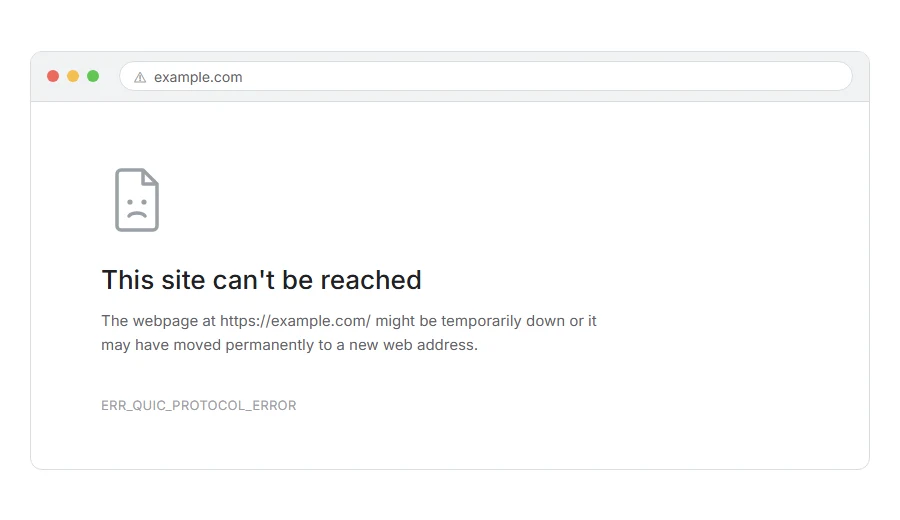
Chrome will not load your page and shows ERR_QUIC_PROTOCOL_ERROR. Then you try the same address in Firefox or Edge and it works perfectly, which makes it look as though Chrome is the thing that is broken.
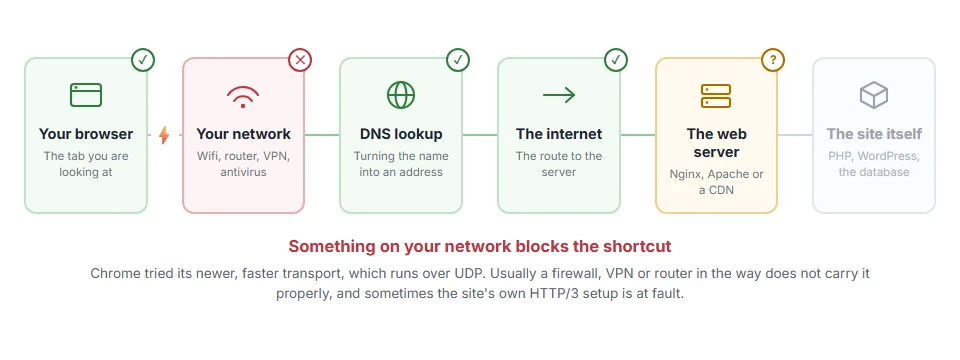
In one line: Chrome tried a newer, faster way of talking to the server, and something in between would not let it through cleanly.
Think of it like taking a new shortcut to work. It is quicker when it is open, but if somebody has put a barrier halfway along you do not arrive at all. The old road was still fine, you just did not take it.
Do not worry, you are not alone, and this one has an unusually good hit rate on the first fix. I am here to help.
What QUIC actually is
Thirty seconds of background, because it explains why it is nearly always Chrome and nearly always the middle.
QUIC is a newer transport protocol, and it is the basis of HTTP/3. Instead of the usual TCP, it runs over UDP, which lets it start connections faster and recover from packet loss better.
Chrome tries it first when a server offers it. Firefox and Safari support it too but are less eager, which is exactly why you often see this in Chrome alone.
The important part: UDP is treated differently by a lot of network equipment. Firewalls, VPNs, some routers and plenty of corporate networks either block it or handle it badly. When that happens, Chrome’s shortcut fails and you get this error.
Where it actually breaks
Every page you open makes the same journey. Knowing which step this error stops at tells you which half of the list below is worth your time, because the green steps are already proven to be working.
Step 1: Turn QUIC off in Chrome
This fixes the large majority of cases and it takes twenty seconds.
Type this in the address bar:
chrome://flagsSearch for Experimental QUIC protocol. Set it to Disabled. Click Relaunch at the bottom.
Chrome falls back to the older transport, which every network handles, and the page loads.
When this will not help: this is a workaround, not a repair. You lose a small amount of speed on sites that support QUIC properly. If you would rather find the real cause, do this to confirm the diagnosis, then work through the rest and turn it back on.
Step 2: Turn off your VPN
VPNs and QUIC are a well known bad pair, because many VPNs do not carry UDP the way QUIC expects.
Turn it off and reload. If the page works, you have your cause, and your options are to leave QUIC disabled, change VPN server, or use a VPN that handles UDP properly.
When this will not help: if you are not using a VPN, skip it. On a work laptop there may be one running that you did not install, so check before ruling it out.
Step 3: Check your antivirus and firewall
Security software that filters network traffic often either blocks UDP on those ports or inspects it badly.
Turn it off for two minutes, load the page, turn it back on. If that was the cause, add an exception rather than leaving protection off.
When this will not help: Windows Defender’s firewall rarely does this. Third party suites with network filtering are the ones to suspect.
Step 4: Try a different network
This separates your machine from your network in one test.
Turn wifi off and load the page over mobile data. If it works there, the block is on your home or office network, most likely the router or a firewall on it.
When this will not help: it tells you where the block is, not how to remove it. On a managed network you will need whoever runs it.
Step 5: Clear the socket pool
Chrome keeps connections open and reuses them, and a bad one can persist.
Go to:
chrome://net-internals/#socketsClick Flush socket pools, then reload the page.
When this will not help: this clears a stuck connection, not a network block. If the cause is a firewall, the flushed connection will simply fail the same way.
If it is your own site giving this to visitors
Then something about how QUIC is served is wrong, and the honest answer is usually to turn it off at the server until you know why.
Check whether your CDN has HTTP/3 or QUIC enabled. Cloudflare has a switch for it in its Speed settings, under Protocol Optimization, and turning it off for a day is a clean test.
Also check your certificate. QUIC is strict about the handshake, and a chain that is merely acceptable over TCP can fail over QUIC.
When this will not help: if only a handful of visitors report it and everybody else is fine, the problem is on their networks rather than your server. Turning off HTTP/3 for everyone to help three people is a poor trade, and telling them the step 1 fix is better.
Why the same page works in Firefox
This trips people up constantly, so it is worth stating plainly.
It is not that Chrome is broken and Firefox is better. It is that Chrome reaches for QUIC more readily. Firefox often uses the older transport for the same site, and the older transport is not being blocked.
So a page that works in Firefox and fails in Chrome is a strong signal that QUIC is involved, which means step 1 will very likely fix it.
Frequently asked questions
Is it safe to disable QUIC? Yes. It is a transport choice, not a security setting. You lose a little speed on sites that support it and nothing else.
Will disabling it break anything? No. Every site that speaks QUIC also speaks the older protocol. Chrome simply takes the older road.
Why does it happen at work but not at home? Corporate firewalls very often block or restrict UDP. That is exactly the pattern this error produces.
Should I turn it back on later? It is worth trying, yes. If you changed VPN, network or antivirus since, set the flag back to Default and see whether the problem has gone.
If you have any issues, you can ask me via comment, and I will love to help you out.
If turning QUIC off did not help
Error names are easy to mix up, and the wrong page wastes your time. If what you are looking at is not quite what this one describes, one of these will be closer.
- ERR_TUNNEL_CONNECTION_FAILED, a proxy is failing, which produces a different message from the same cause.
- ERR_NETWORK_CHANGED, your connection is flapping, which a VPN often causes.
