
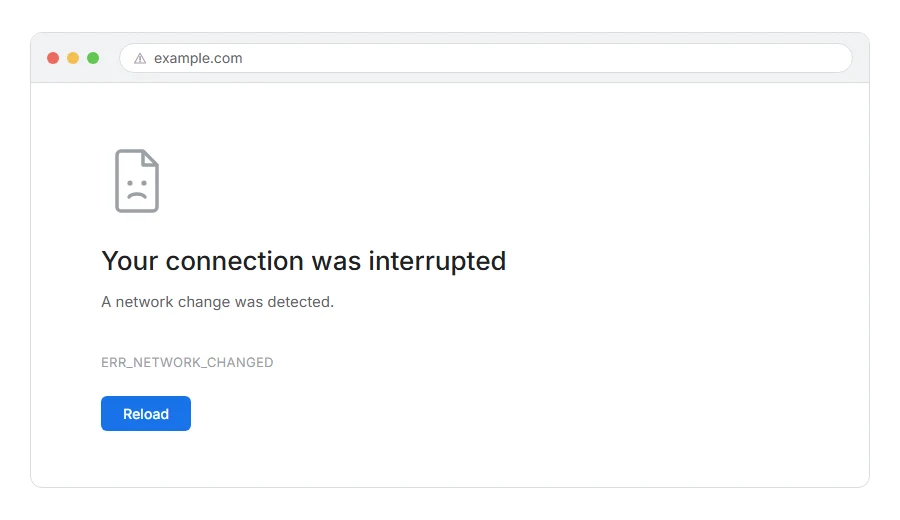
Your page stops partway and Chrome says the network changed, with ERR_NETWORK_CHANGED underneath. Reload it and it often works, which makes it feel random.
In one line: your computer’s connection changed while the page was loading, so Chrome abandoned it.
Think of it like changing carriage on a moving train mid conversation. Nobody has hung up. You just are not where you were, and the thread is lost.
Do not worry, you are not alone. It is usually harmless when it happens once, and when it happens constantly there are two settings that explain most cases. I am here to help.
What counts as the network changing
More things than people expect, which is why it seems random.
Switching between wifi and a cable. Moving between two wifi points in the same building. A VPN connecting or disconnecting. Your computer waking from sleep. Getting a new address from the router. Even IPv6 becoming available or going away mid session.
Any of those makes your existing connections invalid, and Chrome would rather stop than pretend.
Where it actually breaks
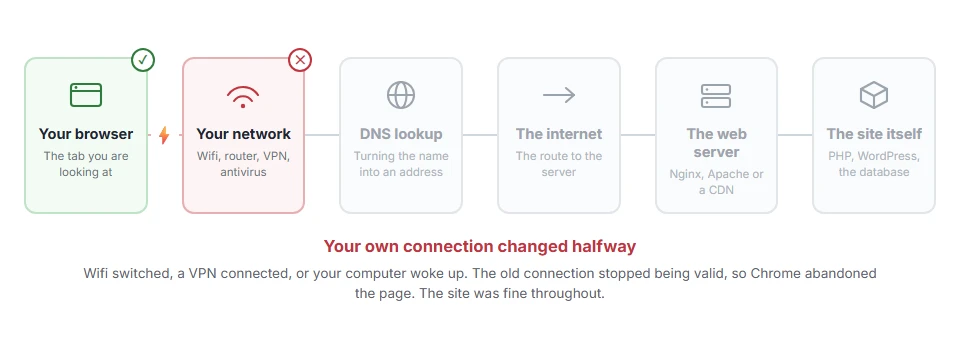
Every page you open makes the same journey. Knowing which step this error stops at tells you which half of the list below is worth your time, because the green steps are already proven to be working.
Step 1: Just reload
If it has happened once, reload the page and carry on.
A one off is a connection that genuinely changed, which is exactly what the message says. It is Chrome behaving correctly, not a fault.
When this will not help: if it happens several times an hour, that is not a one off and something is making your network flap. Carry on.
Step 2: Turn off your VPN
A VPN that reconnects, changes server or drops does this every single time.
Turn it off for a while and see whether the error stops. If it does, look at the VPN’s settings for a reconnect or server switching option, and turn off anything that changes server automatically.
When this will not help: if you do not use a VPN, skip this. On a work laptop there may be one running that you did not install.
Step 3: Turn off the wifi power saving setting
This is the biggest cause on Windows laptops and almost nobody knows about it.
Windows switches your wifi adapter off to save battery, and switching it back on counts as a network change.
Open Device Manager, expand Network adapters, right click your wifi adapter and choose Properties. Go to the Power Management tab and untick Allow the computer to turn off this device to save power.
While you are there, check Settings > System > Power & battery and make sure energy saver is not switched on, because it can do the same thing.
When this will not help: on a desktop with a cable there is no wifi adapter to configure. On a Mac the equivalent settings are less aggressive and rarely the cause.
Step 4: Stop your computer hopping between wifi points
If you have a mesh system, an extender, or two routers with the same network name, your laptop may be switching between them constantly.
Each switch is a network change. Sitting halfway between two access points is the worst place to be, because the computer keeps changing its mind.
Move closer to one, or in your wifi settings tell it to prefer that one.
When this will not help: on a large office or campus network you cannot control this and roaming is by design. In that case step 5 is your best option.
Step 5: Turn off IPv6 temporarily
If your connection gains and loses IPv6, that alone is a network change.
Turn it off on your adapter and see whether the error stops. On Windows that is in the adapter’s properties, unticking Internet Protocol Version 6. On a Mac, System Settings, Network, Details, TCP/IP, Configure IPv6 set to Link-local only, which is the closest that screen has to off.
If that fixes it, your provider’s IPv6 is unstable, which is worth telling them because it will be causing other odd behaviour too.
When this will not help: turn it back on if it made no difference. Do not leave IPv6 off for good either, as some parts of Windows need it.
Step 6: Reset the network stack
If it is still happening, reset the plumbing.
On Windows, in Command Prompt as administrator:
ipconfig /flushdns
netsh winsock reset
netsh int ip reset
Then restart the computer, because the last two need it.
When this will not help: netsh winsock reset clears settings some VPN and antivirus tools rely on. Reinstall them afterwards if they stop working.
Step 7: Update or roll back your network driver
A bad wifi driver produces this constantly, and driver updates cut both ways.
In Device Manager, right click your wifi adapter and choose Update driver. If the problem started right after an update, use Properties, then the Driver tab, then Roll Back Driver instead.
When this will not help: if the roll back button is greyed out, there is no previous version to go back to.
If it is your own site
There is genuinely nothing to fix here. This error happens entirely on the visitor’s machine and your server never sees it.
The one thing worth doing is making long operations resumable. If you have a large file upload or a long form, a visitor whose network flickers will lose it. A chunked upload, or saving a draft as they type, turns a lost afternoon into a small annoyance.
Frequently asked questions
Is it my internet provider? Sometimes, if your connection is genuinely dropping. But on a laptop, the wifi power saving setting in step 3 is a more common cause than most people realise.
Why does reloading always work? Because by then the network has settled. The change was momentary and the new connection is fine.
Does it mean my connection is bad? Not necessarily. It means your connection changed, which is not the same as being poor. A perfectly good connection that switches access points does this.
Why do I only get it in Chrome? It is not only Chrome. Edge, Brave and Opera are built on the same engine and can show the same code. Firefox has its own error names, so you will not see this exact code there. It is a difference in reporting, not in the underlying event.
If you have any issues, you can ask me via comment, and I will love to help you out.
