
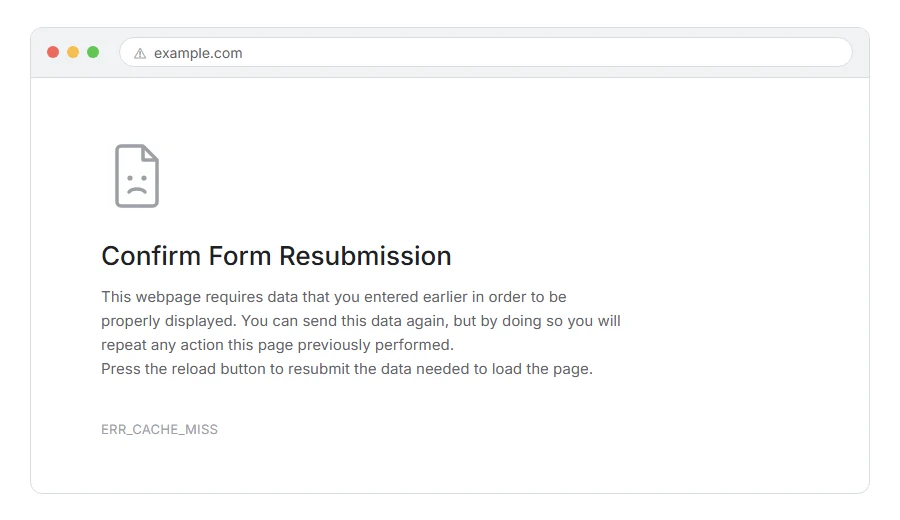
You have pressed back, or refreshed, and Chrome has shown you ERR_CACHE_MISS, often with “confirm form resubmission” above it.
Here is the part that will save you a lot of worry. Most of the time this is not an error at all.
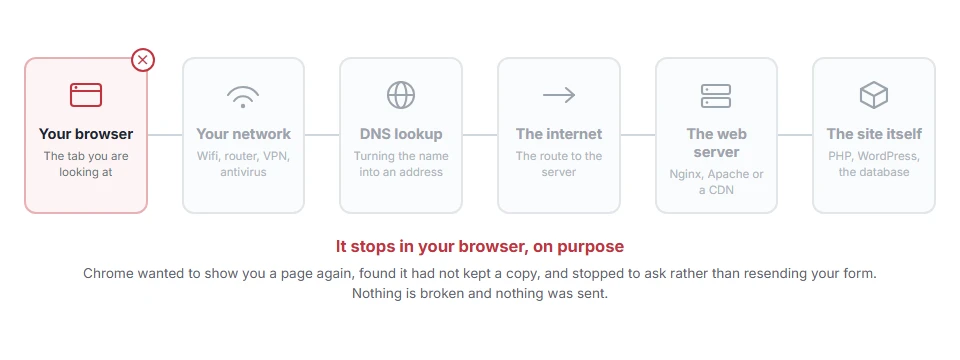
In one line: Chrome wanted to show you a page again, found it had not kept a copy, and is asking what to do rather than guessing.
Think of it like a shop asking “are you sure you want to place that order again?” It is a confirmation, not a fault. Guessing wrong would place a second order.
Do not worry, you are not alone. I am here to help you tell the harmless version from the one that actually needs fixing, because they look identical and the advice for each is opposite.
The harmless version, which is most of them
If you filled in a form, submitted it, and then pressed back or refresh, this is what you are seeing.
Chrome will not resend a form without asking, because that could post your comment twice, order twice, or pay twice. So it stops and asks.
What to do: do not press refresh. Navigate to the page you want from the site’s menu or by typing the address. If the form went through, it went through, and forcing a resubmission risks doing it twice.
That is the whole answer for this case, and no fix is needed because nothing is broken.
When this will not help: if you never submitted a form and the error appears on ordinary page loads, that is the other version. Read on.
The real version, and what causes it
If it happens on plain page loads with no form involved, something is wrong. These are the causes, in order.
Where it actually breaks
Every page you open makes the same journey. Knowing which step this error stops at tells you which half of the list below is worth your time, because the green steps are already proven to be working.
Step 1: Try a private window
As always, ten seconds and it splits the problem in half.
If the page loads in a private window, something in your normal browser profile is the cause: an extension, or a corrupted cache.
When this will not help: if the private window fails the same way, it is not an extension or a corrupted cache, so skip to step 4.
Step 2: Clear your browsing data
The cache itself can become corrupted, and this error is one of the ways that shows.
Press Ctrl and Shift and Delete, choose Cached images and files, pick All time, and clear. You do not need to clear passwords or history.
Then restart Chrome properly, not just the tab.
When this will not help: if it comes straight back after clearing, the cache is not corrupted, something is stopping Chrome writing to it. Step 4.
Step 3: Turn extensions off
An extension that rewrites requests or manages the cache can produce this on every page.
Go to chrome://extensions, turn them all off, and reload. If that fixes it, turn them back on one at a time until it breaks.
When this will not help: on a managed work machine, some extensions cannot be turned off.
Step 4: Check whether devtools is disabling the cache
This one catches developers constantly and takes one tick to fix.
Open developer tools with F12, go to the Network tab, and look for a Disable cache checkbox. If it is ticked, Chrome keeps nothing while devtools is open, which is exactly what this error is complaining about.
Untick it, or close devtools.
When this will not help: if you never open devtools, this is not your cause. It is worth ten seconds if you ever do.
Step 5: Check your disk space
Chrome cannot cache anything if there is nowhere to put it.
If your drive is nearly full, free some space and try again. This one is easy to overlook and it produces a lot of odd browser behaviour beyond this error.
When this will not help: if you have plenty of space free, skip it.
Step 6: Reset Chrome’s settings
If nothing above worked, something in the profile is broken.
Go to chrome://settings/reset and choose to restore settings to their defaults. This turns off extensions and clears temporary data but keeps your bookmarks and passwords.
When this will not help: this resets settings, it does not repair a damaged profile. If it comes back, create a fresh Chrome profile and see whether that is clean.
If it is your own site
There is one cause worth knowing, and it is a design issue rather than a bug.
If your forms use POST and then simply render the result, every visitor who refreshes gets this. The fix is a pattern called post then redirect then get: after handling the form, send a redirect to a normal page rather than rendering directly.
Then a refresh reloads that normal page, and nobody ever sees this message.
Also check that your pages are not sending headers that forbid caching entirely, such as Cache-Control: no-store, unless you meant to. It is easy to set that site wide by accident with a caching plugin and then wonder why the back button misbehaves.
Frequently asked questions
Have I lost my form data? Usually not. Press back once and the browser often refills what you typed. If it does not, it is gone and there is no recovery, which is why saving long text elsewhere before submitting is a good habit.
Did my form actually submit? Check rather than resubmit. Look at your order history, your sent messages, or refresh the target page from the menu. Resubmitting to find out is how people end up with two of everything.
Is it a virus? No. It is a caching message and nothing more.
Why do I get it on every site? That points at your browser rather than the sites. Steps 2 to 5, and check the devtools box in step 4, which is the most commonly overlooked one.
If you have any issues, you can ask me via comment, and I will love to help you out.
