
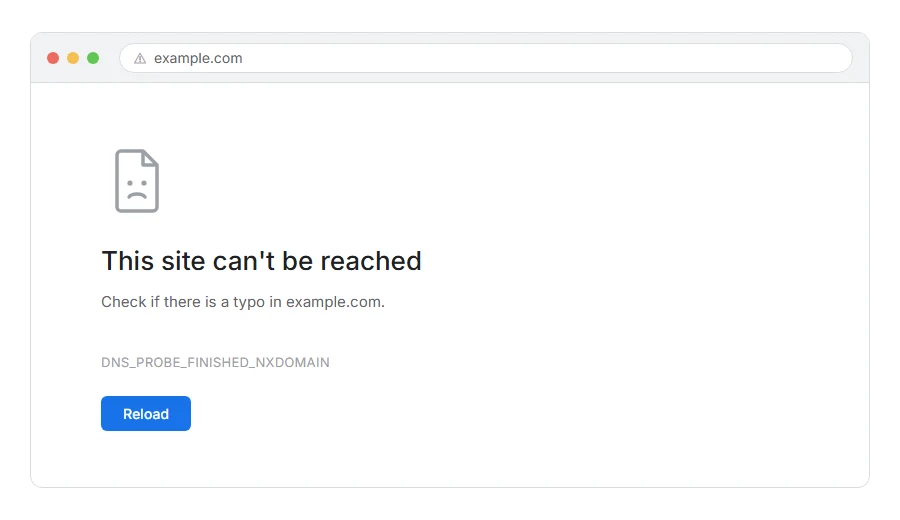
Chrome has stopped on a grey page and told you the site cannot be reached, with DNS_PROBE_FINISHED_NXDOMAIN printed underneath. It looks alarming and it reads like nonsense.
It is not as bad as it looks. In plain words it means: your computer asked for the address of that website name, and was told no such name exists.
Think of it like looking up a friend in a phone book. The phone book is fine, your phone is fine, but the name you looked up is not in there. So nothing can be dialled.
Do not worry, you are not alone. This one is extremely common and the cause is usually small. I am here to help, and the first two fixes below solve most cases in under a minute.
What NXDOMAIN actually stands for
DNS is the internet’s phone book. It turns a name people can remember, like example.com, into a number computers can call.
NXDOMAIN is the phone book’s way of saying non existent domain. Not “busy”, not “down”, but “there is no entry under that name at all”.
That is a useful thing to know, because it narrows the causes down a lot. The website being slow, overloaded or broken gives you a different error. This one is specifically about the name.
Where it actually breaks
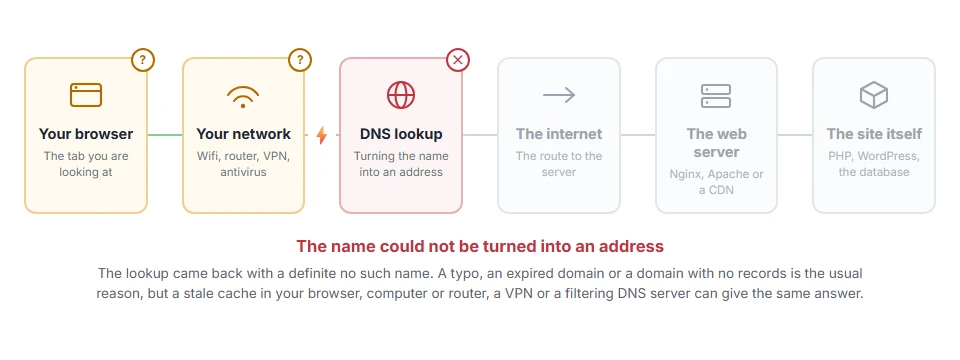
Every page you open makes the same journey. Knowing which step this error stops at tells you which half of the list below is worth your time, because the green steps are already proven to be working.
Step 1: Check the address for a typo
It is dull and it is right an embarrassing amount of the time.
Read the address slowly. Look for a missing letter, a .co where you meant .com, or an autocomplete that filled in something you visited once by accident. Then type it out by hand rather than clicking your saved version.
When this will not help: if other people can open the same address and you cannot, the address is fine and the problem is on your side. Go to step 2.
Step 2: Flush your DNS cache
Your computer keeps its own copy of the phone book to save time. If that copy is wrong or out of date, it will keep telling you no such name exists even after the real one is fixed.
On Windows, open Command Prompt and run:
ipconfig /flushdnsOn macOS, open Terminal and run:
sudo dscacheutil -flushcache; sudo killall -HUP mDNSResponderThen close every browser window and open the site again.
When this will not help: if the domain genuinely does not exist any more, flushing only makes your computer ask again and get the same answer. Step 5 checks that.
Step 3: Clear Chrome’s own DNS cache
Chrome keeps a second copy, separate from your computer’s. Flushing one does not clear the other, which is why this error sometimes survives step 2.
Type this into the address bar and press enter:
chrome://net-internals/#dnsClick Clear host cache, then try the site again.
When this will not help: if you are using Firefox or Safari, this page does not exist. Skip it and go on to step 4. In Edge, type edge://net-internals/#dns instead and click the same button.
Step 4: Change your DNS server
Your internet provider gives you a phone book by default. Some of them are slow, some go wrong, and some block things quietly.
Switching to a public one is free, reversible and takes two minutes. Cloudflare’s is 1.1.1.1 and 1.0.0.1. Google’s is 8.8.8.8 and 8.8.4.4.
On Windows go to Settings, Network and Internet, then your connection, then Edit next to DNS server assignment. On a Mac go to System Settings, Network, Details, then DNS. Add the two addresses, save, and try again.
When this will not help: on a company or school network the DNS is often locked down and set for a reason. If you cannot change it, or the site is blocked on purpose, this will not get you through and you should ask whoever runs it.
Step 5: Check whether the domain still exists
If nothing so far has worked, it is time to consider that the phone book is telling the truth.
Search for a whois lookup and put the domain in. It will tell you whether the domain is registered and when it expires. An expired domain is one of the most common real causes of this error, and it happens to sites that were working perfectly last week.
If it is your own domain and it has expired, renew it. It usually comes back within a few hours, though it can take up to a day or two to spread everywhere.
When this will not help: a whois lookup tells you the domain exists but not whether it is pointing anywhere. A registered domain with no DNS records set will still give you this error.
Step 6: Restart your router
Routers keep their own cache too, and they are worse at letting go of it than computers are.
Unplug it at the wall, wait thirty seconds, plug it back in and let it settle for a minute or two before trying again.
When this will not help: if you are on mobile data or a hotspot, there is no router involved. Skip it.
Step 7: Turn off your VPN or proxy
A VPN sends your DNS questions somewhere else, and if that somewhere is having trouble you get exactly this error.
Turn it off, try the site, and turn it back on afterwards. If the site loads with the VPN off, you have your answer and the fix is a different server or a different provider.
When this will not help: some workplaces route everything through a proxy you cannot switch off. In that case the block may well be deliberate.
Step 8: Check your hosts file
This is last because it is rare, but it is worth knowing about because nothing else will find it.
Your computer has a small file that overrides the phone book completely. Malware sometimes writes to it, and so do developers who forget to clean up afterwards.
On Windows it is at C:\Windows\System32\drivers\etc\hosts. On a Mac it is at /etc/hosts. Open it in a text editor and look for the site you are trying to reach. If it is listed, remove that line and save.
When this will not help: you need administrator access to edit it, and on a work machine you very likely do not have that.
If you own the site and visitors are seeing this
Then something is wrong with the domain’s records rather than with anybody’s computer.
Check three things in order. Is the domain still registered and paid for. Are the nameservers at your registrar pointing at your host. Does the A record actually exist and point at your server’s address.
A change to any of those can take a few hours to spread, sometimes up to two days, and during that spread some people will see the site and others will get this error. That is normal and it is not something you can rush.
Frequently asked questions
Is DNS_PROBE_FINISHED_NXDOMAIN a virus? Almost never. It is an ordinary name lookup failure. The only virus connection is the hosts file in step 8, and that is rare.
Why does it work on my phone but not my laptop? Because they are using different phone books. Your phone on mobile data uses your carrier’s DNS, your laptop uses your home or office one. That is a strong sign the problem is local, so steps 2 to 4 are where to look.
What is the difference between this and ERR_NAME_NOT_RESOLVED? They are very close. Both mean the name could not be turned into an address. NXDOMAIN is more specific: the phone book actively said no such name exists. The fixes are the same.
How long does a new domain take to start working? Usually a few hours. Occasionally up to 48. Until then some people will reach it and some will not, and there is nothing to fix in between.
If you have any issues, you can ask me via comment, and I will love to help you out.
The other name lookup failures
Error names are easy to mix up, and the wrong page wastes your time. If what you are looking at is not quite what this one describes, one of these will be closer.
- ERR_NAME_NOT_RESOLVED, the same family, but the lookup failed rather than returning a definite no.
- ERR_ADDRESS_UNREACHABLE, the name resolved fine and there is simply no route to the address.
Two related things worth ruling out
If the name used to work and now points somewhere wrong, clear the local memory of it first: our guide on flushing the DNS cache has the command for each system. And if no site loads at all rather than one, Windows may never have been given an address, which is the ethernet does not have a valid IP configuration problem.
If Windows names the DNS server itself
This error comes from Chrome. If the Windows troubleshooter is the one talking, and it says the DNS server is not responding, our page on DNS server not responding has the ping test that proves whether DNS is really the problem, and the seven fixes in order.
How the lookup works underneath
NXDOMAIN is DNS saying no such name. Knowing how the lookup works makes the fixes above easier to choose between.
- DNS explained, resolvers, root servers, TTL and the records a domain is made of.
