
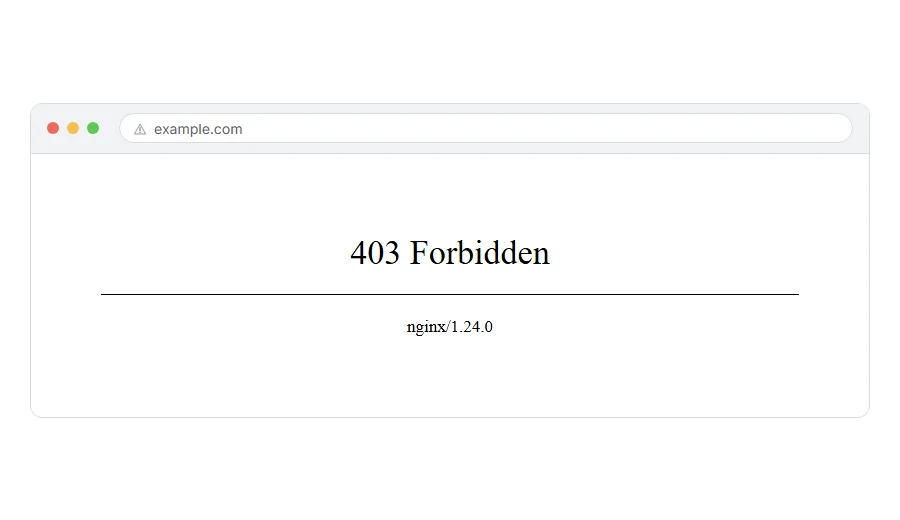
You asked for a page and the server came back with 403 forbidden. Sometimes it says “you don’t have permission to access this resource” underneath, sometimes it says nothing at all.
Here is what it means in one line. The server understood exactly what you asked for and decided not to give it to you.
Think of it like a locked door with somebody standing behind it. They heard you knock. They know you are there. They are simply not opening it.
That is different from a 404, which means nobody is home and there is no door. A 403 means you are being kept out on purpose.
Do not worry, you are not alone. This is one of the most common errors on the web and most causes are small. I am here to help, so let us work out which side of the door the problem is on.
Where it actually breaks
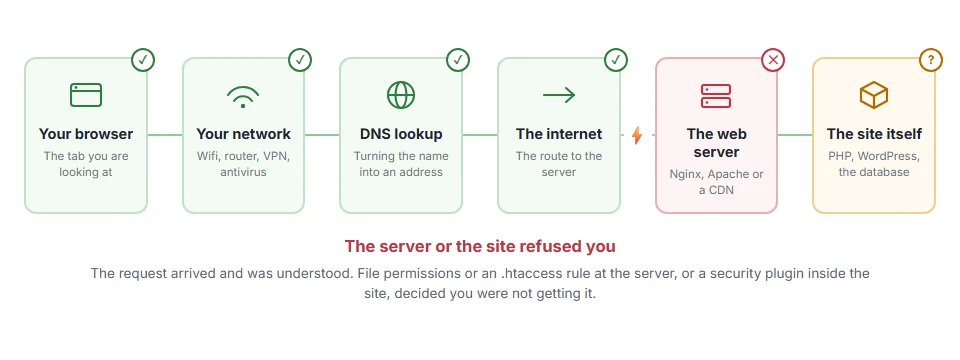
Every page you open makes the same journey. Knowing which step this error stops at tells you which half of the list below is worth your time, because the green steps are already proven to be working.
First, is it your site or somebody else’s?
If you are just trying to read a page that is not yours, there is not much to do and the short section below covers it honestly.
If it is your own site, skip to the owner section. That is where the real fixes live, and there are seven of them.
If you are just a visitor
Reload and check the address. A 403 on a page you reached by typing is often just a folder you are not meant to browse. Go to the site’s home page and navigate from there instead.
Try a private window. If it loads there, an old cookie or a cached redirect on your side was the cause.
Turn off your VPN. Some sites block whole ranges of VPN addresses, and a 403 is how that block looks from the outside.
Consider that it is deliberate. Plenty of 403s are working exactly as intended: paid content, region locks, or an area only staff can see. No amount of clever refreshing changes that.
When this will not help: if the whole site gives you a 403 and other people can see it fine, your address has probably been blocked. Only the site owner can lift that.
If it is your site
Work down in order. These are arranged from most likely to least, which is not the order most guides use.
Step 1: Check your file permissions
This is the single most common cause on a self hosted site, and it is usually the result of an upload gone slightly wrong.
Folders should be 755. Files should be 644. Go much tighter and the web server may no longer be able to read them, which comes out as a 403.
In your host’s file manager or over FTP, right click a folder, choose permissions, and check the number. Fix the ones that are wrong and try the page again.
When this will not help: on some managed hosts permissions are handled for you and cannot be changed. If yours are already 755 and 644, this is not your cause.
Step 2: Rename your .htaccess file
A corrupted or over enthusiastic .htaccess is the second most common cause, and it is easy to test.
Find .htaccess in the root of your site and rename it to .htaccess-off. Then try the page. If it loads, that file was the problem.
To rebuild a clean one in WordPress, go to Settings > Permalinks and click Save without changing anything. WordPress writes a fresh default file for you.
When this will not help: renaming it will break your permalinks until you save that Permalinks page, so do the rebuild straight away rather than leaving it.
Step 3: Deactivate your security plugin
Security plugins block things for a living, and sometimes they block you.
Wordfence, Kadence Security (formerly iThemes Security), All-In-One Security (AIOS) and the rest all keep a list of blocked addresses, and a few failed logins is enough to land yourself on it. Deactivate the plugin for a moment and try again.
If that fixes it, do not just leave it off. Go into the plugin’s blocked list and remove your own address, then turn it back on.
When this will not help: if you cannot reach the dashboard to deactivate it, rename wp-content/plugins to plugins-off over FTP instead. That switches everything off at once.
Step 4: Check for a missing index file
If you get a 403 on a folder rather than a page, this is usually why.
Many hosts switch off folder listing on purpose, so if a folder has no index.php or index.html inside it, the polite refusal you get is a 403.
Either put an index file in that folder or, better, do not link people to a bare folder in the first place.
When this will not help: this only ever explains a 403 on a folder address ending in a slash. It has nothing to do with a 403 on a normal page.
Step 5: Look at hotlink protection
If images give a 403 but pages load fine, your hotlink protection is the likely cause.
It is meant to stop other sites embedding your images and using your bandwidth. Configured slightly wrong, it blocks your own site too. Find it in your host’s control panel or your CDN settings and make sure your own domain is on the allowed list.
When this will not help: if pages themselves give a 403, hotlink protection is not involved. It only ever touches files, not pages.
Step 6: Check your CDN or firewall rules
Cloudflare and similar services can return a 403 before the request ever reaches your server.
Look in the firewall events log. It will tell you plainly which rule fired and on which request. That is much faster than guessing, and the rule usually turns out to be one somebody enabled and forgot.
When this will not help: if you do not use a CDN, skip this entirely.
Step 7: Ask your host about mod_security
This one you cannot see or fix yourself, which is why it is last.
Many shared hosts run a firewall called mod_security that blocks requests it thinks look dangerous. Perfectly ordinary things, such as saving a post with certain words in it, sometimes trip it.
Message support, tell them the exact page and the exact time you got the 403, and ask them to check the mod_security log for your account. They can see the rule that fired. You cannot.
When this will not help: nothing on this list helps if the block is intentional, for example a host blocking a country. Ask before you spend an evening on it.
Frequently asked questions
What is the difference between 403 and 404? A 404 means the page is not there. A 403 means you are being kept out on purpose. Very different problems with very different fixes.
Is a 403 forbidden dangerous? No. It is a refusal, not a breach. If anything it means a permission check is doing its job.
Why do I get 403 on my own WordPress admin? Nearly always a security plugin that has blocked your address after failed logins, or a permissions change. Steps 1 and 3 cover both.
Can I fix a 403 on a website that is not mine? Only if the cause is on your side, such as a VPN or an old cookie. If the owner has blocked you or the content is restricted, no.
Does clearing my browser cache fix a 403? Occasionally, when a stale redirect is cached. It costs nothing to try, but it is not the usual cause.
If you have any issues, you can ask me via comment, and I will love to help you out.
Refusals that look similar but are not
Error names are easy to mix up, and the wrong page wastes your time. If what you are looking at is not quite what this one describes, one of these will be closer.
- 401 Unauthorized, the server wants credentials, rather than refusing you outright.
- 404 Not Found, nothing is there to be refused in the first place.
- 429 Too Many Requests, you are being asked to slow down rather than being turned away.
When it is not forbidden but refused another way
A 403 means you are not allowed here at all. If the page exists and you are allowed, but the server refused this particular way of asking, that is a 405 method not allowed. If it refused the format of the answer, look at 406 not acceptable instead.
If the number is different
Refusals come with several numbers and they do not mean the same thing.
- the full status code list, the difference between 401, 403, 404 and 410 in one place.
