
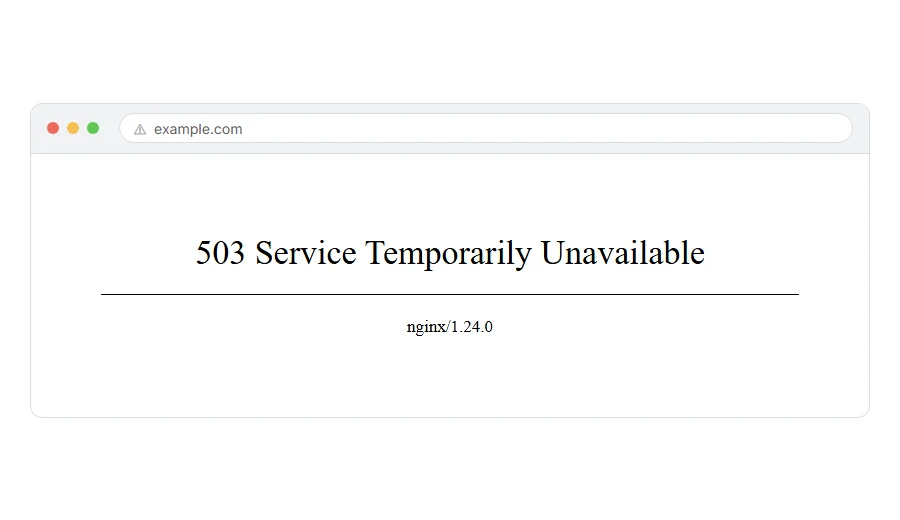
Your site, or a site you are trying to read, is showing 503 service unavailable. Sometimes it says “the server is temporarily unable to service your request”.
Here is the one line version. The server is switched on and answering, it is just refusing to do any work at the moment.
Think of it like a shop with the lights on and a “back in ten minutes” note taped to the door. Nobody has burned the place down. It is simply not serving anybody right now.
Do not worry, you are not alone, and there is one specific cause on WordPress that catches almost everybody. I am here to help, and I will start with that one because it is the fastest to check.
If it is a WordPress site, check this first
WordPress puts your site into maintenance mode during most updates, and it does that by writing a hidden file called .maintenance in the root folder. Normally it deletes that file a few seconds later.
If the update was interrupted, if you closed the tab, or if the update simply failed, that file is left behind. Until WordPress gives up on it, about ten minutes after the update started, every visitor gets a 503.
The fix is to delete it.
Open your host’s file manager, or connect by FTP, and look in the same folder as wp-config.php. If a file called .maintenance is there, delete it and reload your site. It comes straight back.
You may need to turn on “show hidden files” to see it, because the leading dot hides it by default.
When this will not help: if there is no .maintenance file, this is not your cause. Carry on down the list.
Where it actually breaks
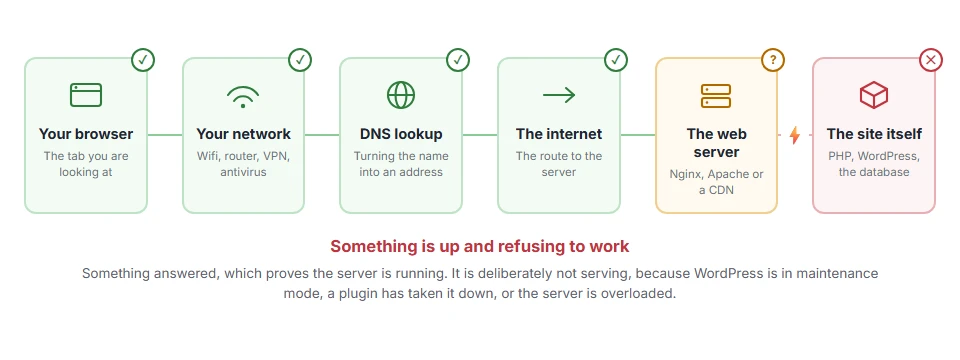
Every page you open makes the same journey. Knowing which step this error stops at tells you which half of the list below is worth your time, because the green steps are already proven to be working.
Step 1: Wait two minutes and try again
Genuine 503s are often exactly what they say: temporary. A restart, a burst of traffic, a scheduled job that hogged everything for a moment.
Wait, reload, and see. It costs nothing and it resolves a fair share of them.
When this will not help: if it has been the same for an hour, it is not temporary and waiting longer will not change that.
Step 2: Check your host’s status page
If your host is having an incident, you can spend all evening on your own site and find nothing wrong, because nothing is.
Look at their status page and their social account before you touch anything.
When this will not help: if other sites on the same host are loading fine, the problem is yours.
Step 3: Deactivate your plugins
A plugin that crashes hard, or one that hammers an external service on every page load, can push a site into 503 territory.
If you can still reach your dashboard, deactivate everything and test. If you cannot, rename wp-content/plugins to plugins-off over FTP. That switches them all off at once and gets you back in. Rename it back afterwards and they return, deactivated.
Then switch them on one at a time, testing after each, until the 503 comes back. That one is your culprit.
When this will not help: if the 503 is still there with every plugin off and a default theme on, it is not your code. Go to step 4.
Step 4: Switch to a default theme
Same logic, different suspect. Activate Twenty Twenty-Five and try the site.
If it works, your theme is doing something expensive or broken on every request, and the theme author needs to hear about it.
When this will not help: if you cannot reach the dashboard to change theme, rename the theme’s folder over FTP. WordPress falls back to a default one automatically.
Step 5: Look at your PHP error log
This is the step that turns guessing into knowing.
Your host’s control panel will have an error log, usually under Logs, Metrics or Errors. Open it and read the last lines from around the time the 503 started. Memory exhaustion, a fatal error or a timeout will be written there in plain words, usually with the file that caused it.
When this will not help: some cheap hosts do not give you access to it. Ask support for the last hundred lines instead. They can see it even when you cannot.
Step 6: Ask your host about PHP workers
If nothing above found it, you are probably out of capacity rather than broken.
Every host gives your account a limited number of PHP workers, which is the number of pages it can build at the same time. When they are all busy, new visitors have to wait in a queue, and a long queue ends in errors.
Message support and be specific. Tell them you are getting 503s, that you have already ruled out .maintenance, plugins and theme, and ask them to check your PHP worker usage and whether you are hitting the limit.
When this will not help: if you are genuinely getting more traffic than your plan allows, no setting fixes that. That is a plan you have outgrown, and it is good news dressed as a problem.
Why a 503 is not the same as a 500 or a 502
They get muddled constantly, and knowing the difference saves you looking in the wrong place.
A 500 means the page tried to build and something in the code fell over.
A 502 means one server got a broken answer back from another.
A 503 means the server is fine and deliberately not serving. It is the only one of the three that is often intentional, because maintenance mode is a real feature and not a fault.
Frequently asked questions
Is a 503 permanent? It is not meant to be. The whole point of the code is “come back shortly”. A leftover .maintenance file from an update only causes one for about ten minutes, so a 503 that lasts longer has another cause.
Will a 503 hurt my search rankings? A short one, no. Search engines understand it as temporary and come back later. Days of it is a different matter, and at that point the ranking is the smaller of your problems.
I deleted .maintenance and it came back. Why? Because an update is still running, or failing repeatedly. Let any update finish, then update plugins one at a time rather than all at once.
Can I put my own site into maintenance mode on purpose? Yes, and a proper maintenance plugin is the way to do it. It returns the correct code and shows a real message instead of a bare error page.
If you have any issues, you can ask me via comment, and I will love to help you out.
If it times out instead of refusing
A 503 is the server saying no on purpose. If your page sits there instead and fails after a long wait, that is a 504 gateway timeout, which means nothing answered before the clock ran out. Overload can produce both on the same site in the same hour.
