
Did the Windows troubleshooter tell you dns server not responding after your internet stopped, and then offer nothing useful to do about it?
Don’t worry, this is one of the more fixable network messages. DNS turns a website name into the address your computer actually connects to, so when it does not answer, names stop working while the connection underneath may be perfectly fine. That distinction is the key to the whole page, and there is a one line test for it further down.
The causes, in the order they turn up, are:
- Your router is holding a broken DNS setting, or needs a restart
- Your provider’s DNS servers are having a bad hour
- A VPN left its DNS settings behind after being uninstalled
- The network adapter has a fixed DNS address that no longer works
- Antivirus or firewall software is blocking DNS
- The DNS client service on Windows has stopped
In this article you will learn the test that proves whether DNS is really the problem, then seven fixes from the thirty second one to the ones that need an administrator command prompt.
So let’s get started.
The test that proves it is DNS
Open Command Prompt and type ping 1.1.1.1, then ping cloudflare.com.
If the first works and the second does not, DNS is genuinely your problem and every fix below applies. If both fail, your connection is down rather than your DNS, and no DNS setting will help you.
That is one minute well spent, because half the guides on this subject have you changing DNS servers when the network itself is the thing that is broken.
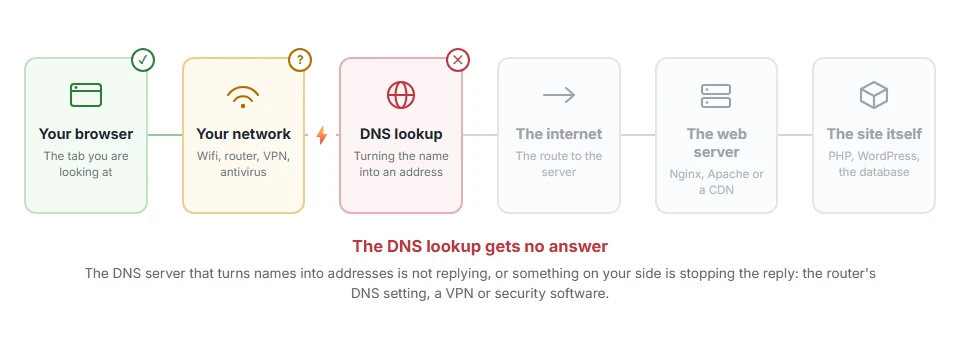
Where it actually breaks
Every page you open makes the same journey. Knowing which step this error stops at tells you which half of the list below is worth your time, because the green steps are already proven to be working.
1) Restart the router
The router usually hands out the DNS setting to everything in the house, so it is the first place to look.
Before you start, check nobody is in a call, then unplug the router, wait thirty seconds, plug it back in and give it two minutes.
If one device fails and everything else in the house is fine, the router is unlikely to be it, so do this once rather than three times.
2) Change your DNS servers by hand
This is the fix that works most often, and it takes a minute.
Press Windows and R, type ncpa.cpl and press Enter. Right click your adapter, choose Properties, select Internet Protocol Version 4, click Properties, and choose to use the following DNS server addresses. Put in 1.1.1.1 and 1.0.0.1, or 8.8.8.8 and 8.8.4.4.
On a Mac it is System Settings, Network, your connection, Details, then DNS.
This will not help if the whole connection is down, which is what the test above was for. And on a work laptop the DNS may be set by policy, so the boxes will be greyed out and this is a question for IT rather than a setting you can change.
3) Flush the DNS cache
An old answer stored on your machine can keep failing after everything else is fixed.
Run ipconfig /flushdns on Windows. Our guide to flushing the DNS cache has the Mac command and the two pages Chrome keeps for itself.
4) Reset the network stack
Windows keeps network settings that can be left broken after an update or after a VPN is removed.
Open Command Prompt as administrator and run netsh winsock reset, then netsh int ip reset, then ipconfig /release, then ipconfig /renew, then ipconfig /flushdns. Restart the computer afterwards, which this one really does need.
Keep in mind that this resets settings some VPN and security software relies on, so you may have to sign in to a VPN again. Nothing else is lost.
5) Check the DNS Client service is running
Windows has a service that does the lookups, and occasionally it is stopped.
Press Windows and R, type services.msc, press Enter, find DNS Client, and check that it is running and set to Automatic. If it is stopped, start it.
On current Windows versions this service cannot be stopped through that screen, so if the buttons are greyed out that is normal rather than a fault.
6) Turn off the VPN, and look for leftovers
A VPN that was uninstalled badly leaves network adapters and DNS entries behind, and those keep answering long after the program is gone.
Disconnect any VPN, then open ncpa.cpl and look for adapters belonging to software you no longer use. Disable them and test.
I recommend using the maker’s own removal tool rather than deleting adapters by hand, because a half removed VPN is exactly what caused the problem in the first place.
7) Try safe mode with networking
This separates Windows from everything installed on top of it.
Start in safe mode with networking and open a website. If it works there, something you installed is the cause, usually antivirus or a VPN, and you can uninstall them one at a time.
If it fails in safe mode too, the fault is in the network or the router rather than in your software, and steps 1 and 2 are where the answer is.
FAQ(DNS Server Not Responding)
Does this mean my internet is down?
Not necessarily. The ping test at the top tells you: if numbers work and names do not, the connection is alive and only DNS is failing.
Is changing to 1.1.1.1 or 8.8.8.8 safe?
Yes, both are public DNS services run by Cloudflare and Google. You can put your provider’s settings back at any time.
Why does it happen on one computer only?
Because that computer has its own DNS setting, its own cache and its own security software. The router is shared, and those three are not.
Can antivirus cause this?
Yes. Security suites that filter network traffic can block DNS, so turning the web shield off for two minutes is a fair test.
It works after a restart and comes back later.
That pattern usually points at the router or at a VPN client. Setting DNS by hand as in step 2 often ends it for good.
If you have any issues, you can ask me via comment, and I will love to help you out.
Swapping the server rather than waiting for it
When your provider’s DNS keeps dropping out, you do not have to wait for them to fix it.
- How to change DNS, on every device, with the two addresses to type in and how to check it worked.
