
Are you trying to sign in to Teams, Outlook or another Microsoft account and getting error code 53003, with a message about access being blocked by a policy?
Don’t worry, your password is fine and your account is not hacked. 53003 means a Conditional Access policy refused this sign-in: somebody at your organisation set a rule about who can sign in, from where, and on what kind of device, and your attempt did not match it. That is very different from a wrong password, and it explains why trying again changes nothing.
The rules that usually cause it are:
- The device is not registered or managed by the organisation
- Sign-in from a country or network the policy does not allow
- A VPN making you appear somewhere unexpected
- Multi factor authentication not registered, or not completed
- An app or browser that the policy does not trust
- Your account missing a group or a licence the policy requires
In this article you will learn what you can genuinely try yourself, in the order most likely to work, and exactly what to send your IT people when none of it does, because for most of these only an administrator can change the rule.
So let’s get started.
1) Try the same sign-in in a normal browser window
Some policies allow a browser and block an app, or the other way round.
Open a private window, go to office.com and sign in there. If it works in the browser and not in the app, the policy is about the app or the device rather than about you, which is useful information for the next step.
This will not help when the policy is about location or device compliance, because those apply in both places.
2) Turn off the VPN and try again
A VPN can put you in another country as far as Microsoft is concerned, and location rules are one of the most common causes of 53003.
Disconnect it completely, wait a few seconds, and sign in again.
If you must use a VPN for work, tell IT which exit country you use, since they can add it to the policy rather than leaving you locked out every time.
3) Check whether your device is registered
Many organisations only allow sign-in from a device they manage.
On Windows, open Settings, Accounts, Access work or school, and see whether your work account is listed. If it is not, that is likely your cause, and adding the device is a step your IT department has to approve.
On a personal phone or laptop this is often the whole story, and no setting you change will get you in until the device is enrolled or the policy is relaxed.
4) Finish your multi factor setup
If you never completed the security registration, a policy requiring it will refuse every sign-in.
Go to aka.ms/mfasetup on a device you can already use, and complete the registration. Then try the original sign-in again.
This is a real dead end when the policy also blocks the registration page from your current device or location, which happens more often than it should. Then step 5 is the only path.
5) Send IT the details that actually help
Support can find the exact rule in seconds if you give them the right things, and almost nobody does.
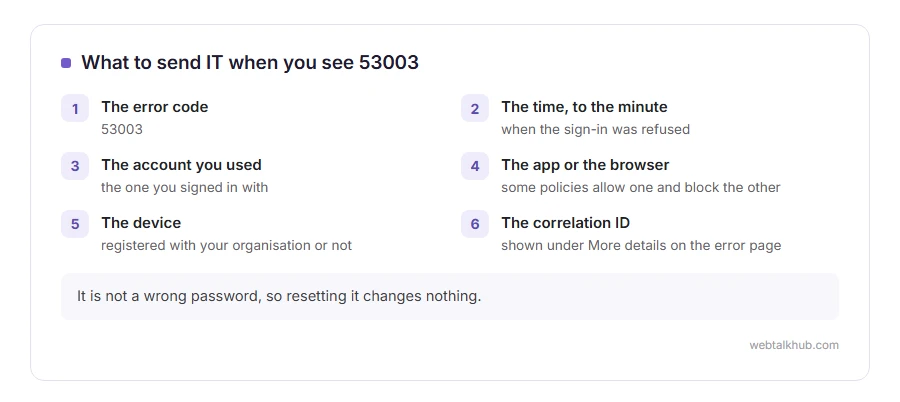
Send them the error code, the time to the minute, the account you used, the app or browser, the device, and the correlation ID, which you see when you select More details on the error page. That ID takes them straight to the sign-in log entry with the named policy in it.
Ask them one direct question: which Conditional Access policy blocked the sign-in, and what does it require. Their answer tells you whether it is your device, your location or your account, and there is nothing you can do from your side until you know.
What this error is not
Worth saying plainly, because people waste an evening on the wrong thing.
It is not a wrong password, so resetting it changes nothing. It is not a hacked account, and nobody is locked out for suspicious activity. It is not a Windows problem, so reinstalling anything is time you will not get back.
If your error is 500121 rather than 53003, that is a multi factor step that failed rather than a policy refusing you, which is a different fix.
FAQ(Error Code 53003)
Can I fix 53003 myself?
Sometimes, when it is caused by a VPN or an unfinished multi factor setup. When it is a device or location policy, only an administrator can change it.
Why does it work on my work laptop but not my phone?
Because the laptop is registered and managed, and the phone is not. That is exactly what the policy is checking.
Does clearing cookies help?
Rarely, and it costs nothing to try in a private window first, which does the same thing without signing you out everywhere.
Is my account blocked?
No. A blocked account gives a different message. Your account is fine and this particular sign-in was refused.
What is the correlation ID for?
It points your administrator at the exact entry in the sign-in log, with the policy name. Sending it saves everybody an afternoon.
If you have any issues, you can ask me via comment, and I will love to help you out.
