
Are you trying to change DNS because a site will not load, somebody told you it would make your internet faster, or you want a little more privacy than your provider gives you?
It is a two minute job on any device. Your router normally hands every phone and computer in the house the DNS server of your internet provider, and you can tell a single device, or the router itself, to ask a different one instead.
What it can actually change for you:
- Sites that fail with a DNS error while everything else works
- A provider whose DNS is slow or keeps going down
- Some blocking that providers do by name
- Some privacy, since your provider’s DNS server no longer logs every name you look up
In this guide I will show you where the setting lives on Windows, a Mac, an iPhone, an Android phone and a router, then how to check it worked, and where changing DNS does nothing at all.
Before you change anything, take a screenshot of the current settings. If something stops working, putting them back takes ten seconds when you know what they were.
So let’s get started.
Which DNS servers to use
Three public services cover almost everybody, and all three are free.
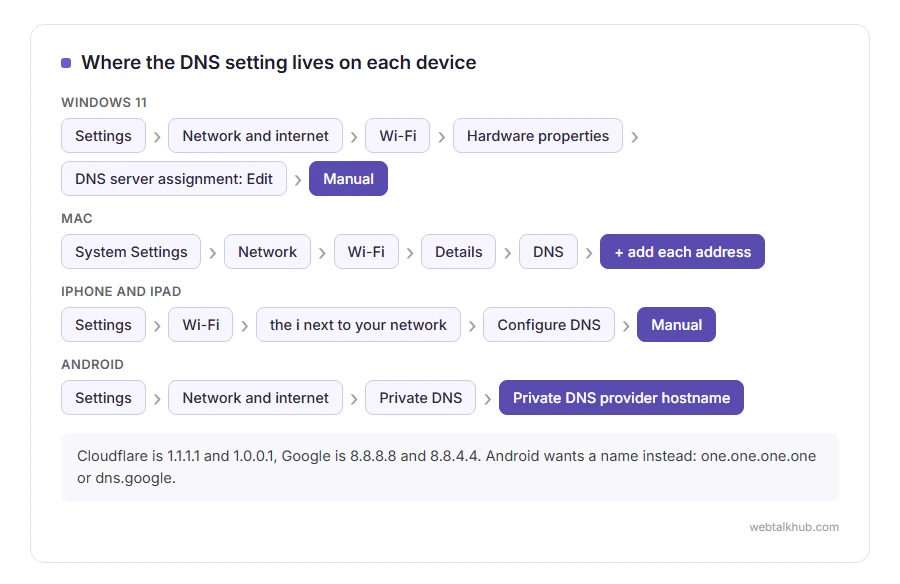
Cloudflare: 1.1.1.1 and 1.0.0.1. Google: 8.8.8.8 and 8.8.4.4. Quad9: 9.9.9.9 and 149.112.112.112, which also refuses to look up known malware sites.
For most people I recommend Cloudflare or Google. Both are fast almost everywhere, and both publish exactly what they log. Always enter two addresses, so the second one takes over if the first is ever unreachable.
1) Windows 11 and Windows 10
On Windows 11, open Settings, then Network and internet, then Wi-Fi and Hardware properties, or Ethernet if you are on a cable. Next to DNS server assignment click Edit, switch it from Automatic to Manual, turn IPv4 on, and type the two addresses into Preferred DNS and Alternate DNS.
Windows 11 also offers DNS over HTTPS in the same box for the big public services. Turning it on hides your lookups from the network as well as from your provider.
On Windows 10, the older route still works: Control Panel, Network and Sharing Center, Change adapter settings, right click your connection, Properties, Internet Protocol Version 4, Properties, then Use the following DNS server addresses.
2) Mac
Open System Settings, then Network, then Wi-Fi, and click Details next to the network you are connected to. Choose DNS on the left, press the plus button under the list, and add each address.
Addresses already in the list that are greyed out came from the router. Your own entries go above them and are asked first.
3) iPhone and iPad
Open Settings, then Wi-Fi, and tap the small i next to your network. Scroll to Configure DNS, choose Manual, delete what is there and add your two servers.
Keep in mind that this is set per Wi-Fi network and does nothing on mobile data. For a setting that follows the phone everywhere, Cloudflare’s free 1.1.1.1 app installs a VPN profile that covers both.
4) Android
Android does it for every connection at once. Open Settings, then Network and internet, then Private DNS, choose Private DNS provider hostname, and type one.one.one.one for Cloudflare or dns.google for Google.
On a Samsung phone the same setting sits under Connections, More connection settings, Private DNS. It wants a hostname rather than numbers, and typing an IP address there does not work.
5) The router, for every device at once
Changing it on the router means every phone, laptop and television in the house uses the new servers without being touched.
Type the router’s address into a browser, usually 192.168.0.1 or 192.168.1.1, sign in with the details on the sticker underneath it, and look for DNS under the internet, WAN or DHCP settings.
This will not help on plenty of routers supplied by internet providers, which lock the setting. In that case, set it on each device instead.
How to check it worked
Open a command prompt or Terminal and type nslookup webtalkhub.com. The first two lines show which server answered, and it should now be the one you chose.
Your computer keeps a list of names it has already looked up, so an old answer can hang around for a while. Flushing the DNS cache clears it, and the page explains how on every system.
When changing DNS does nothing
It will not make downloads or streaming faster. DNS only turns a name into an address, which takes a few milliseconds, and the speed of your connection after that is untouched.
It does nothing if a VPN is switched on, because the VPN uses its own servers while connected. On a work laptop the setting may be locked by your IT department, and some providers quietly redirect every lookup to their own servers whatever you type, which only encrypted DNS gets round, such as DNS over HTTPS on Windows or Private DNS on Android.
If a site still fails after the change, the problem was not DNS. Our pages on DNS server not responding, DNS_PROBE_FINISHED_NXDOMAIN and websites not loading cover what else it can be.
FAQ(Change DNS)
Is it safe to change DNS?
Yes, as long as you use a well known service. It changes who answers your lookups, and nothing on your computer is installed or removed.
Will changing DNS speed up my internet?
Pages can start loading a little sooner if your provider’s DNS was slow. Your download speed does not change at all.
Which is faster, 1.1.1.1 or 8.8.8.8?
It depends where you are. Both are quick almost everywhere, so try each for a day and keep the one that feels better.
How do I undo it?
Set the DNS option back to Automatic, or DHCP on some systems. That is also the first thing to try if sites stop loading straight after a change.
Does changing DNS hide my browsing?
From your provider’s DNS, partly. It does not hide which sites you connect to, and it is not a VPN.
If you have any issues, you can ask me via comment, and I will love to help you out.
What sits behind the setting
Changing the server is the practical part. These two explain what it is doing and where the commands come from.
- what DNS is, how a name becomes an address, the record types, and why changes take time to show.
- the command line, where nslookup and the other network commands are typed, and how to use it safely.
