
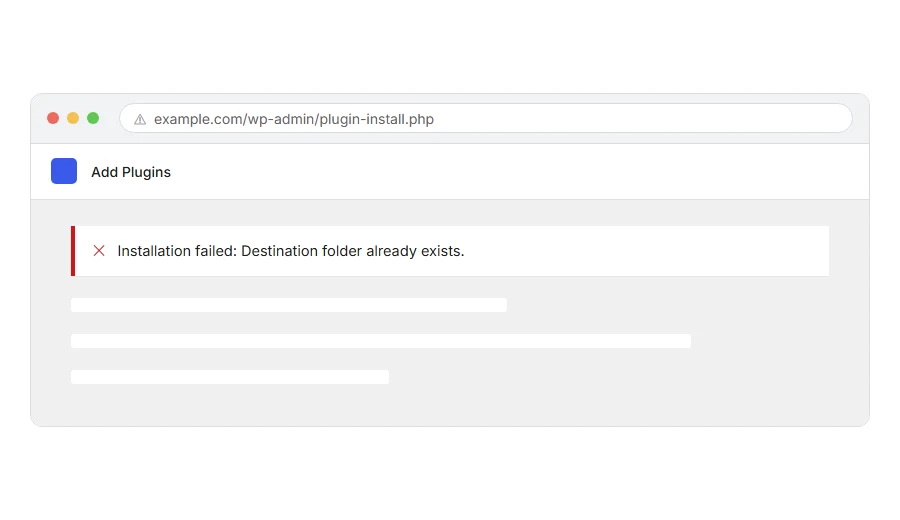
You tried to install or update a plugin and WordPress stopped with Installation failed: Destination folder already exists, followed by a path ending in your plugin’s name.
Here is what it means. A folder with that name is already sitting in your plugins directory, so WordPress will not unzip on top of it.
Think of it like being handed a parking space that already has a car in it. Nothing is broken, the space is simply not empty, and the attendant will not park on top of somebody else.
Do not worry, you are not alone. This one has a simple cause and a simple fix, but there is an order to it that matters, and getting the order wrong is how people lose their settings.
Why it happens
Almost always because a previous install or update did not finish cleanly.
WordPress downloads the zip, unpacks it into a folder, and then swaps it in. If that process is interrupted, by a timeout, a memory limit or a closed browser tab, the folder is left behind with nothing registered against it.
So WordPress sees a folder, sees no installed plugin, and refuses to overwrite something it does not understand.
Read this before you delete anything
The instinct is to delete the folder. Usually that is fine. But deleting a plugin folder through the WordPress Plugins screen can also delete its settings, because many plugins clean up after themselves when you uninstall them properly.
Deleting the folder over FTP does not trigger that cleanup, so your settings in the database survive.
That is the difference, and it is the reason the steps below use FTP first rather than the dashboard.
Where it actually breaks
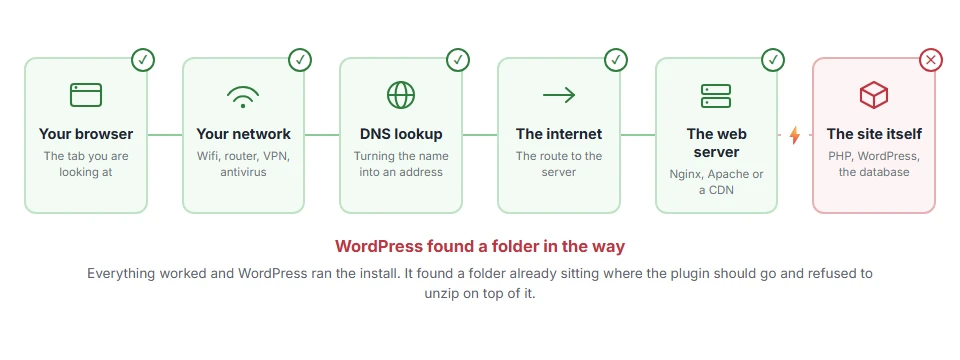
Every page you open makes the same journey. Knowing which step this error stops at tells you which half of the list below is worth your time, because the green steps are already proven to be working.
Step 1: Delete the leftover folder over FTP
Connect by FTP, or open your host’s file manager, and go to:
wp-content/plugins/Find the folder with the name from the error message. Check that the plugin does not appear in your Plugins list in WordPress. If it does not, that folder is an orphan and it is safe to remove.
Delete it, then try the install again.
When this will not help: if the plugin does appear in your Plugins list and is active, do not delete it this way. That is not a leftover, that is a working plugin, and you want step 2 instead.
Step 2: If the plugin is already installed, just update it normally
This catches people who are trying to install a plugin they already have.
If the plugin is in your Plugins list, you do not need to install it again. Go to Dashboard > Updates, or the Plugins screen, and use the update link there. WordPress handles the folder swap properly on an update. Uploading the zip can do the swap too, and step 3 shows how.
When this will not help: if the update link fails with the same message, then the folder really is in a bad state and step 1 applies after all. Back it up before deleting.
Step 3: Upload the zip and let WordPress do the swap
If you would rather not touch FTP, there is a tidy way.
Go to Plugins > Add New Plugin > Upload Plugin and upload the zip. If the plugin is already installed, WordPress compares the two versions and offers a Replace current with uploaded button. Click it and the folder is swapped for you, with no extra plugin needed.
When this will not help: WordPress only offers the replace button for a plugin that is already in your Plugins list. If the folder is an orphan, use FTP instead, as in step 1.
Step 4: Install it manually
If the automatic install keeps failing, do the job yourself.
Download the plugin zip from wordpress.org or wherever you bought it. Unzip it on your computer. Upload the resulting folder into wp-content/plugins/ by FTP, replacing the old folder if one is there.
Then go to your Plugins screen and activate it. WordPress will pick it up on its own, without any install step.
When this will not help: take a copy of the existing folder first if you are replacing one. If the new version turns out to be broken, that copy is your way back.
Step 5: Work out why the install failed originally
Clearing the folder gets you moving, but if the first install failed there is a reason and it will happen again.
Look in your host’s error log around the time of the failed install. The usual causes are a PHP memory limit that is too low, a maximum execution time that is too short for a large plugin, or a permissions problem on the plugins folder.
Folders should be 755 and files 644. The owner matters too. If the wrong user owns them, WordPress cannot write there, even at 755.
When this will not help: on many shared hosts the memory limit and execution time are capped at account level, and nothing you put in wp-config.php will change them. Only your host can.
Frequently asked questions
Will deleting the folder lose my settings? Not if you delete it over FTP. Plugin settings live in the database, not in the folder. Deleting through the Plugins screen can trigger a proper uninstall, and that sometimes does clear them.
The folder has a slightly different name to the error. Is that right? Look carefully. Some plugins unzip into a folder with a version number in it, and that is not the same as the real plugin folder. Delete only the one named in the error.
Can I rename the folder instead of deleting it? Yes, and it is the more cautious move. Rename it to something like plugin-name-old, install fresh, and delete the old one once you are happy everything works.
Does this ever happen with themes? Yes, exactly the same way, in wp-content/themes/ instead. Everything here applies.
If you have any issues, you can ask me via comment, and I will love to help you out.
