
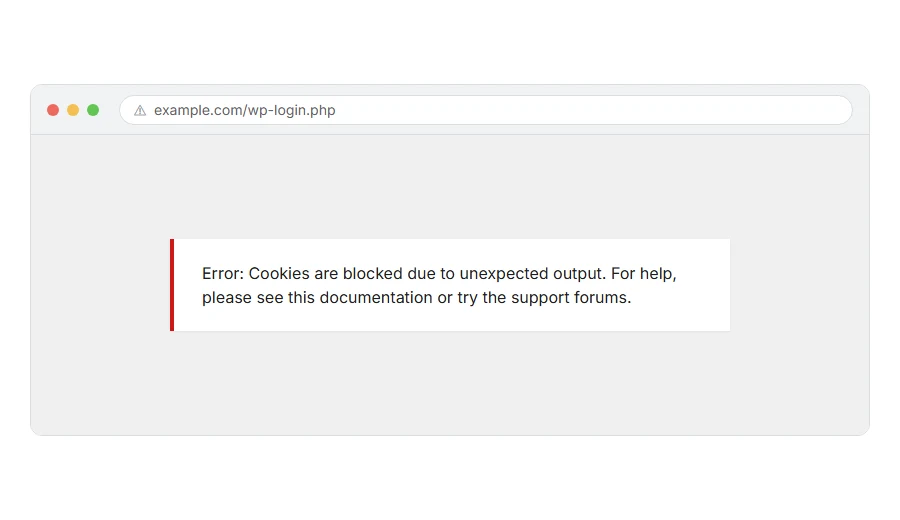
You are trying to log in to WordPress and it refuses, with Cookies are blocked due to unexpected output. It always ends with “For help, please see this documentation or try the support forums”.
The message sends everybody in the wrong direction, because it is not really about cookies at all.
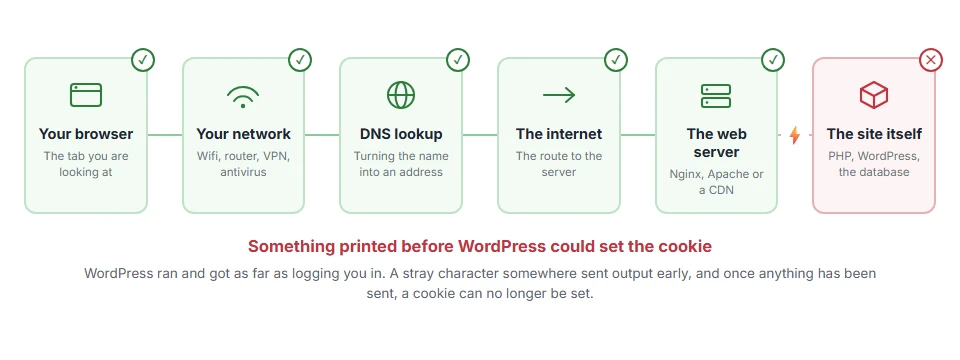
Here is what it means. Something printed characters onto the page before WordPress got the chance to set your login cookie, and once anything has been sent, cookies can no longer be set.
Think of it like sealing an envelope and then remembering you needed to put the letter in. Too late. The order matters, and something jumped the queue.
Do not worry, you are not alone. This is one of the most confusingly named errors in WordPress, and I am here to help. The cause is nearly always one stray character in one file.
Where it actually breaks
Every page you open makes the same journey. Knowing which step this error stops at tells you which half of the list below is worth your time, because the green steps are already proven to be working.
Step 1: Rule out the obvious first
Before hunting through files, rule out the browser, because this message never comes from it. It means the site already sent output.
If your browser really were blocking cookies, WordPress would show a different message, Cookies are blocked or not supported by your browser. So there is nothing to change in your browser settings for this one.
When this will not help: if your screen says “not supported by your browser” instead, you have that other error. It is about your browser’s cookie settings, and the fix is not on this page.
Step 2: Look for whitespace in wp-config.php
This is the cause more often than everything else put together.
Open wp-config.php over FTP or in your host’s file manager. Look right at the very top and the very bottom.
At the top, <?php must be the first thing in the file. Not a blank line before it. Not a space. Nothing.
At the bottom, if the file ends with ?>, there must be nothing at all after it. A single blank line after that closing tag is enough to cause this error.
The safest fix is to delete the closing ?> entirely. PHP does not need it at the end of a file, and once it is gone there is nothing for stray whitespace to sit after.
Save the file and try to log in.
When this will not help: if wp-config.php was already clean, the stray output is coming from somewhere else. Step 3 finds it.
Step 3: Check your theme’s functions.php
Same rule, same problem, different file.
Open wp-content/themes/yourtheme/functions.php and check the top and the bottom exactly as you did before. A blank line before <?php, or anything after a closing ?>, will do it.
This one usually appears right after somebody has pasted a code snippet into the file, so if you added something recently, start there.
When this will not help: if you are using a child theme, check both the child and the parent. The snippet is often in the one you were not thinking about.
Step 4: Turn on debugging so it tells you the file
If the first two files are clean, stop hunting by hand and let WordPress point at it.
Add these lines to wp-config.php, just above the line that says “That’s all, stop editing”:
define( 'WP_DEBUG', true );
define( 'WP_DEBUG_LOG', true );
define( 'WP_DEBUG_DISPLAY', false );
Now load the login page and open wp-content/debug.log. If a plugin or theme is producing output or throwing a warning, the file name and line number will be sitting in there.
When this will not help: turn these lines off again once you have your answer. Leaving debugging on a live site is untidy at best and can expose paths at worst.
Step 5: Deactivate plugins
If the log did not name anything, do it the blunt way.
Rename wp-content/plugins to plugins-off using FTP or the file manager. That switches every plugin off at once. Try logging in.
If you get in, rename the folder back and switch plugins on one at a time until the message returns.
When this will not help: if the error is still there with every plugin off and a default theme active, the output is coming from a must-use plugin in wp-content/mu-plugins, or from the server itself. Check that folder next.
Step 6: Check for a byte order mark
This is the invisible one, and it is why the error sometimes survives everything above.
Some Windows text editors save files with a few hidden characters at the start, called a byte order mark. You cannot see them. PHP sends them to the browser as output, and that is enough.
The fix is to reopen the file in an editor that can save as UTF-8 without BOM, such as Notepad++ or VS Code, and save it again.
If you saved wp-config.php or functions.php as UTF-8 with BOM, or in an old version of Windows Notepad, this is likely your cause.
When this will not help: you cannot spot a byte order mark by looking at the file, so do not waste time squinting at it. Just re-save it correctly and test.
Why the error is named so badly
Worth one paragraph, because it explains why so many guides send people to their browser settings.
WordPress genuinely cannot set the login cookie. That part of the message is true. But the reason is not that your browser refused it, it is that the page had already started being sent.
The word “output” in the message is the important half, and the word “cookies” is the misleading half.
Frequently asked questions
Is it my browser? No. A browser that blocks cookies gets a different message, “Cookies are blocked or not supported by your browser”. This one means something on your site sent output too early, so look at your files.
I deleted the ?> and it still fails. What now? Check functions.php next, then run step 4 with debugging on. The output is coming from somewhere and the log will name it.
Can a plugin cause this? Yes, usually one that was edited by hand or one with a stray line in it. Step 5 finds it.
Will I lose anything by editing wp-config.php? No, as long as you keep a copy of the original before you change it. Download it first, then edit.
If you have any issues, you can ask me via comment, and I will love to help you out.
The other cookie sized problems
Error names are easy to mix up, and the wrong page wastes your time. If what you are looking at is not quite what this one describes, one of these will be closer.
- 431 Request Header Fields Too Large, your cookies for that site have grown past what the server accepts.
- 400 Bad Request, the same oversized cookie problem, reported with a different number.
