
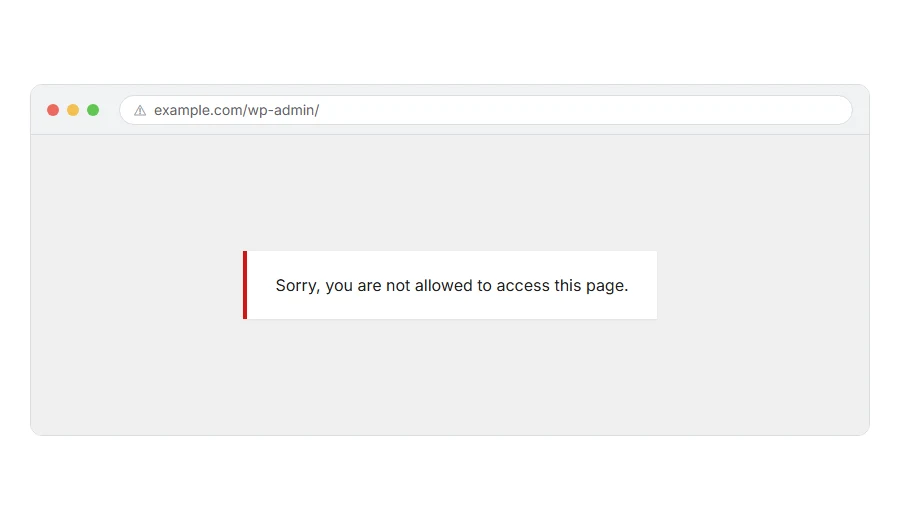
You have logged in to your own WordPress site, and instead of the dashboard you get a white page saying Sorry, you are not allowed to access this page.
The frustrating part is that you are logged in. It knows who you are. It just does not think you are allowed in here.
In one line: WordPress no longer believes your account is an administrator. Think of it like turning up at work with your pass, and the door reader beeping red. You are the same person, the badge just is not on the list any more.
Do not worry, you are not alone, and in almost every case your content is completely safe. I am here to help, and the causes below are ordinary ones.
What usually causes it
It is worth knowing before you start, because it tells you which fix to try.
A failed migration or restore. This is the most common one by a distance. WordPress stores your role with a prefix that must match the one in wp-config.php, and moving a site between hosts sometimes breaks that match.
Your role was changed. By another admin, or by a plugin, or by a membership plugin deciding you belong somewhere else.
A plugin or theme conflict. Something is filtering capabilities and getting it wrong.
A corrupted user row in the database. Rare, but it happens after a crash mid update.
Where it actually breaks
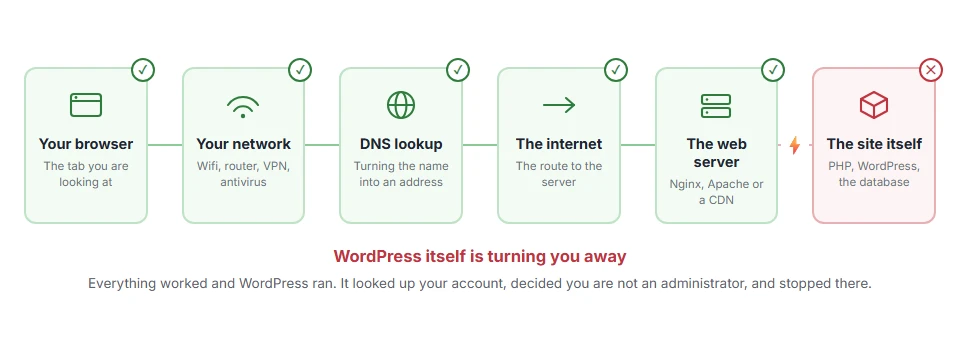
Every page you open makes the same journey. Knowing which step this error stops at tells you which half of the list below is worth your time, because the green steps are already proven to be working.
Step 1: Try a different browser or a private window
Do this before anything harder, because it costs thirty seconds.
If you get in from a private window, the problem is an old cookie in your normal browser and nothing on your site is wrong at all.
When this will not help: if every browser gives the same message, the problem is on the server and you need step 2.
Step 2: Deactivate your plugins
If you can reach any part of the dashboard, deactivate them all and try again.
If you cannot reach the dashboard, connect by FTP or open your host’s file manager and rename the folder wp-content/plugins to plugins-off. That switches every plugin off at once. While it is still renamed, open the Plugins page at /wp-admin/plugins.php once, so WordPress marks them all as deactivated. Rename it back after that and they all return, still deactivated, with their settings intact.
Then switch them on one at a time, checking after each, until the message comes back. Membership, security and role manager plugins are the usual suspects.
When this will not help: if the message is still there with every plugin off, skip ahead to step 4. That is the migration cause and no amount of plugin hunting will find it.
Step 3: Switch to a default theme
Same idea, different suspect. Rename your theme’s folder over FTP and WordPress will fall back to a default one by itself.
If you get in, your theme was filtering capabilities somewhere, usually in functions.php.
When this will not help: if you only have one theme installed, WordPress has nothing to fall back to. Upload a default one first.
Step 4: Check the table prefix, which is the real culprit most of the time
This is the one that catches people after moving a site, and almost nothing tells you it is the cause.
Open wp-config.php and find this line near the bottom:
$table_prefix = 'wp_';Now open your database in phpMyAdmin, or whatever your host provides, and look at the actual table names. If your tables are called wp_posts, wp_users and so on, then wp_ is correct.
But if the rows inside still carry an old prefix, such as wpxy_capabilities in wp_usermeta or wpxy_user_roles in wp_options, that is your problem. WordPress looks for wp_capabilities, finds nothing, and concludes you are not allowed anywhere.
Rename those rows so they start with the prefix from wp-config.php, so wpxy_capabilities becomes wp_capabilities. Do the same for wpxy_user_level in wp_usermeta and wpxy_user_roles in wp_options, save, and try again.
When this will not help: if those rows already carry the right prefix, this is not your cause. It is worth checking anyway, because it takes a minute and it is right more often than anything else on this list.
Step 5: Make yourself an administrator again, directly
If you are still locked out, you can put the role back by hand.
In phpMyAdmin, open the usermeta table. Find the rows where user_id is your user id, and look for a meta_key called wp_capabilities, using whatever your real prefix is instead of wp_.
The value should read:
a:1:{s:13:"administrator";b:1;}If it says something else, or the row is missing entirely, that is why you are being turned away. Set it to the line above, exactly as written, including every colon and brace.
There is a second row worth checking, wp_user_level, which should be 10 for an administrator.
When this will not help: back the table up before you touch it. That serialised string has to be exactly right, and a stray character will break the row rather than fix it. If you are not comfortable, step 6 avoids the database completely.
Step 6: Create a brand new admin user with code
If the database makes you nervous, this is the safer route.
Add this to your theme’s functions.php using FTP or your host’s file manager:
add_action( 'init', function () {
    $user = 'newadmin';
    $pass = 'PickSomethingLongHere';
    $mail = '[email protected]';
    if ( ! username_exists( $user ) && ! email_exists( $mail ) ) {
        $id = wp_create_user( $user, $pass, $mail );
        $u  = new WP_User( $id );
        $u->set_role( 'administrator' );
    }
} );
Load any page of your site once, so the code runs. Then log in as that new user.
When this will not help: delete those lines the moment you are back in. Leaving a hardcoded username and password in a live theme file is a genuine security hole, and it will survive until somebody finds it.
Frequently asked questions
Have I been hacked? Usually not. A broken migration and a role change are both far more likely. If you also see admin users you do not recognise, then treat it as a hack and change every password.
Is my content still there? Almost certainly yes. This is a permissions problem, not a data problem. Your posts, pages and images are untouched.
Why did it happen after I moved hosts? Because the table prefix changed, but the rows that hold your role inside the database still use the old one. Step 4 is written for exactly your situation.
Can another admin fix it for me? Yes, and it is the easiest fix of all. If somebody else still has admin access, they can set your role back from Users in two clicks.
If you have any issues, you can ask me via comment, and I will love to help you out.
