
Somebody’s system wants a CSV, so you need to create a csv file that it accepts the first time rather than after three failed imports.
Don’t worry, making one takes a minute. Getting it accepted is about three settings that nobody mentions until the import fails: the separator between the columns, the encoding for accented letters, and how values containing commas are quoted.
So this page covers the three ways to make one, and then those three settings, because that is where the real work is:
- Excel, which is what most people have
- Google Sheets, which is the safest for encoding
- Notepad or any text editor, which is the honest way when the file is small
In this article you will also learn how to check the file before you send it, so an import does not fail an hour later.
So let’s get started.
1) In Excel
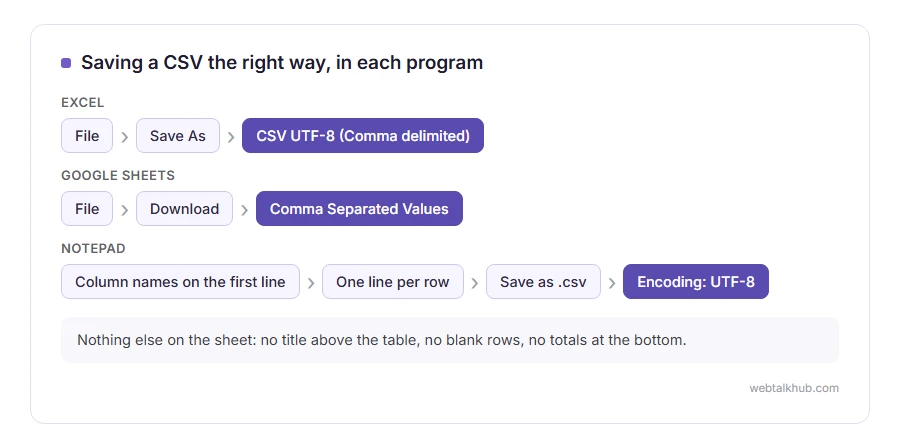
Put your column names in the first row, then your data underneath, with one row per record and nothing else on the sheet: no title above the table, no blank rows, no totals at the bottom.
Then File, Save As, and choose CSV UTF-8 (Comma delimited) rather than plain CSV. Excel warns you that only the current sheet is saved and that formatting will be lost, which is correct and is the whole point of a CSV.
The limit to know before you start: a CSV holds one sheet and no formulas, so Excel saves each formula as the result you see on screen and the formula itself is not kept.
2) In Google Sheets
Build the same flat table, then File, Download, and Comma Separated Values.
Sheets always writes UTF-8, which is why accented names and non English text survive it. It will not help with the separator, though, since that is decided by the system receiving your file. If your data has any of those in it, I recommend this route over Excel, because it removes the most common cause of a rejected import in one step.
3) In Notepad or any text editor
For a small file this is quicker than opening a spreadsheet, and it is the way to see exactly what you are producing.
Type the column names on the first line separated by commas, then one line per row. Save with the ending .csv, and in Notepad set Encoding to UTF-8 in the save dialogue.
Wrap any value that contains a comma in double quotes, like "Smith, John". If a value contains a double quote, write it twice inside the quotes. A value with a line break in it, like an address over two lines, goes inside double quotes too. Those three rules are the entire quoting standard and getting them wrong is what makes a row split in the wrong place.
The separator: comma or semicolon
This is the setting that causes most rejected files.
In much of Europe the decimal separator is a comma, so spreadsheets there write a semicolon between columns instead. A file made in one place can look broken in the other.
Ask the receiving system which it wants. If you have no way to ask, a comma is the safer default, and the file is easy to change: open it in a text editor and replace the separator, or in Excel use Data, From Text/CSV and re-export.
The encoding: UTF-8
If names come back as strange symbols at the other end, the encoding was wrong.
Save as UTF-8 and say so when you send the file. Excel offers CSV UTF-8 as a separate item in the Save As list, which is the one to pick. Older versions do not have it, so use Google Sheets or Notepad instead.
Be careful with a plain CSV export from an old version of Excel on Windows, because it can write a format that mangles anything outside plain English.
Check the file before you send it
Two checks, both quick, and they save an hour of email later.
Open the finished file in Notepad and look at the first three lines. You should see the headers, then data, with the separator you expect and quotes only around values that need them.
Then open it fresh in Google Sheets, with File, Import, and untick Convert text to numbers, dates, and formulas before you import, because with that box ticked Sheets can strip leading zeros and change long numbers on its own. Now look at the columns. If a postcode has lost its leading zero, or a long number has turned into scientific notation, that damage was done when the file was made rather than when it was read. Our page on what a CSV file is explains how Excel does that and how to stop it.
FAQ(How to Create a CSV File)
Does a CSV need a header row?
Most systems expect one and some do not accept one. It is the first thing to check in whatever documentation you were given.
Can a CSV have more than one sheet?
No. One file is one table. Several tables mean several files, or a spreadsheet file instead.
How do I make a CSV on a Mac?
Numbers exports one with File, Export To, CSV, and Google Sheets works the same way in a browser. TextEdit can do it too, in plain text mode.
Why does my CSV open in Excel with everything in one column?
Excel is expecting a different separator, and the file itself is fine. Import it through Data, From Text/CSV and choose the right delimiter.
Can I create a CSV from JSON?
Yes, though the data has to be flat to fit a table. Nested parts have to be flattened or dropped first, which is a decision rather than a conversion.
If you have any issues, you can ask me via comment, and I will love to help you out.
