
Has a website, a bank or a shop given you a .csv file, and you are not sure what it is or what to open it with?
Don’t worry, this is one of the simplest file types there is. A CSV is a plain text table: one line per row, and commas between the columns. That is the whole format. It carries no colours, no formulas and no formatting, which is exactly why every program in the world can read one.
Because it is plain text, three questions cover almost everything people need:
- What is actually inside it, so you know what you are looking at
- How to open it without Excel quietly changing your data, which it does by default
- How to fix the two things that go wrong: the wrong separator, and strange characters
In this article you will learn all three, and where a CSV stops being the right tool at all.
So let’s get started.
What is inside a CSV file
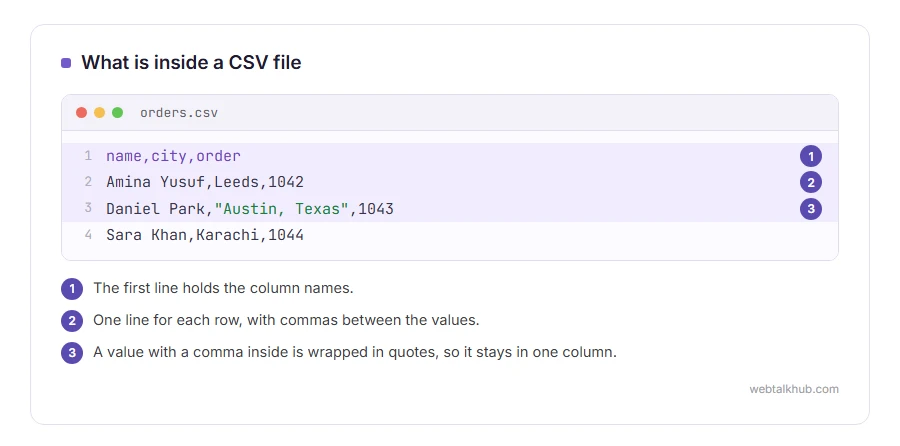
Open one in Notepad and you will see something like this: a first line with the column names, then one line for each row, with commas between the values.
A value that contains a comma is wrapped in quotes so the comma does not split the row. The same goes for a value with a quote or a line break in it, and a quote inside the value is written twice. Everything else is exactly as plain as it looks.
That is why a CSV works between programs that know nothing about each other: your bank writes one, your accounting software reads one, and neither had to agree on anything but commas.
1) Open it to look at it, without changing anything
If you only want to read the file, use Notepad on Windows or TextEdit on a Mac. Right click, Open with, and pick one.
For a large file, a code editor such as Visual Studio Code opens it instantly and lets you search inside it. A browser will not display a CSV as a table, so drag and drop is not the answer here.
Looking at it in a text editor changes nothing, which is the point. The moment you open it in a spreadsheet, the next section matters.
2) Open it in Excel without ruining your data
This is the part that costs people real money, and almost nobody is warned about it.
If you double click a CSV, Excel guesses what every column is. It turns long numbers into scientific notation, drops leading zeros from postcodes and account numbers, and reads some codes as dates. Then, if you save, the damage is written back into the file.
Do this instead: open Excel first, then Data, then From Text/CSV, choose the file, and in the preview set Data Type Detection to Do not detect data types before you load it, so every column comes in as Text. Google Sheets is gentler, with File, then Import, and an option to leave text as it is.
If you are only checking the file rather than editing it, do not open it in a spreadsheet at all. A text editor cannot corrupt anything.
3) When the columns all land in one column
You open the file and every row sits squashed in column A. This is the separator.
Some countries use a semicolon instead of a comma, because the comma is their decimal point. The file is fine, your spreadsheet is simply expecting the other one. In the Data, From Text/CSV dialogue you can choose the delimiter, and in Google Sheets it is a dropdown in the import screen.
Saving it again from the same program does not help here. In Excel you can also rename the file from .csv to .txt before you open it. Excel then shows its import wizard, and you pick the separator yourself.
4) When the accented letters look wrong
Names with accents, or any non English text, sometimes arrive as strange symbols.
That is the encoding. Nearly everything today is UTF-8, and Excel on Windows still assumes something older unless you tell it otherwise. In the same Data, From Text/CSV dialogue, set File Origin to UTF-8 before loading.
If you are producing the file, save it as UTF-8 and say so to whoever receives it. It is the single most common cause of a support email about a broken import.
When a CSV is the wrong choice
A CSV holds one flat table and nothing else. No multiple sheets, no formulas, no formatting, no pictures. Keep in mind that this is the format being honest rather than a limitation of your program.
So if you need any of those, you want a spreadsheet file. If you need nested data, such as an order with several lines inside it, JSON is the better fit, and our page on how to open a JSON file covers that side. Our JSON formatter is there for reading one once you have it.
And if you are making a CSV rather than reading one, our guide on how to create a CSV file walks through Excel, Google Sheets and Notepad.
FAQ(What Is a CSV File)
What does CSV stand for?
Comma separated values, which is a description of the format rather than a brand or a program.
Can I open a CSV without Excel?
Yes. Notepad, TextEdit, Google Sheets, LibreOffice and any code editor open one, and for reading only, a text editor is the safest of all.
Why does Excel change my numbers?
Because it guesses the type of each column when you double click the file. Import it through Data, From Text/CSV and choose Do not detect data types in the preview, so every column comes in as Text.
Is a CSV the same as an Excel file?
No. A CSV is plain text with one table in it. An Excel file holds sheets, formulas and formatting, and the two are not interchangeable.
Is it safe to open a CSV file?
Reading one is safe, because it is text. Be careful with a CSV from somebody you do not know that you then open in a spreadsheet, since a value starting with an equals sign can be treated as a formula.
If you have any issues, you can ask me via comment, and I will love to help you out.
When the dates come out wrong
Dates are the column that breaks most often when a CSV moves between programs.
- the ISO date format, why 2026-09-25 cannot be misread, and how Unix timestamps fit in.
