
Do you want a web page, a PDF or your own writing read out to you, and every text to speech site you find wants you to paste it into their box, sign up, or pay for a nicer voice?
You probably have what you need already. Every recent computer and phone comes with voices built in, and the browser you use every day can read a whole page aloud for free, with no account.
Where it lives depends on what you are reading and on which device:
- A web page or a PDF on a computer: Edge’s Read aloud, or Chrome’s Reading mode
- Your own document: Read Aloud in Word
- Anything on a Mac, iPhone or iPad: Speak selection
- Anything on an Android phone: Select to Speak, or Listen to this page in Chrome
- An audio file you can keep: one command on Windows or on a Mac
In this article you will learn each of these, which one suits which job, and where each one stops, including the one thing none of the built in voices can do.
So let’s get started.
1) In Microsoft Edge: Read aloud, for pages and PDFs
Edge is already on every Windows computer, and its Read aloud is the most complete of the built in options.
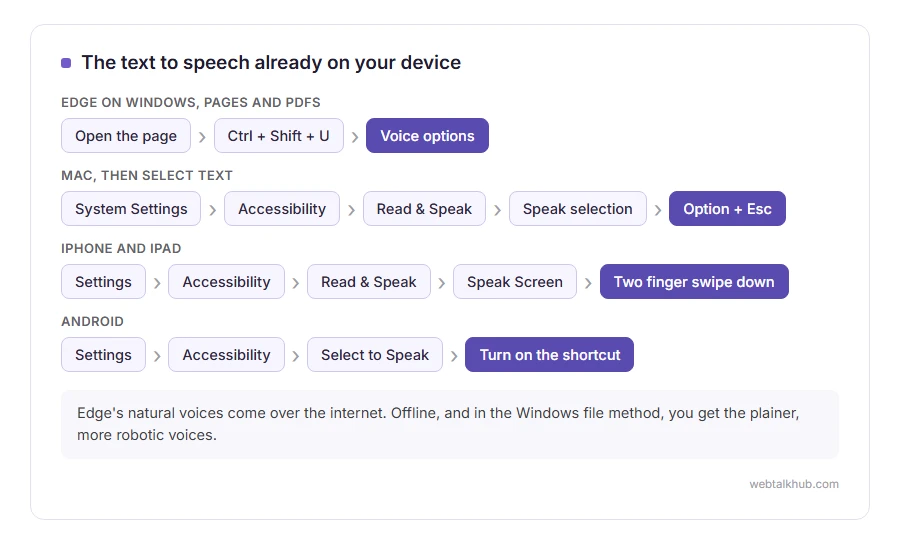
Open the page or the PDF in Edge and press Ctrl + Shift + U, or right click the page and choose Read aloud. A bar appears at the top with play, pause and skip buttons, and Voice options, where you pick the voice and the speed. To hear only part of a page, select that text first, right click it and choose Read aloud selection.
For most people on Windows, this is the one I recommend, because its natural voices sound much more like a person than the older voices built into Windows itself. Those natural voices come over the internet, though, so offline you are left with the plainer ones. It also does not work on a scanned PDF, which is a picture of a page rather than text.
2) In Chrome: Reading mode reads the page aloud
Chrome does the same thing through Reading mode, which strips the page down to its text.
Right click the page and choose Open in reading mode, or open the three dots menu, then More tools and Reading mode. It opens full screen. Press the Play button at the top right to hear it, and use the speed and voice settings next to it.
It works best on articles. This will not help much on a page that is mostly menus, buttons or a web app, because Reading mode finds little text there to read.
3) In Word: Review, then Read Aloud
For your own writing, hearing it read back is the quickest way to catch a missing word, because your ears do not skip what your eyes do.
In recent versions of Word, including the one in Microsoft 365, open the Review tab and click Read Aloud. Word reads from where your cursor is and highlights each word as it goes, and the small player that appears has its own voice and speed settings.
It does not work outside Word itself, so for a web page go back to method 1 or 2.
4) On a Mac: Speak selection
Every Mac can read aloud the text you select, in any app, once one setting is on.
Open System Settings, then Accessibility, then Read & Speak (called Spoken Content on older Macs), and turn on Speak selection. Now select text anywhere and press Option + Esc. With nothing selected, it reads the whole window.
The voice in that same settings page can be changed, and the higher quality ones are a free download there. If Option + Esc does nothing, another app may have taken that shortcut, and you can choose a different one with the Info button next to Speak selection, under Keyboard shortcut.
5) On an iPhone or iPad: Speak Selection and Speak Screen
Open Settings, then Accessibility, then Read & Speak (called Spoken Content on older versions), and turn on Speak Selection and Speak Screen.
Now select some text in any app and tap Speak in the menu that appears. To hear the whole screen, swipe down with two fingers from the very top, and a small controller lets you pause it or change the speed.
Speak Screen reads what is on the screen, so on a long page it also reads menus and buttons along the way. For an article, opening it in Safari’s Reader view first keeps it to the text.
6) On Android: Select to Speak, or Listen to this page in Chrome
Open Settings, then Accessibility, then Select to Speak, and turn on its shortcut. On some phones, Samsung among them, it sits inside Accessibility under Installed apps.
Start it with the shortcut, which is a swipe up with two fingers or the accessibility button, then drag your finger over the text you want read.
For web pages there is an easier way. In Chrome, open the three dots menu and tap Listen to this page. It keeps reading when you switch tabs or lock the screen, and it has its own speed control. It only appears on pages Chrome can read as an article, so on some pages the option is simply missing.
7) Save it as an audio file, with nothing to install
The online sites offer an MP3 download, and that convenience has a price: your text goes to their server to be turned into sound. For anything private, your computer can make the file itself.
Before you start, save your text as a plain file called text.txt on your desktop.
On Windows, open PowerShell from the Start menu and paste these six lines. They make speech.wav on your desktop:
$desk = [Environment]::GetFolderPath('Desktop')
Add-Type -AssemblyName System.Speech
$voice = New-Object System.Speech.Synthesis.SpeechSynthesizer
$voice.SetOutputToWaveFile("$desk\speech.wav")
$voice.Speak((Get-Content "$desk\text.txt" -Raw))
$voice.Dispose()
The first line finds your real desktop, which matters because on many computers OneDrive has moved it. The drawback is the voice: this uses the older Windows voices, on an English Windows 11 David and Zira, which sound noticeably more robotic than Edge’s.
On a Mac, open Terminal and run this. It makes speech.aiff on your desktop:
say -o ~/Desktop/speech.aiff -f ~/Desktop/text.txtAdd -v and a voice name to choose the voice. Both files are uncompressed, so they are much bigger than an MP3 of the same length.
FAQ(Text to Speech)
Is text to speech free?
Everything built into Windows, macOS, iOS, Android, Edge and Chrome is free. The online sites usually have a free allowance and charge for longer texts or their most natural voices.
Can it read a PDF aloud?
Yes, in Edge, as long as the PDF contains real text. A scanned PDF is a picture of a page, and it needs text recognition before any voice can read it.
Why does the voice sound robotic?
You are hearing one of the older voices. On a Mac, iPhone or iPad, download an enhanced voice in the Read & Speak settings, and on Windows, use Edge’s natural voices instead of the ones built into Windows.
Can I make an MP3 without a website?
Not in one step. Method 7 gives you a WAV or AIFF file, and a free audio editor such as Audacity can export that as an MP3.
If you have any issues, you can ask me via comment, and I will love to help you out.
