
Has a visitor told you that a link on your site goes nowhere, or has Search Console started listing pages as “Not found”, and now you want to find broken links across the whole site before anybody else trips over them?
Don’t worry, every site that is more than a year old has a few. Pages get renamed, other websites close down, and a link that worked on the day you wrote it quietly stops. Think of it like the signposts in a town after some of the shops have moved: the signs still point, and the shops are gone.
A broken link is usually one of these:
- A link inside your site to a page of yours that no longer exists
- A link from your site to another website’s page that has moved or closed
- A picture or a download whose address no longer works
In this article you will learn five free ways to find them, from the one that needs nothing installed to the one that checks every page. You will also learn which blind spot each one has, and how to fix what you find without creating new problems.
So let’s get started.
1) Look in Google Search Console first
If your site is already in Search Console, Google has been collecting broken addresses for you, and it costs nothing to look.
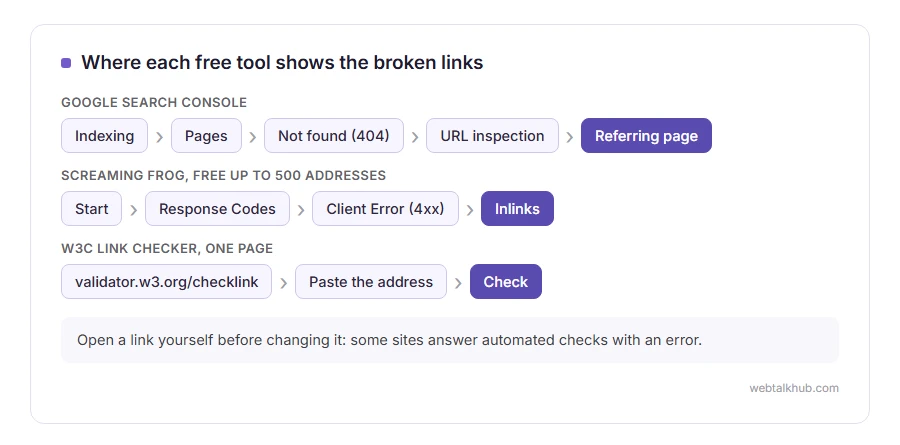
Open Search Console, choose your site, then Indexing and Pages. Scroll down to the table of reasons pages are not indexed and click Not found (404). That list is every address on your site that Google tried and found missing.
To see where Google found the dead link, copy one of those addresses into the URL inspection box at the top. Under the page indexing details, the Referring page line shows a page that led Google to it.
This only covers addresses Google has tried, and the report can be days behind. It says nothing about your links to other websites, and the referring page is a hint rather than a full list. It also only works for a site you own, because Search Console asks you to prove that first.
2) Check a page, or a small site, with the W3C Link Checker
The W3C, the group behind web standards, runs a free checker that needs no account and no installing.
Go to validator.w3.org/checklink, paste the address of a page and press Check. It reads every link on that page, tries each one, and lists the ones that fail with their error code.
To go beyond one page, tick Check linked documents recursively and type a number in the recursion depth box. A depth of 1 or 2 is plenty for a small site, and leaving it at the default, which means unlimited, can take a very long time on a big one.
It is slow, because it waits politely between requests, and it only sees links written into the page itself. Links that a script adds after the page loads are invisible to it, and some sites block checkers of this kind, so a link it reports as broken can still open fine in a browser.
3) Check the page in front of you with a browser extension
For a single page you are editing, an extension is the quickest way. The one I use is Check My Links for Chrome, which also installs in Edge and other browsers built on Chrome.
Open the page, click the extension’s icon, and it tries every link on the page. Working links turn green, broken ones turn red, and the red ones show the error code they returned.
The limit is in the name: it checks the page you are on, not the site. It also flags a few links that are fine for people, because some sites refuse automated checks. LinkedIn is the classic case, answering checkers with a code of 999, so always open a red link yourself before you change it.
4) Crawl the whole site with Screaming Frog, free up to 500 addresses
When you want every page at once and a list of exactly where each broken link sits, a desktop crawler is the proper tool. Screaming Frog’s SEO Spider runs on Windows, Mac and Linux, and the free version crawls up to 500 addresses.
Type your site’s address into the box at the top and press Start. When it finishes, open the Response Codes tab and choose the Client Error (4xx) filter. Click any address in that list, then the Inlinks tab at the bottom, and it shows every page that links to it.
For the whole list in one spreadsheet, use Bulk Export, then Response Codes, then Client Error (4xx) Inlinks. Each row gives the page the broken link is on and the address it points to, which is exactly the list you need to fix them.
For a site of a few hundred pages, this is the method I recommend, because it tells you where each broken link is, which Search Console often cannot. The only drawback is the 500 limit: on a bigger site the free version stops part way, and the paid licence is the only way past it.
5) On WordPress, the Broken Link Checker plugin
If your site runs on WordPress and you would rather not leave the dashboard, Broken Link Checker by WPMU DEV is free, with more than 500,000 active installs.
It has two engines. The local one runs on your own server and needs no account. The cloud one runs on WPMU DEV’s servers instead and needs a free Hub account, which comes with some restrictions.
Before you switch on the local engine, know that it does its checking on your own hosting. On a cheap shared plan I don’t recommend leaving it running all the time: run a scan, fix what it finds, then deactivate it. The cloud engine avoids that load, at the price of connecting your site to an outside service.
How to fix a broken link once you have found it
Finding them is half the job. How you fix each one depends on why it broke.
- Your own page moved: change the link to the new address, then add a 301 redirect from the old address to the new one, so bookmarks and other sites’ links still arrive. Our 301 redirect generator writes the rule for you.
- Your page is gone for good: remove or replace the link, and let the old address answer with a proper 404, or a 410 gone if you want to say it was removed on purpose.
- Another website’s page is gone: find where it moved, link to a similar page, or remove the link.
Be careful with one shortcut that looks tidy. Sending every missing page to your home page makes the reports go quiet, but Google’s own help advises against it, because it makes your site’s structure harder to understand. Redirect to the closest real replacement, and where there is none, a real 404 is fine. Our page on the 404 not found error explains what that answer means.
FAQ(Finding Broken Links)
Do broken links hurt my rankings?
Google’s help says 404 errors in general do not hurt how the rest of your site performs in search. The harm is to the people who click them and leave, and to the value a moved page loses when nothing points at its new address.
How often should I check for broken links?
Once a month is plenty for most sites. Check the same day after anything that changes addresses: a redesign, a new permalink structure, or moving to a new domain.
Why does a checker say a link is broken when it opens fine for me?
Some sites refuse automated visitors and answer them with an error, while showing the page to people normally. LinkedIn does it with a 999, and sites behind a strict firewall can do it with a 403. Open the link in your browser before you change anything.
Can I find broken links on somebody else’s website?
Yes. The W3C checker, the browser extension and Screaming Frog all work on any public site. Only Search Console and the WordPress plugin need the site to be yours.
If you have any issues, you can ask me via comment, and I will love to help you out.
