
Did Windows stop you with the system cannot find the file specified, when opening a program, running a command, installing an update or starting a script?
You are not alone, and the message is more literal than it sounds. Windows was told to open a file at an exact location, looked there, and found nothing. Error code 2, and 0x80070002 in Windows Update, are the same message in number form. The file might have moved, been renamed, be spelled slightly differently, or never have existed at the place something is pointing to.
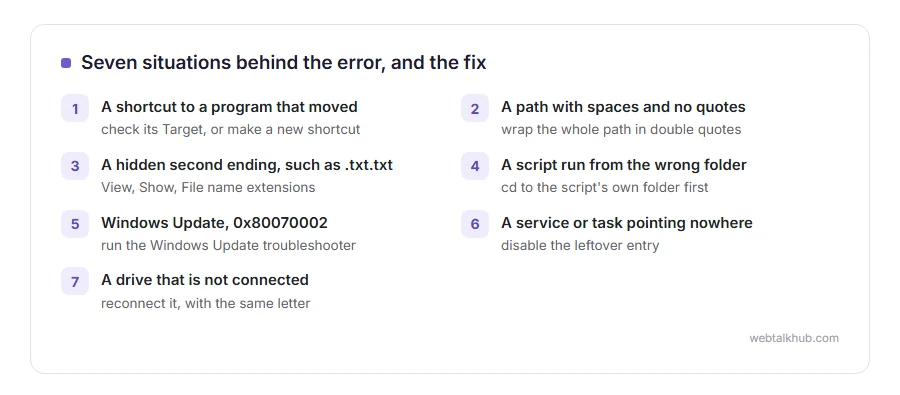
It comes from seven situations far more than any other:
- A shortcut pointing at a program that moved or was uninstalled
- A command typed with a path that has spaces and no quotes
- A file whose real name has a hidden second ending, such as .txt.txt
- A script run from the wrong folder
- Windows Update, with code 0x80070002
- A service or a scheduled task pointing at a program that is gone
- A removable or network drive that is not connected
In this guide I will go through each one with the fix, starting with the ones that take ten seconds.
So let’s get started.
1) The shortcut points to a program that is not there
Right click the shortcut, choose Properties, and read the Target box. If the program was moved, uninstalled or updated to a new folder, the shortcut still points at the old place.
Delete the shortcut and make a new one from the Start menu, or reinstall the program if it is missing entirely. A new shortcut does not work if the program itself was uninstalled, so check it is still in the Start menu first.
2) A path with spaces and no quotes
In Command Prompt or PowerShell, a path such as C:\Program Files\App\app.exe gets split at the space, and Windows goes looking for C:\Program, which does not exist.
Wrap any path that has a space in double quotes, as in "C:\Program Files\App\app.exe". The rest of the rules for typing paths are in our command line basics.
3) The file name is not what you think
Windows hides file endings by default, so a file you see as report.pdf may really be report.pdf.pdf, and a script you see as setup.bat may be setup.bat.txt.
In File Explorer, choose View, then Show, then File name extensions. Now the full names appear, and you can rename the file to what the program expects.
4) A script run from the wrong folder
Python, Node.js and batch scripts often open files by a name without a folder. They then look in the folder you ran them from, not the folder the script lives in.
Change to the script’s own folder first with cd, then run it, or give the full path to the file inside the script. Running it from the right folder will not help if the file name in the script is misspelled, so check that next. If you are comfortable editing the script, building the path from the script’s own location stops this for good.
5) Windows Update error 0x80070002
This one means Windows Update’s own downloaded files are missing or damaged. Run the troubleshooter first: Settings, System, Troubleshoot, Other troubleshooters, Windows Update.
If that does not clear it, the usual fix is to stop the update service, rename the SoftwareDistribution folder inside the Windows folder, and start the service again, so Windows downloads the updates fresh. Before you start, save your work, since the update may then restart the computer.
6) A service or scheduled task pointing nowhere
A program that was uninstalled badly can leave a service or scheduled task behind that still tries to start it at boot, with this message.
Open Services or Task Scheduler, find the entry named after the removed program, and check its path. If the program is gone, disable the entry, and reinstalling the program is the only way to make it work again.
7) A drive that is not connected
A program or shortcut set up on a USB drive or a network drive fails when that drive is missing or has been given a different letter.
Plug it back in, or reconnect the network drive, and check it has the same letter as before in File Explorer.
When none of these fit
System file damage can cause it too. Open Command Prompt as administrator and run sfc /scannow, which checks Windows’ own files and repairs them. It will not help with your own files or programs, only with Windows itself.
FAQ(The System Cannot Find the File Specified)
What does the system cannot find the file specified mean?
Windows looked for a file at an exact location and nothing was there, usually because it moved, was renamed or was typed with a mistake.
What is error 0x80070002?
The same file not found error, shown by Windows Update when its downloaded update files are missing or damaged.
Why does it happen when I run a command?
Most often a path with spaces and no quotes, or a file whose real name has a hidden second ending.
Can a virus cause this error?
Rarely. Antivirus software that quarantined a file can, so check its quarantine list if the error started after a scan.
Does sfc /scannow fix this error?
Only when a Windows system file is damaged. It does not restore your own files or programs.
If you have any issues, you can ask me via comment, and I will love to help you out.
